WhatsApp Text Formatting: Fonts, Shortcuts & Features

Discuss with AI
Get instant insights and ask questions about this topic with AI assistants.
💡 Pro tip: All options include context about this blog post. Feel free to modify the prompt to ask more specific questions!
WhatsApp over the recent years has added in many features that help with formatting your text to express better on the platform.
Summary of WhatsApp Text Formatting Options
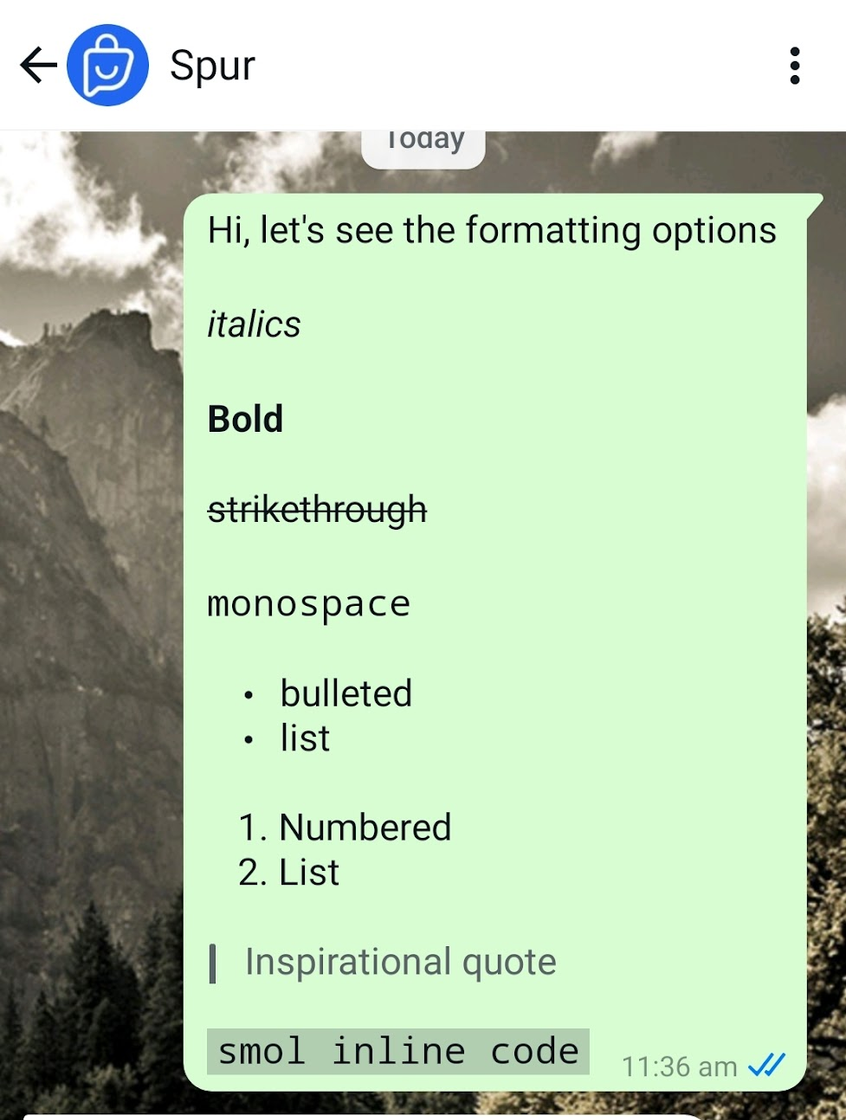
There are many powers you get when it comes to formatting text. These are the options you have:
- Bold
- Italics
- Underline
- Strike-through
- Bullet List
- Numbered List
- Quote
- Inline Code
WhatsApp Shortcuts to quickly format text
WhatsApp itself provides a UI to quickly enable all these formatting options without getting into the details of doing it yourself.
Shortcut to format on Android
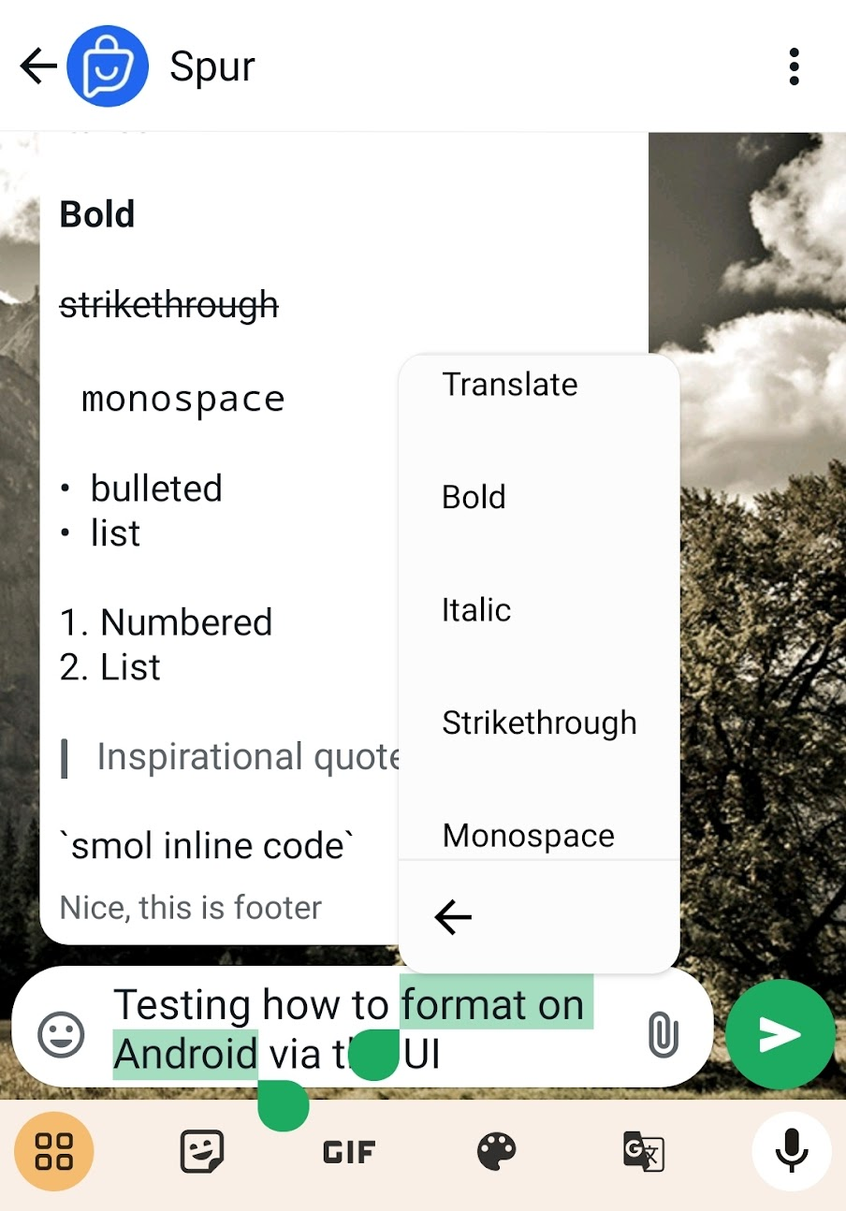
To format text on Android
1. Write your text
2. Select the text by taping and holding on to it
3. Tap on three dots
You'll then get various options to format the text
Shortcut to format on iOS
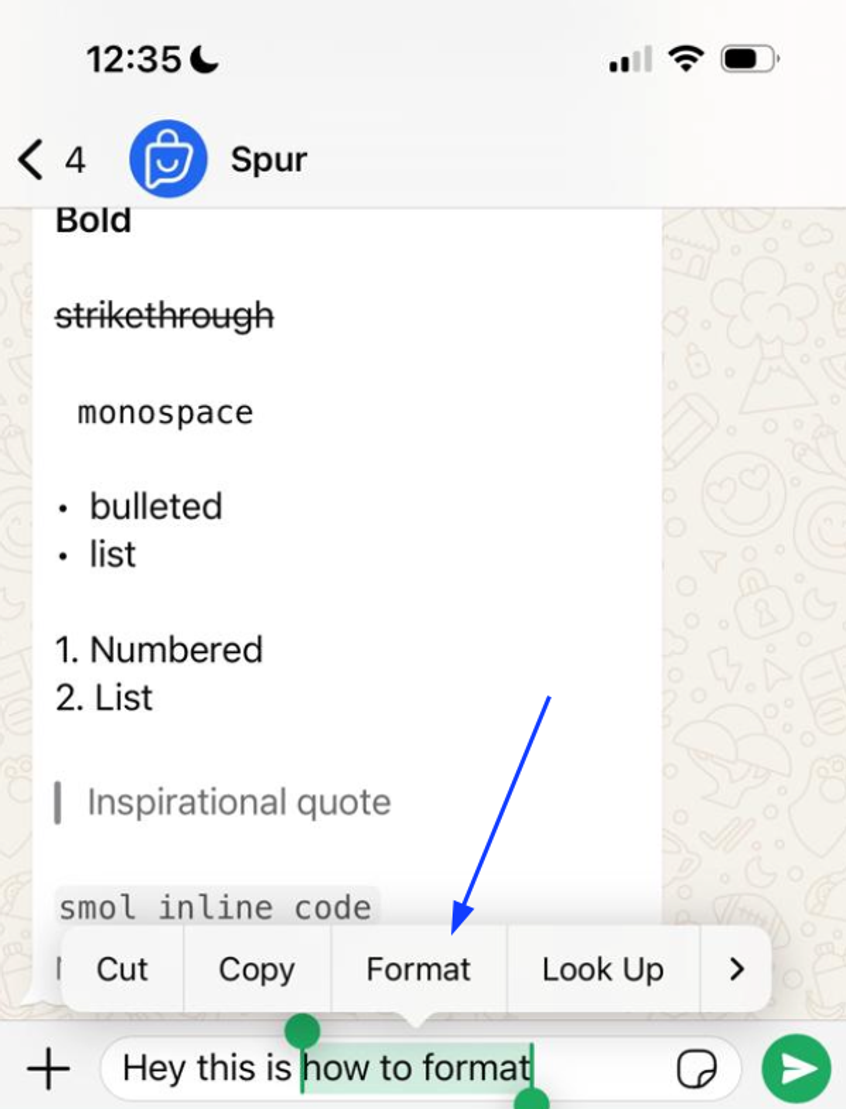
To format text on Android
1. Write your text
2. Double tap on the text you want to select
3. Tap on the "Format" option to get various formatting options
You'll then get various options to format the text
Shortcut to format on WhatsApp Web
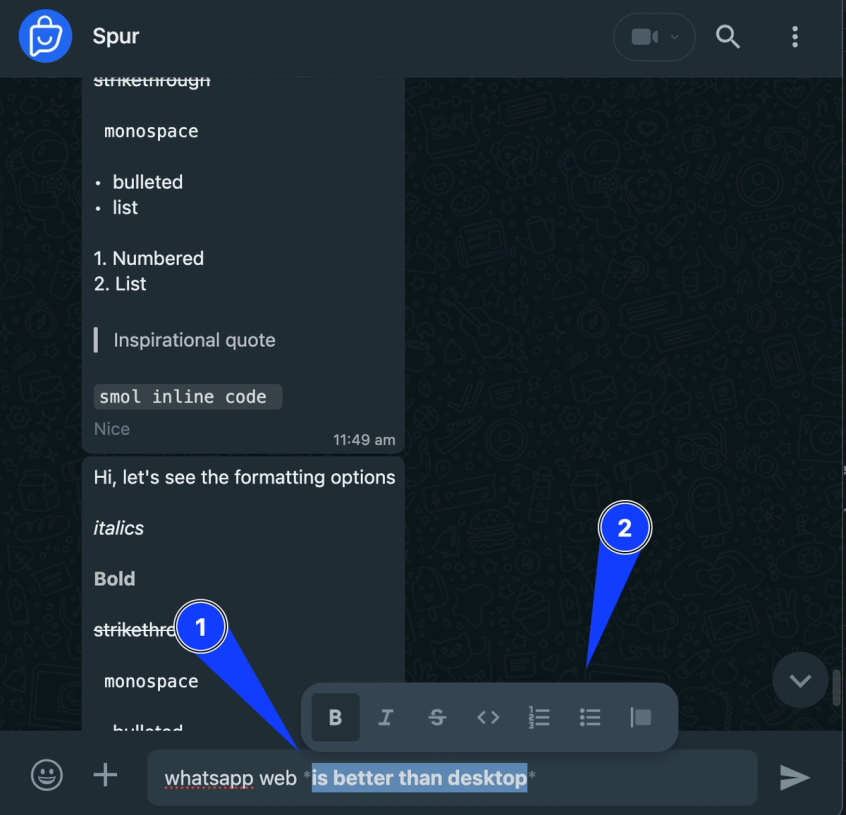
To format text on Android
1. Write your text
2. Use your cursor to select the text you would like to format
3. You'll get all the formatting options and can quickly change among them
I find WhatsApp Web the most convenient way to format text.
How to format text with various options
Now let us see how to try out each option in detail. You can pick up your Android or iPhone along to test whether it works or not.
Italic
To italicize your message, place an underscore on both sides of the text:
Bold
To bold your message, place an asterisk on both sides of the text:
Strikethrough
To strike through your message, place a tilde on both sides of the text:
Monospace
To display your message in monospace, place three backticks on both sides of the text:
Bulleted List
To add a bulleted list to your message, place an asterisk or hyphen and a space before each word or sentence:
Numbered List
To add a numbered list to your message, place a number, period, and space before each line of text:
Quote
To add a quote to your message, place an angle bracket and space before the text:
Inline Code
To add inline code to your message, place a backtick on both sides of the message:
Use WhatsApp Fonts to take it to the next level
To stand out beyond the default formatting options WhatsApp provides, you'll have to use a free tool like WhatsApp Fonts. You just have to put in your text, and it displays a preview of hundreds of fonts you can use to make the text stand out. When you've finalized a text, just click on the preview to copy it, and then paste
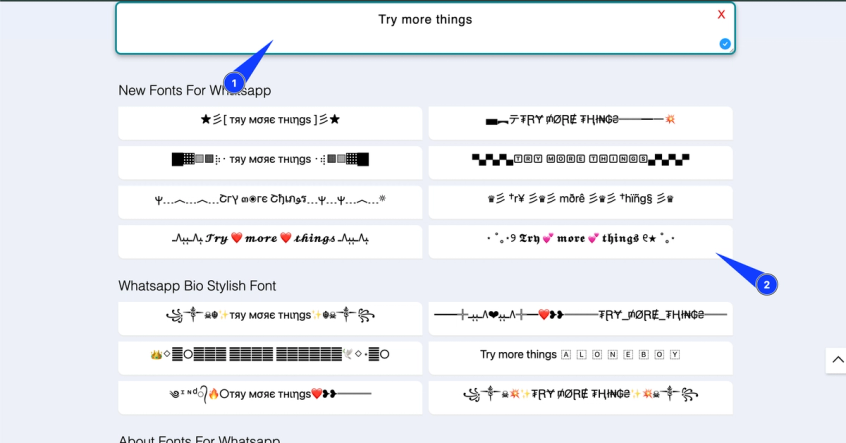
If you don't like these options, then you should consider trying out other tools like wafonts or glyphy.
Final Thoughts
If you're investing in WhatsApp marketing, you should spend time on standing out and using the right tools to get the best results.
Spur is an official WhatsApp Business API provider and tech partner. We provide the latest features that the API brings along with proprietary algorithms to give you the best delivery rates for your campaigns!