Improvement
Choose which Shopify products show on WhatsApp
Keep any Shopify product off your WhatsApp catalog, one at a time or in bulk, without changing your Shopify store.
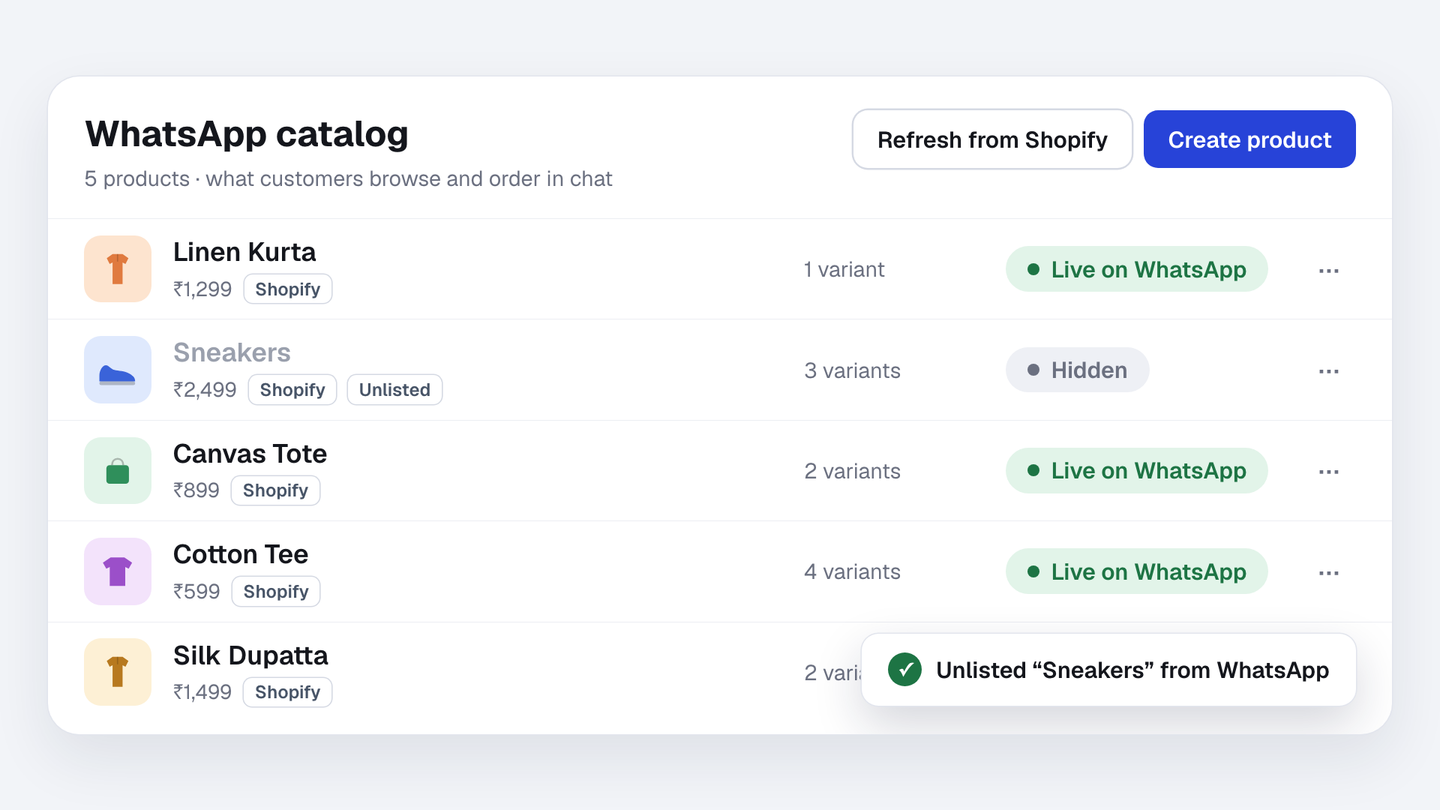
Your WhatsApp catalog fills itself from Shopify. Now you can keep any product off WhatsApp without changing your Shopify store: open its menu and choose Unlist from WhatsApp, or select several and unlist them in one go.
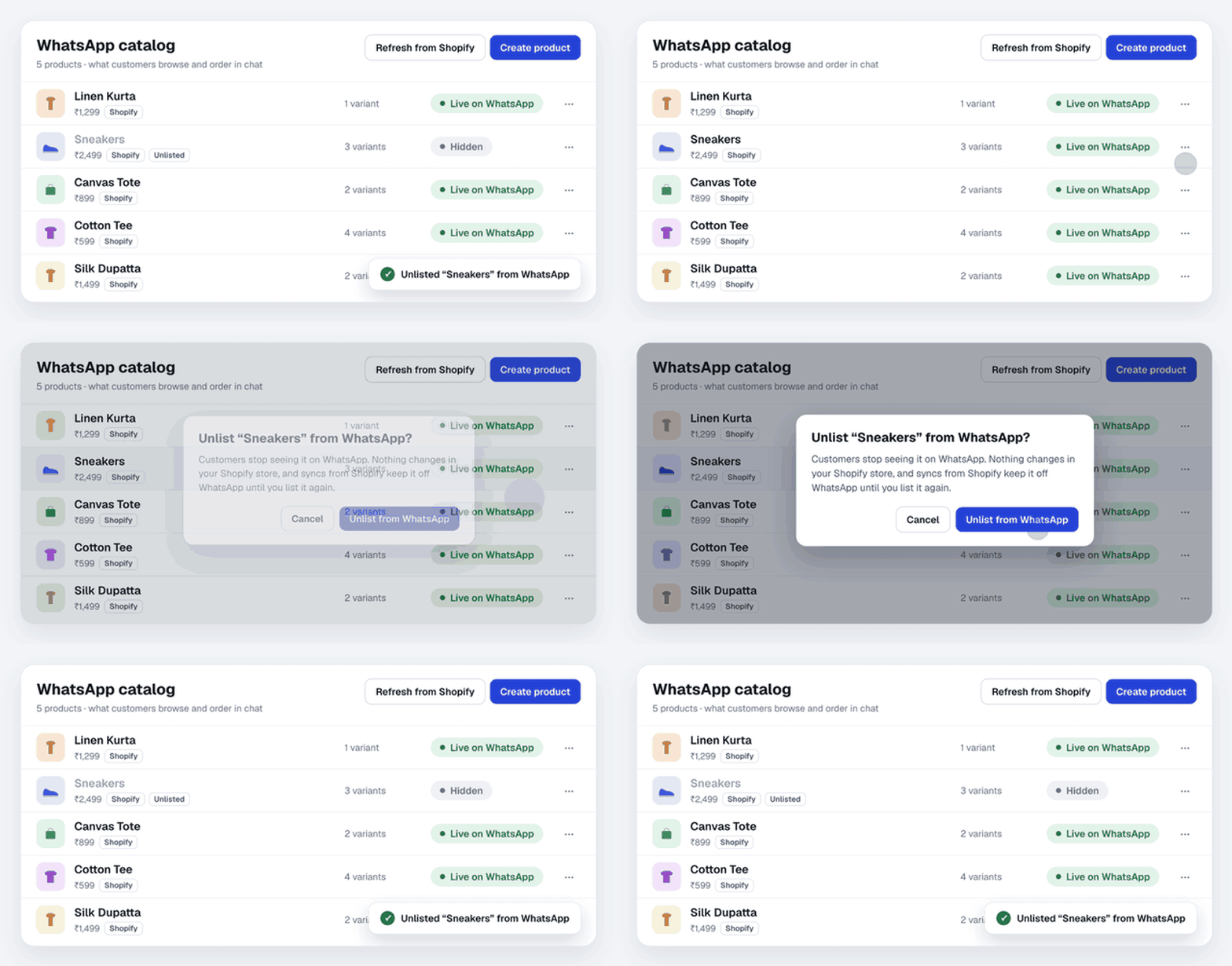
Syncs from Shopify keep your choice, so an unlisted product stays off WhatsApp until you list it again. Show only your bestsellers, or take out what’s out of season.
How to do it
- In Spur, go to Settings, then WhatsApp, and click Manage next to your number.
- In the Catalog section, click View products.
- Open a product’s menu and choose Unlist from WhatsApp. To unlist several at once, select them and click Unlist from WhatsApp in the bar that appears.
- To bring a product back, choose List on WhatsApp.
The WhatsApp catalog is a paid add-on. Read about the WhatsApp catalog