Import a contact list without renaming your columns
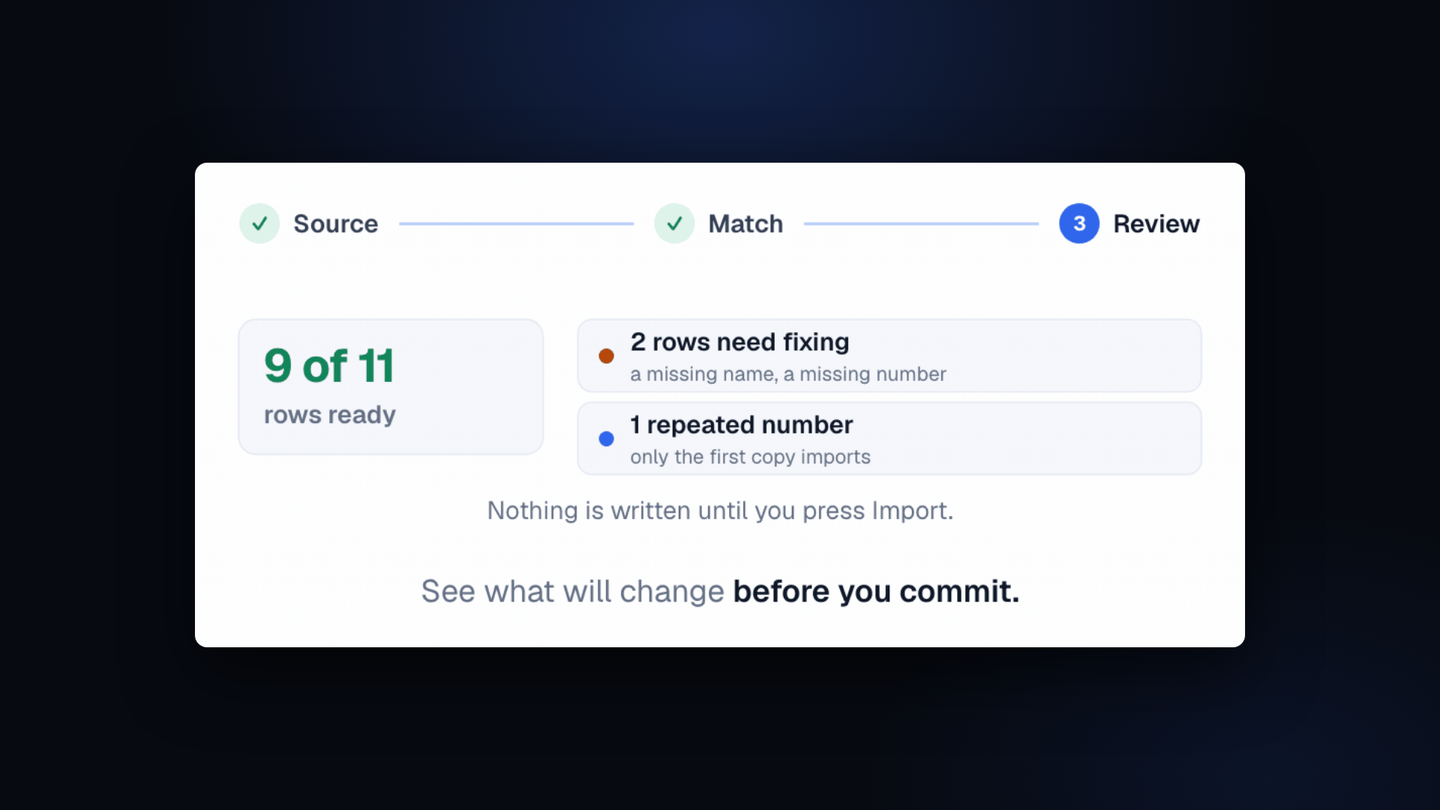
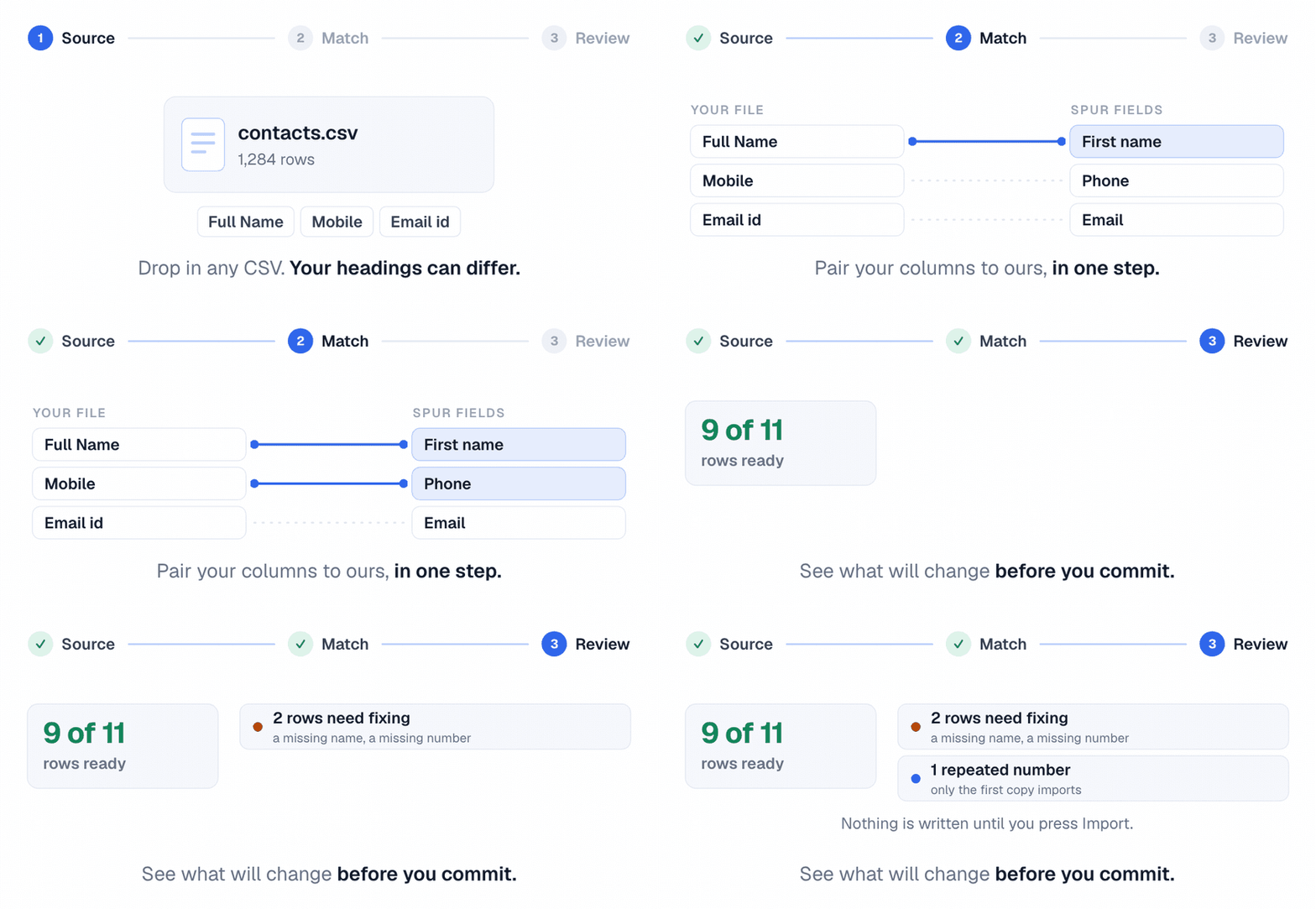
Importing a CSV is now three steps. Spur matches the headings it recognises, you pair up the rest, and the review step shows how many rows are ready and which ones need fixing before anything is written.
Importing contacts used to be a single dialog. Your file needed columns named Contact Name and Phone Number, and pressing Continue ran the import.
It is now three steps: source, match and review. The file goes in as it is, and nothing is written until you have seen what will happen.
Match
Spur matches the headings it recognises, so a column called Mobile lands on Phone number and Full Name lands on First name, each shown with a sample value from your own file. Anything it does not recognise you pair up yourself, set to one value for every row, or leave out of the import.
Review
- How many rows are ready, and how many need fixing first
- The exact field missing on each row that cannot go in yet
- A number that repeats inside your own file, where only the first copy imports
- A row you can correct in place, or drop from this import
- A download of just the invalid entries
Every import is tagged with its date so you can find the batch again, and you can turn it into a Segment as it finishes.
Where to find it
Open Contacts and press Import.