How to Add Live Chat to Shopify (2026 Setup Guide)

Discuss with AI
Get instant insights and ask questions about this topic with AI assistants.
💡 Pro tip: All options include context about this blog post. Feel free to modify the prompt to ask more specific questions!
Adding live chat to your Shopify store removes buying hesitation the moment it happens. Shopify's data shows quick responses can boost conversion by up to 69%, and 70% of chat conversations happen during purchase decisions. You have two paths: Shopify Inbox (free, basic) or AI-powered solutions like Spur's Live Chat that unify website chat, WhatsApp, Instagram, and Facebook in one inbox with actionable AI trained on your knowledge base.
When someone's about to buy from your store and they have a question, you have maybe 30 seconds before they bounce. Email takes hours. Phone calls are one at a time. Live chat answers now.
That's not theory. Shopify's research shows 70% of inbox conversations come from shoppers already in the middle of a purchase. These people are ready to buy. They just need one thing answered.
Why Add Live Chat to Your Shopify Store

You're not adding a widget for the sake of it. You're trying to:
- Remove uncertainty at the exact moment someone's deciding
- Capture questions before they become abandoned carts
- Give instant answers (or at least clear expectations about when you'll reply)
- Route complex issues to humans while AI handles the repetitive stuff
- Collect leads even when you're offline
Success looks like shoppers getting help in seconds, fewer "where's my order?" tickets flooding your inbox, and higher conversion on product and cart pages.
The real decision isn't "should I add chat?" It's "do I want basic chat, or do I want chat plus AI plus omnichannel messaging in one place?"
We'll show you both.
Best Live Chat Apps for Shopify (60-Second Decision)
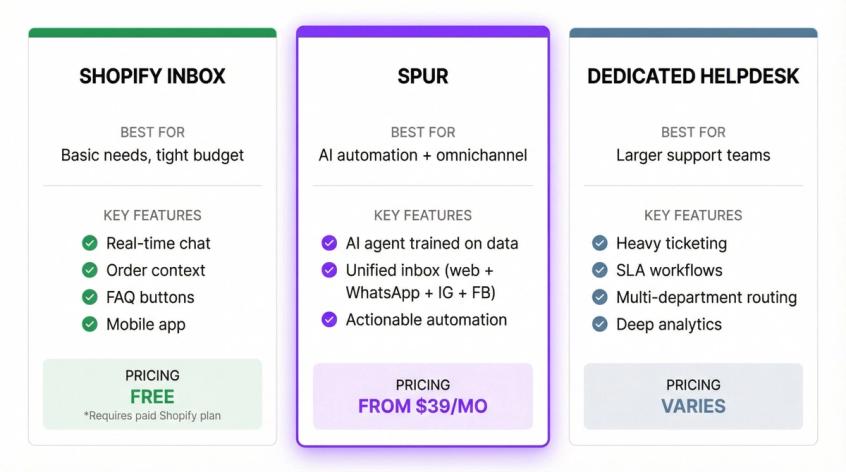
| Solution | Best For | Key Features | Cost |
|---|---|---|---|
| Shopify Inbox | Basic needs, tight budget | Real-time chat, order context, FAQ buttons, mobile app | Free (requires paid Shopify plan) |
| Spur | AI automation + omnichannel | AI agent trained on your data, unified inbox (web + WhatsApp + Instagram + Facebook), actionable automation | From $39/mo |
| Dedicated Helpdesk | Larger support teams | Heavy ticketing, SLA workflows, multi-department routing, deep analytics | Varies by vendor |
Shopify Inbox Live Chat (Free Option)
Choose this if you want:
- Basic live chat on your storefront with zero cost
- To reply from Shopify web or mobile app
- Simple automation (instant answer buttons and AI suggested replies in English)
Shopify Inbox is free on the App Store. But it requires a Basic, Grow, Advanced, or Plus plan to use.
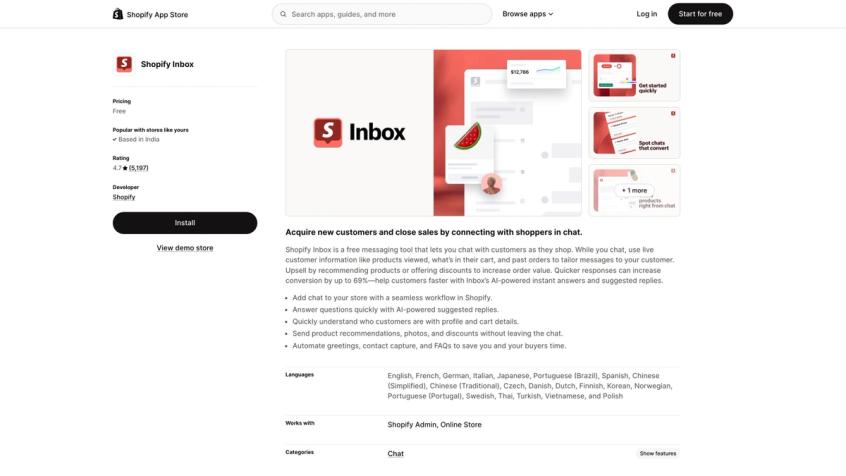
What you're getting: Real-time chat, order context while chatting, basic FAQ buttons, and mobile support.
What you're not getting: true AI agents, WhatsApp integration, or deep automation.
Spur Live Chat (AI Agent + Multi-Channel Support)
Choose this if you want:
- A true AI support agent trained on your knowledge base
- Website chat, Instagram DMs, WhatsApp, and Facebook unified in one inbox
- Automation that actually resolves issues (not just answers questions)
- Lead capture and routing without building it yourself
We've built our Live Chat to work as an actionable AI agent, not just a Q&A bot. It can check order status, update records, book appointments, and hand off to humans when needed.
Dedicated Helpdesk Live Chat (Enterprise Option)
Choose this if you're running a bigger support organization and need:
- Heavy ticketing systems with SLA workflows
- Deep reporting and analytics dashboards
- Multi-department routing
(You can still layer in Spur for AI and omnichannel, but some teams prefer a classic helpdesk as their core.)
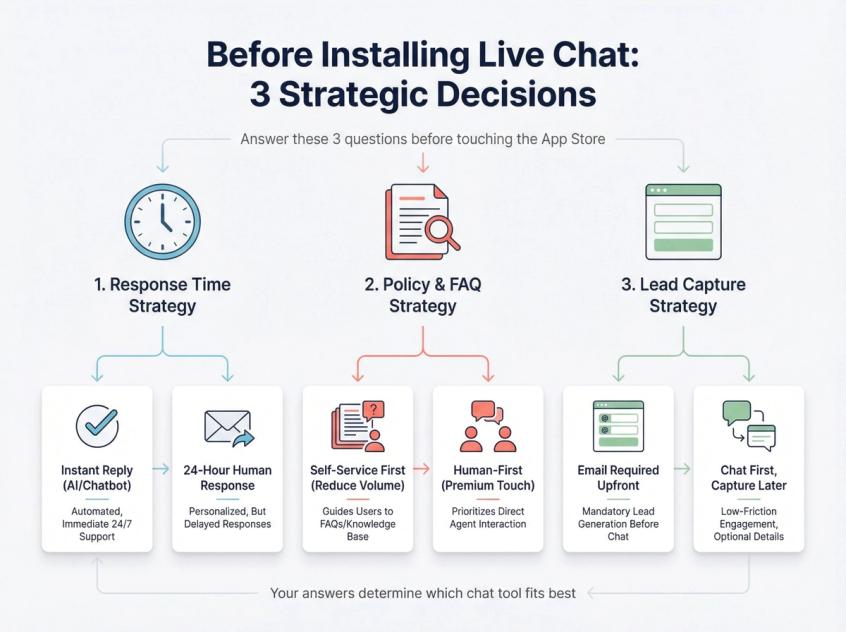
Live Chat Setup Decisions (Before Installing Anything)
How to Set Response Time Expectations for Chat
If you can't respond fast, tell people when you will respond. Shopify Inbox lets you configure business hours and automated first replies for "during hours" versus "outside hours."
The message can be up to 2,048 characters, so you can set context: "We typically reply in under 10 minutes during business hours. Outside those times, leave your question and we'll get back by 9am EST."
How to Reduce Chat Volume with Clear Policies
According to Shopify's customer service guidance, the most common chat questions are about shipping, returns, and policies. If those pages are vague or buried, chat volume explodes with preventable questions.
Shopify recommends making store policies and shipping info clear, and using inbox automation for common questions when volume spikes. Following customer service best practices helps reduce unnecessary chat load.
How to Balance Lead Capture vs Instant Access to Chat
Every extra form field before someone can ask a question kills chats. Some tools force email capture upfront. Others let people start chatting immediately.
Think about your priority: lead generation or instant help? You can capture leads during the conversation instead of blocking access to chat.
How to Add Shopify Inbox Live Chat (Free Method)
Shopify Inbox Eligibility Requirements
Shopify Inbox only works on Basic, Grow, Advanced, and Plus plans. If you're on Starter or a legacy plan, you'll need to upgrade or use a third-party app.
Also worth noting: Shopify announced the Shop Chat inbox experience would sunset on February 19, 2025. Ignore older tutorials that assume customers chat you from the Shop app. That's not how it works anymore.
How to Install Shopify Inbox App
Go to the Shopify App Store, search "Shopify Inbox," and click Install. The app appears as a sales channel in your admin. You can access it on desktop and mobile.
How to Enable the Chat Widget on Your Shopify Store
In your Shopify admin, go to Online Store → Themes, click Edit Theme, select App Embeds, then toggle on Shopify Inbox.
Hit Save.
Critical detail: Make sure you're editing the theme that's actually published. People often edit the wrong theme and wonder why nothing shows up.
How to Customize Chat Button and Greeting Message
From the same app embed panel, you can customize:
- Colors (including custom hex codes)
- Icon style (chat bubble, email, question mark)
- Button label ("Chat," "Help," "Live Chat")
- Position (horizontal and vertical)
- Greeting message
Something Shopify's documentation highlights that most people miss: the default greeting auto-translates to the customer's browser language. If you customize it, translation stops working.
So if you sell internationally, either keep the default or manually localize your greeting.
How to Set Up Instant Answers (Your 24/7 FAQ)
Instant answers are pre-written Q&A buttons visible in the chat window.
According to Shopify's help docs:
- You can create unlimited instant answers, but only 100 display to customers
- "Track my order" is included by default and pulls real order status
- Shopify Magic can suggest instant answers based on your policies and chat history (English only, mostly North American language data)
- You're responsible for accuracy even if AI suggests it
Instant answers you should add on day one:
- Shipping times by region
- Return and exchange policy
- Cancellation window
- Size guide or fit information
- Warranty or authenticity verification
- Cash on delivery rules (if applicable)
- How to contact you outside chat
How to Enable AI Suggested Replies in Shopify Inbox
Shopify Magic can generate suggested replies inside conversations.
Requirements according to Shopify's documentation:
- Your online store and admin must be in English
- Inbox installed with at least one conversation
- 200,000 products or fewer
- Suggested replies are English-only
Shopify notes suggested replies might not generate if your store info is still processing, if there isn't enough information about the topic, or if Shopify Magic doesn't have access to that info (for example, terms of service and privacy policy aren't processed).
To improve AI suggestions: update product listings, add clear store policies, and fill out shipping/payment information.
How to Create Quick Replies (Macros) in Shopify Inbox
Quick replies let you type a shortcut that expands to a full message. According to Shopify's quick replies documentation, you can save common responses.
Create quick replies for:
- Shipping ETA templates by region
- Return instructions
- "Need your order ID" request
- Apology and escalation templates
Shopify Inbox Customer Info Form (Email Capture)
Shopify Inbox has a built-in customer information form:
- When a customer sends their first message, they're prompted for email
- The form can't be edited or customized
- If no existing customer matches, a new customer record is created without marketing opt-in
Shopify's product page markets "contact capture" including email and phone numbers. If phone capture is critical for your use case, verify the exact behavior in your store and region during setup.
How to Test Your Shopify Live Chat Setup
Open your store in an incognito window and test:
- Home page
- Product page
- Cart page
- Checkout (note: many widgets don't show in checkout)
- Mobile Safari and Chrome
- Language switcher if you have one
- After-hours automated message
- Instant answer buttons
Shopify Inbox shows the chat button on your storefront by default once enabled. If it's not showing, double-check that you enabled it on the correct theme and saved.
How to Add Spur Live Chat to Shopify (AI + Omnichannel)
This is the "I want chat plus automation plus AI plus all my messaging channels in one place" route.
What You Get with Spur Live Chat
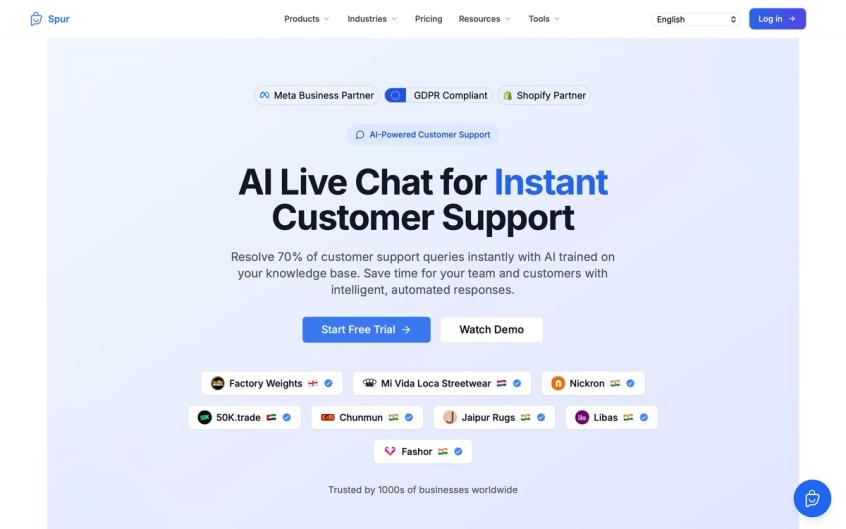
Our Live Chat is built as an AI-powered support agent trained on your knowledge base. You deploy it via a website widget, but it's part of our multi-channel platform that unifies website chat, WhatsApp, Instagram, and Facebook in one inbox.
Spur Live Chat Pricing (February 2026)
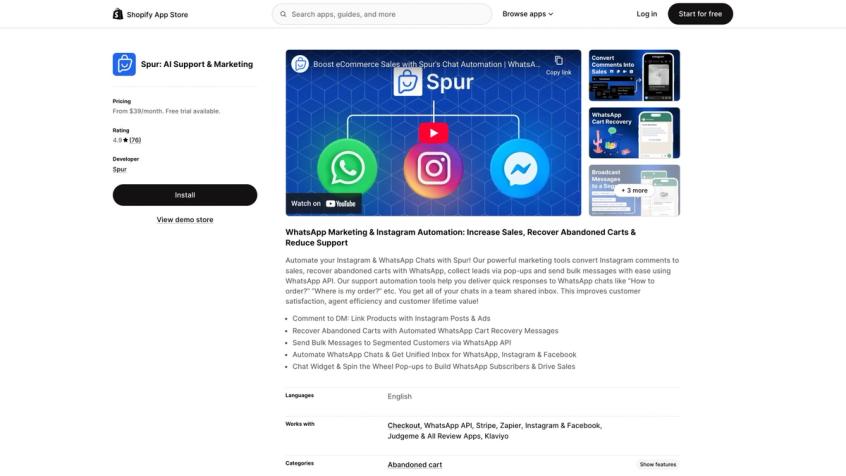
We're available on the Shopify App Store. The listing shows:
- AI Start: $39/month
- AI Accelerate: $159/month
- AI Max: $499/month
- 7-day free trial
Our website pricing page shows lower per-month numbers when billed annually, plus add-ons like extra live chat channels, branding removal, and additional users. Check both because billing channel affects your final cost.
How to Deploy Spur Live Chat on Shopify
These steps come from our help center article (updated over 9 months ago, accessed February 3, 2026).
How to Create a Live Chat Channel in Spur
- Go to Settings
- Navigate to Live Chat
- Click Create a Channel
- Add your website name
- Enter your website URL
- Create the channel, then click View
How to Configure the Spur Chat Widget
You can configure:
- Widget color
- Support name and website name
- Logo upload
- Message placeholder text
- Welcome message
- "Quick questions" (tap-to-send prompts for common queries)
- Optional social links (enable WhatsApp number, enable Instagram username)
How to Copy the Spur Embed Script
Go to the Embed tab inside your channel settings and copy the script at the top.
How to Add Spur Script to theme.liquid
In your Shopify admin:
- Go to Online Store
- Click the three dots next to your current theme → Edit Code
- Open
theme.liquidfrom the Layout folder - Search for
</body>(use Ctrl+F or Cmd+F, type/body) - Paste the script immediately before the closing
</body>tag - Save
Safety tip: Duplicate your theme before editing code. If something breaks, you can roll back instantly.
How to Verify Spur Chat Widget on Your Store
Hard refresh your store (Ctrl+Shift+R or Cmd+Shift+R). The widget should appear, usually as a bubble in the bottom-right corner. Click it and send a test message. Confirm it appears in the Spur Inbox interface.
If you don't see the widget:
- Check that you pasted the script before
</body>(not after) - Verify you edited the published theme
- Clear your browser cache
How to Customize Spur Chat Widget Position (CSS Controls)
We provide CSS custom properties for positioning so the widget doesn't cover your "Add to Cart" button or other critical elements.
Go to Online Store → Themes → Customize → Theme Settings → Custom CSS and paste:
/* Move the floating button */
:root {
--spur-button-bottom: 10px;
--spur-button-right: 15px;
}
/* Move the chat window */
:root {
--spur-widget-bottom: 80px;
--spur-widget-right: 30px;
}
The help article documents the default distances and all available variables (button bottom/right/left and widget bottom/right/left).
How to Add Any Third-Party Chat App to Shopify
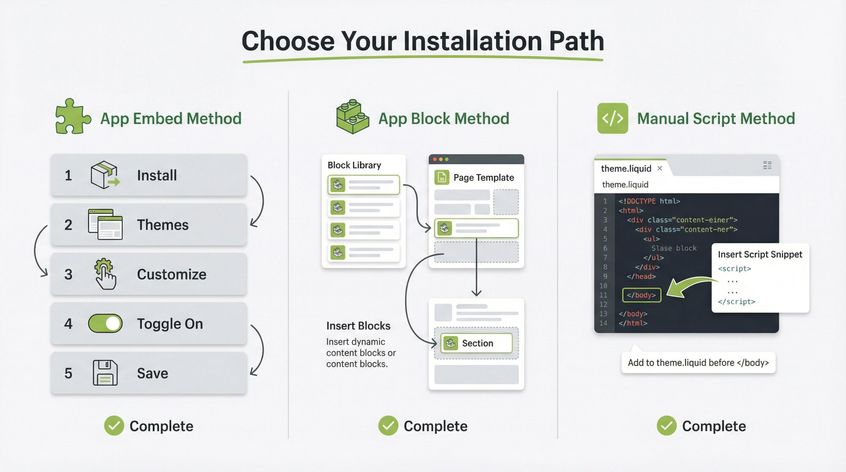
Most Shopify chat apps use one of these install patterns:
App Embed Method (Recommended for Most Chat Apps)
- Install the app
- Go to Online Store → Themes → Customize
- Open App Embeds
- Toggle the app on
- Save
According to Shopify's app documentation, app embeds work for both vintage and Online Store 2.0 themes.
App Block Method (For Specific Pages)
Some apps add a block you insert into product pages, cart pages, or page templates.
Manual Script Method (For Custom Chat Installations)
If an app gives you a script tag, the safe placement is usually in theme.liquid before </body> (same approach we use for Spur).
How to Make Live Chat Increase Sales (Strategy Guide)
Why Shoppers Need Live Chat to Buy
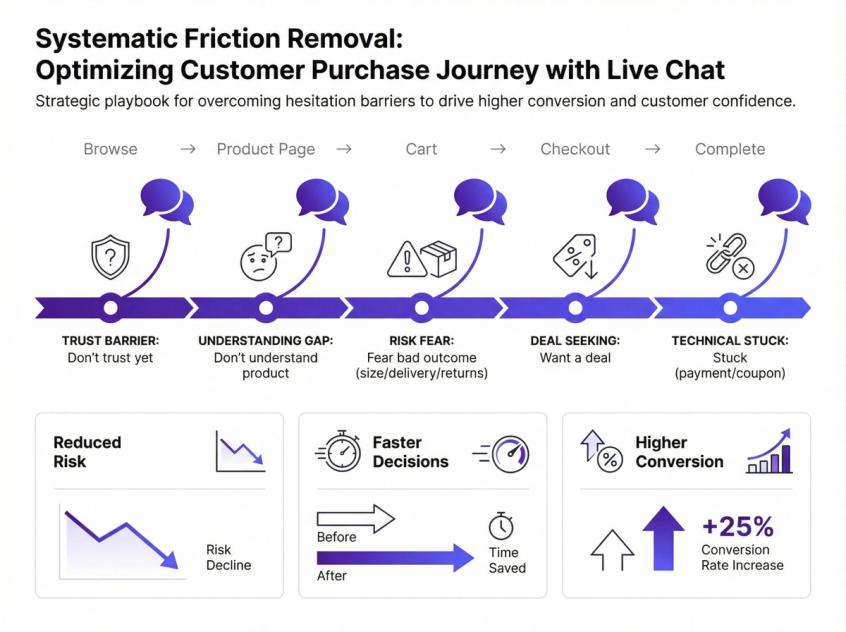
A shopper hesitates because they:
- Don't trust you yet
- Don't understand the product
- Fear a bad outcome (wrong size, late delivery, no returns)
- Want a deal
- Are stuck (coupon code, payment issue, checkout confusion)
Live chat wins when it answers the question fast, reduces perceived risk, and moves them to the next step. This is where chatbot best practices really matter.
Where to Place Chat Widget for Maximum Conversions
Start with product pages, cart pages, and your shipping/returns page. If your chat tool lets you position the button, keep it away from sticky add-to-cart buttons, cookie banners, and mobile bottom navigation.
Shopify Inbox gives you position controls. We give you CSS variables for precise placement.
Instant Answers That Cover 80% of Chat Questions
Shopify Inbox lets you display up to 100 instant answers. You don't need all 100. You need 8 to 15 really good ones.
Top 10 for D2C stores:
- Shipping timeline by region
- How to track an order
- Return window and conditions
- Exchange process
- Cash on delivery policy
- Size chart
- Material and care instructions
- Warranty information
- Authenticity verification
- Bulk or wholesale inquiry process
How to Set Business Hours and First Reply Messages
Shopify Inbox supports "during hours" versus "outside hours" automated first replies. Use it.
A customer who knows when you'll reply is less likely to bounce.
How to Reduce Friction Before Chat Starts
Ask one question that routes the conversation: "What are you trying to decide: size, delivery date, or returns?"
When to Hand Off Chat from AI to Human Agent
AI should handle common queries. Humans handle:
- Refunds and chargebacks
- Address changes after shipping
- Damaged items
- High-value carts
- Angry or upset customers
We built seamless handover into Spur specifically for this. The AI handles the easy 60-80%, agents handle the rest, and the shared inbox gives continuity.
Live Chat Message Templates (Copy and Paste)
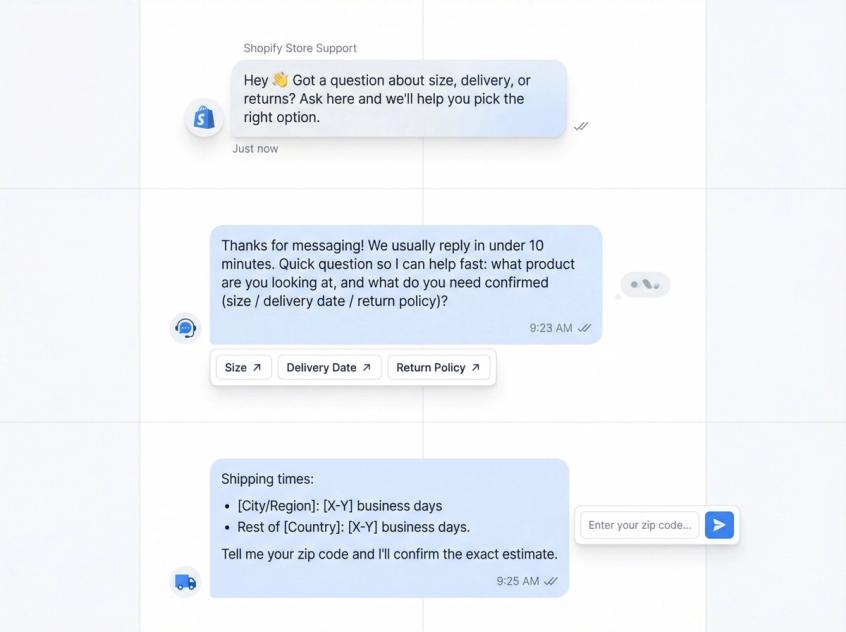
Greeting Message
Hey 👋 Got a question about size, delivery, or returns? Ask here and we'll help you pick the right option.
First Reply (During Hours)
Thanks for messaging! We usually reply in under 10 minutes. Quick question so I can help fast: what product are you looking at, and what do you need confirmed (size / delivery date / return policy)?
First Reply (Outside Hours)
Thanks! We're offline right now, but we'll reply by tomorrow 9am EST. If this is about an order, share your order ID and email, and we'll check it first thing.
Shipping ETA (Macro)
Shipping times:
- [City/Region]: [X-Y] business days
- Rest of [Country]: [X-Y] business days
Tell me your zip code and I'll confirm the exact estimate.
Returns Policy (Macro)
Returns are accepted within [X] days of delivery if the item is unused and in original packaging. To start a return, share your order ID and reason (size / defect / other), and we'll send the steps.
COD Confirmation (Macro)
Yes, COD is available for most zip codes. Share yours and I'll confirm.
Discount Nudge (Use Sparingly)
If you're on the fence, I can share a small code for first-time orders. Want it?
Live Chat Performance Metrics (How to Track Success)
Track these weekly:
1. First Response Time (FRT): Goal is under 2 minutes during business hours (faster is better)
2. Chat-to-Checkout Rate: Percentage of chats that lead to checkout start within 24 hours
3. Resolution/Deflection Rate: Percentage of chats solved without creating a human ticket
4. Top Topics: If 30% are shipping questions, your shipping page is unclear (fix the page, not just the chat)
5. Lead Capture Rate: Percentage of chats where you capture email or phone
Shopify Inbox uses a customer info form that prompts for email. It's system-driven, can't be customized, and creates customer records without marketing opt-in.
For deeper performance tracking, consider implementing customer service quality assurance processes and analyzing customer feedback regularly.
Why Isn't My Chat Showing on Shopify? (Troubleshooting)
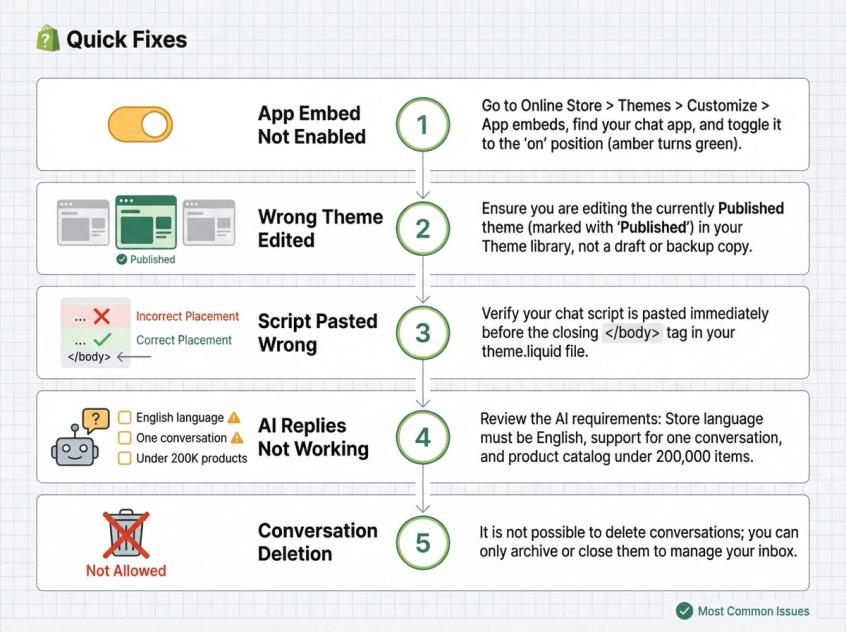
App Embed Not Enabled
For Shopify Inbox, "Online Store Chat" must be toggled on inside App Embeds. For other apps, it's usually the same.
Wrong Theme Edited
Shopify stores often have multiple themes. Make sure you're editing and enabling the app on the one that's published.
Script Pasted in Wrong Place
If you're embedding via script (like Spur's method), place it right before </body> in theme.liquid.
AI Suggested Replies Not Working in Shopify Inbox
Check these requirements:
- Store and admin in English
- At least one inbox conversation
- 200,000 products or fewer
Also make sure your policies, pages, and products have enough info for Shopify Magic to work with.
Can You Delete Shopify Inbox Conversations?
Shopify's help documentation states inbox conversations can't be deleted. Plan your retention and privacy approach accordingly.
Frequently Asked Questions
Is Shopify Inbox free?
Yes. The Shopify App Store listing shows it as free. But it requires a Basic, Grow, Advanced, or Plus plan.
Can I set business hours for Shopify Inbox chat?
Yes. Shopify documents availability hours plus two automated first replies (during versus outside hours).
Can Shopify Inbox show FAQ buttons inside the chat?
Yes, via instant answers. You can display up to 100 instant answers.
Does Shopify Inbox have AI replies?
It supports Shopify Magic "suggested replies," but only in English and only for eligible stores.
What if I want live chat plus WhatsApp plus Instagram DMs in one place?
That's where tools like Spur fit. Our Live Chat product positions one inbox for multi-channel support with an AI agent trained on your knowledge base. Learn more about our Instagram automation and WhatsApp Business API capabilities.
Can the AI actually take actions, or does it just answer questions?
This is where most chatbots fail. They answer questions but can't resolve issues.
Our AI agent is built to be actionable. It can check order status in Shopify, update customer records, book appointments, process returns, and trigger workflows automatically. That's the difference between a Q&A bot and an AI support agent that actually solves problems. Explore various chatbot use cases to see what's possible.
How do I train the AI on my specific business?
With Spur, you connect your knowledge base, FAQs, and help content. The AI learns from your actual documentation, product details, and policies. Unlike tools like Manychat (which don't let you train AI on your own knowledge base), we built training as a core feature. Check out our guide on how to train a chatbot on your website data.
What happens when the AI can't help?
Seamless handoff to humans. The AI handles routine queries (which can be 70% of total volume based on our user data). When it encounters something complex, angry, or outside its training, it routes to your team in the shared inbox with full conversation context.
Do I need to choose between chat and social messaging?
No. We built Spur specifically to unify website chat, WhatsApp, Instagram DMs, and Facebook Messenger in one inbox. Most stores get messages across all these channels. Managing them separately is chaos. Learn more about omnichannel marketing automation.
Is it hard to set up?
Our help documentation shows the setup takes about 5 minutes: create a channel, configure the widget, paste one script tag before </body> in your theme.
Can I customize where the widget appears?
Yes. We provide CSS custom properties for precise positioning so it doesn't cover your add-to-cart button or other critical elements.
Does it work on mobile?
Yes. The widget is responsive and works on desktop, tablet, and mobile. You can also manage conversations from the Spur mobile app.
What about international customers?
Our Live Chat supports 95+ languages. The AI can handle multilingual conversations, unlike Shopify Inbox which is primarily English-focused. We also support multiple language localization.
How do I know if it's working?
Track first response time, chat-to-checkout rate, resolution rate, and top topics weekly. If you're using Spur, the analytics dashboard shows these metrics plus AI performance and team efficiency. Implement customer service performance indicators to measure success.
What's the main difference between Shopify Inbox and Spur?
Shopify Inbox is great for basic one-on-one chat during business hours. It's free and built into Shopify.
Spur is for stores that want true AI automation, multi-channel support (website, WhatsApp, Instagram, Facebook in one inbox), and an AI agent that can actually take actions (not just answer questions). We're built for scale and omnichannel support for e-commerce.
Final Thoughts
Adding live chat to your Shopify store removes the biggest conversion killer: unanswered questions at the moment of decision.
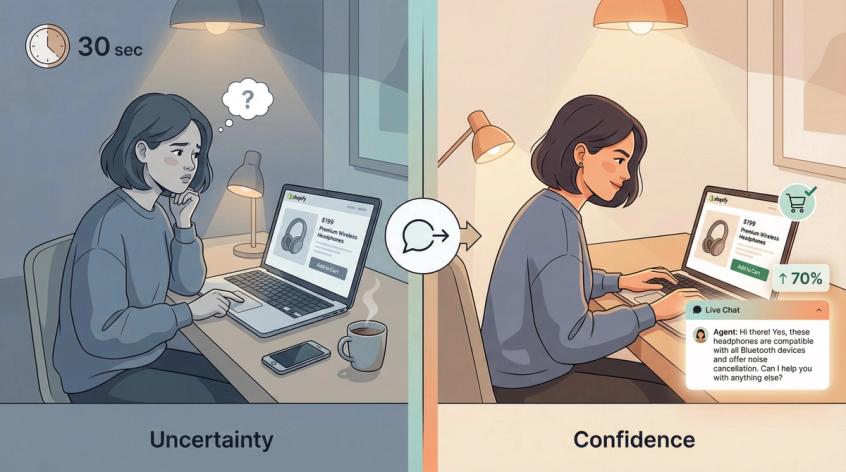
If you're just starting out, Shopify Inbox is a solid free option that takes 10 minutes to set up. If you want AI that can resolve 70% of queries automatically, train on your knowledge base, and unify all your messaging channels, that's what we built Spur to do.
Either way, the store that answers questions now instead of later wins the sale. That's not marketing speak. Shopify's own data shows 70% of inbox conversations happen during active purchase decisions.
The customer is there. They're ready. They just need one thing cleared up.
Make sure you're there to clear it up.