Key takeaways
- Most missing Messenger messages are not lost. Check Message Requests (including Spam), archived chats, blocked contacts and disappearing message settings first.
- For a blank screen, switch between Wi-Fi and mobile data, turn off any VPN, then clear the cache on Android (Settings > Apps > Messenger > Storage > Clear Cache) or reinstall on iPhone.
- The standalone Messenger desktop app ended in December 2025. If messages stopped showing on a computer, use messenger.com or facebook.com instead.
- Encrypted chat history only appears on a new device if Secure Storage is on. Turn it on in Messenger's privacy or encryption settings with a PIN or a Google Drive or iCloud key.
- If Page messages are missing in Meta Business Suite, check the Done and Spam folders, then Conversation Routing: another connected app may be set to receive the thread, especially ad-started chats.
Ask an AI about this article
Last updated: February 3, 2026
If you're reading this, you're not just curious. You already know messages exist (you probably got a notification), but Messenger is acting like they don't. Maybe the app opens to a blank screen, or a specific conversation has vanished, or your business page inbox isn't showing customer inquiries you know came in.
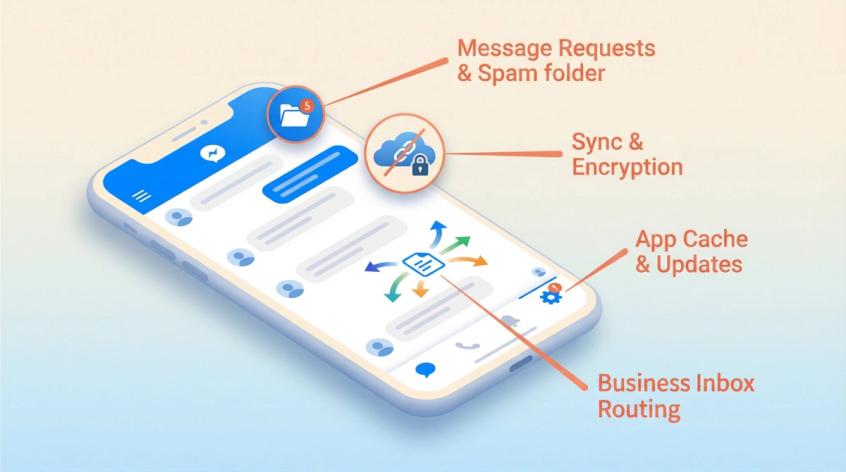
This happens to everyone, and it's fixable. The key is figuring out which type of "missing messages" problem you're dealing with, then applying the right fix. We'll walk you through the complete diagnostic and solution process, from the 60-second triage to the business-specific routing issues that can make customer messages "disappear."
Why Is Messenger Not Showing My Messages?
People search for this solution when they need one of these outcomes:
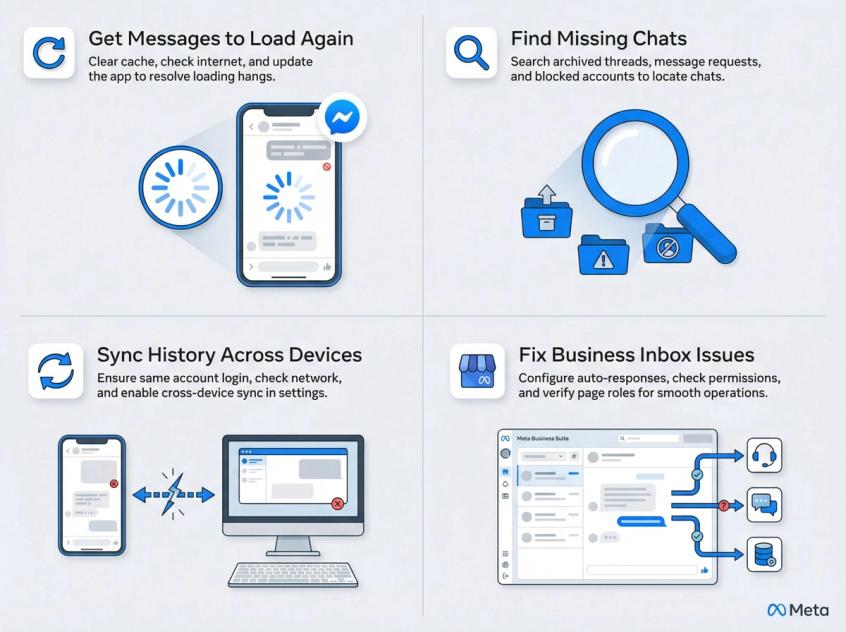
→ Get messages to load again
The app opens but threads are stuck loading, blank, or spinning indefinitely.
→ Find "missing" chats
You know the messages exist, but they're not in your main inbox. They might be archived, in message requests, filtered to spam, or blocked.
→ Sync history across devices
Messages show on your phone but not desktop (or vice versa). This became more common after end-to-end encryption rollout and the December 2025 desktop app shutdown.
→ Fix page/business inbox issues
Messages aren't showing in Meta Business Suite or your third-party shared inbox, even though customers are definitely sending them. If you're using customer communication platforms or Facebook automation tools, routing configuration becomes critical.
Success looks like this: You can open Messenger and see the missing threads. New messages arrive reliably. You know exactly where Messenger puts "hidden" stuff. And if you run a business, you have a prevention setup so important customer messages don't slip through the cracks.
How to Check if Messenger Is Down or Just You
Before you start troubleshooting, let's figure out if this is your problem or Meta's problem.
Check if it's you or Meta.
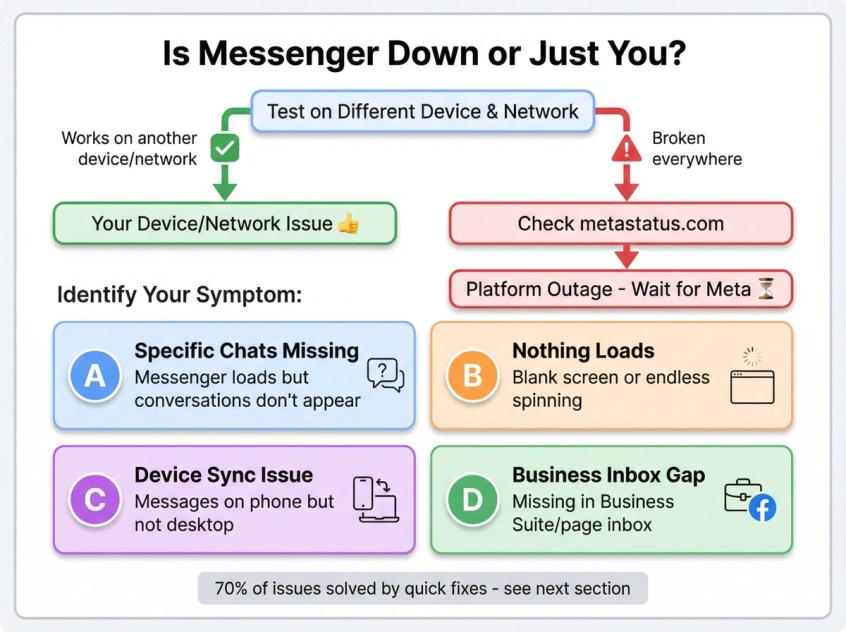
Try Messenger on another device (phone to laptop, or vice versa) and another network (Wi-Fi to mobile data). If it's broken everywhere, check for outages at Meta's business status page. If there's a platform-wide issue, you'll just have to wait for Meta to fix it.
Define your specific symptom.
Pick the one that matches closest:
| Symptom | What It Looks Like |
|---|---|
| A. Specific chats missing | Messenger loads, but certain conversations or messages don't appear |
| B. Nothing loads | Messenger opens to blank screen or endless spinning |
| C. Device sync issue | Messages show on phone but not desktop (or vice versa) |
| D. Business inbox gap | Messages appear in Messenger app, but not in Business Suite/page inbox |
Once you've identified your category, jump to the matching section below. If you're not sure, start with the quick fixes in the next section (they solve about 70% of cases).
Fix #1: Restart Messenger and Clear Cache
Try these in order. Stop when it's fixed.
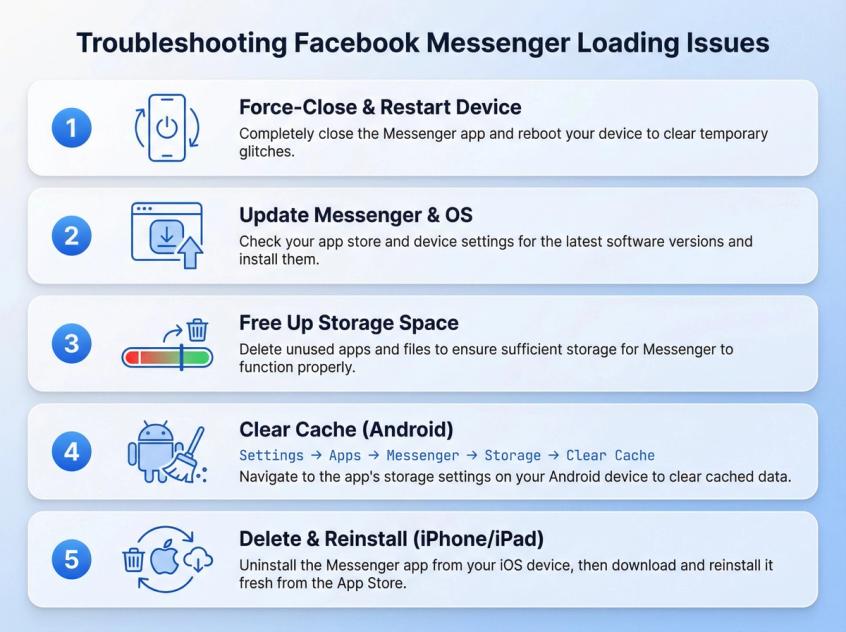
① Force-close Messenger and restart your device
It sounds basic because it is. You're resetting the app process, network sockets, and cached state. Fully close Messenger (don't just minimize it), then restart your phone or computer. This clears temporary glitches and forces Messenger to reconnect fresh.
② Update Messenger and your OS
Outdated app builds break after backend changes, and this happens frequently with Meta products. Check your app store for Messenger updates, and install them. While you're at it, update your operating system if a new version is available. System updates improve app compatibility and network stability.
③ Free up storage
If your phone is low on storage, Messenger can fail to download message content and attachments, and sometimes it fails silently without showing an error. Check your available storage and delete some files if you're running low.
④ Clear Messenger cache (Android)
Android lets you clear an app's cache without deleting your data.
Go to Settings → Apps → Messenger → Storage → Clear Cache.
This forces Messenger to fetch fresh data from the server, which can bring back missing messages. Don't tap "Clear Data" unless you're okay with logging in again.
⑤ Delete and reinstall Messenger (iPhone/iPad)
iOS doesn't give you a universal "clear cache" button for every app. Deleting and reinstalling is the blunt reset. Note that reinstalling can log you out, so make sure you remember your login method first.
These five fixes resolve the majority of Messenger issues. If you're still stuck, keep reading for the deeper troubleshooting.
Where Are My Hidden Messages? (Check These Folders)
This is the most common misunderstanding. Messenger has multiple inboxes and folders, and Meta aggressively filters messages. When something "disappears," it's usually just in a different folder. This is especially important for businesses using automated customer service where message routing matters.
[Manual Screenshot Required] URL: https://www.messenger.com/ Location: Hidden Messages Section Purpose: Show actual Messenger interface with message requests folder navigation
Why This Screenshot Requires Manual Capture: The automated capture succeeded technically but only captured the Messenger login screen. The actual interface showing message requests, spam folders, and inbox navigation requires an authenticated Facebook/Messenger session.
Manual Capture Instructions:
- Log in to https://www.messenger.com/ with an active Facebook account
- Navigate to Message Requests (click profile/menu icon, then "Message Requests")
- Show both "People You May Know" and "Spam" tabs if visible
- Capture a clean screenshot showing: main inbox, message requests button, and folder structure
- Ensure no personal information is visible
- Save as: screenshot-sc-04-messenger-interface-manual-1920x1080.png
- Replace this placeholder with:
[MISSING_IMAGE: Messenger desktop interface showing message requests folder and inbox navigation options || images/screenshots/screenshot-sc-04-messenger-interface-manual-1920x1080.png]
See full instructions at: clients/Spur/blogs/facebook-messenger-not-showing-messages/web-screenshots/captures/SC-04.md
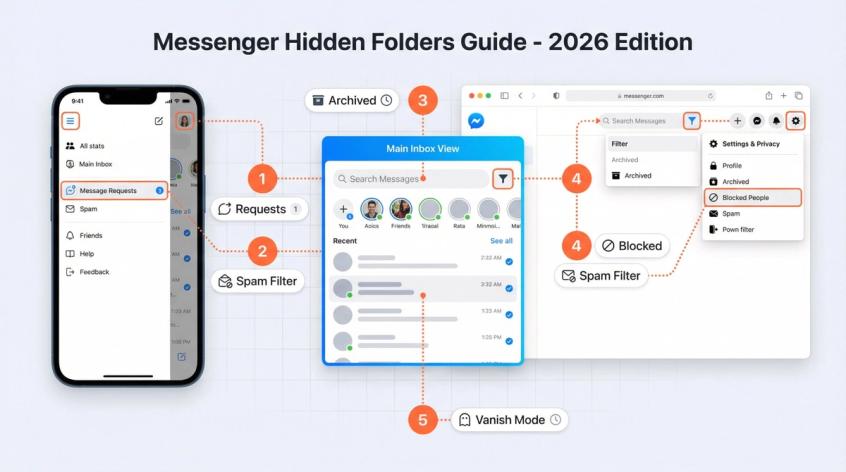
Check Message Requests (and Spam)
Messages from people you're not connected to land in the Message Requests folder instead of your main chats. Meta's help docs explain how message requests work and how to access them.
[Manual Screenshot Required] URL: https://www.facebook.com/help/messenger-app/984163458313035 Location: Check Message Requests section Purpose: Show official Meta documentation for message requests feature
Why This Screenshot Requires Manual Capture: The automated capture succeeded but quality analysis flagged it as a "flat" screenshot (96.97% flat ratio), indicating the page likely redirected to a login wall or showed minimal content. Multiple browser attempts (Chromium, WebKit, reduced motion) all resulted in the same flat capture.
Manual Capture Instructions:
- Open https://www.facebook.com/help/messenger-app/984163458313035 in a regular browser
- Log in to Facebook if prompted
- Wait for help article to load completely
- Capture showing: article title, main content explaining message requests, Facebook Help branding
- Save as: screenshot-sc-05-meta-help-message-requests-manual.png
- Replace this placeholder with:
[MISSING_IMAGE: Facebook Help Center article explaining Messenger message requests and spam filtering || images/screenshots/screenshot-sc-05-meta-help-message-requests-manual.png]
Fallback: If login walls persist, this screenshot is lower priority. The authoritative external link provides sufficient trust signal.
See full instructions at: clients/Spur/blogs/facebook-messenger-not-showing-messages/web-screenshots/captures/SC-05.md
• On mobile: Open Messenger, tap the menu/profile icon, go to Message Requests, and check both "People You May Know" and "Spam" sections.
• On desktop: On Facebook.com, click the Messages icon and find Requests. The exact menu path changes occasionally, but search for "message requests" in Messenger settings if you can't find it.
Why this works: Messenger is doing inbox triage. It's trying to protect your main inbox from spam, so it routes unknown senders into a gated folder. If you're a business, this is where many customer inquiries end up if they're reaching out for the first time. Automated reply systems can help ensure no inquiry goes unanswered.
Check Archived Chats
People lose conversations constantly because they archived them months ago and forgot. Archiving doesn't delete messages, it just hides the conversation from your main list.
Tell-tale signs: You can search the person's name and they don't appear in recents, but you know you've chatted before.
Use Messenger search and look for an "archived" filter. The UI changes periodically, but search and archive features are usually present. If you find the archived chat, just send a new message in that thread to unarchive it automatically.
Check Blocking Status
If you blocked someone (or they blocked you), you might still see an old thread but new messages won't come through. If you can't find the person's profile at all, or the thread behaves strangely (messages don't deliver), blocking is a candidate cause.
Check your Facebook settings for "Blocked People" to confirm. If someone blocked you, messages you send them won't deliver, and you won't see their new messages.
Check Disappearing Messages / Vanish Mode
If the chat has disappearing messages enabled, older content auto-deletes. This isn't "missing," it's doing what it was configured to do. Check the chat settings to see if vanish mode or disappearing messages are on.
Did You Delete the Chat?
Deleted usually means gone from your account. Messenger won't magically restore it. Focus on finding the message in requests or archived before assuming it's deleted.
Fix #2: Messenger Won't Load Messages (Blank Screen)
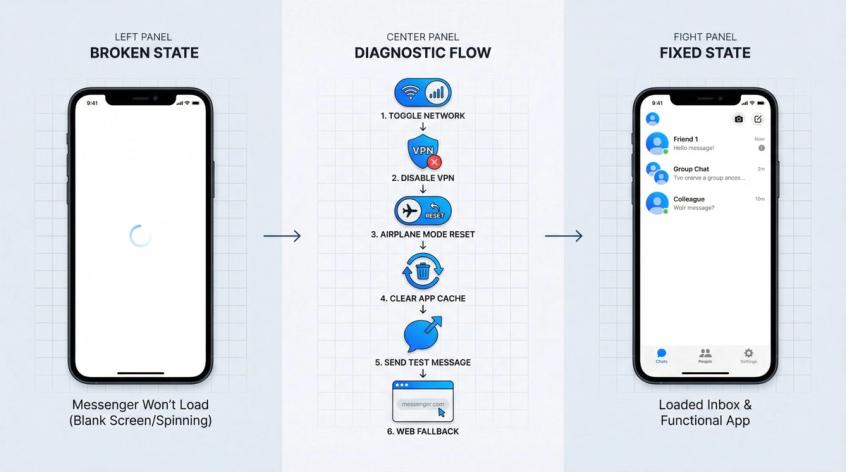
This usually comes down to network issues, cache corruption, or app bugs. Work down this troubleshooting ladder:
1. Switch networks
Toggle between Wi-Fi and mobile data. Sometimes one connection type works while the other doesn't. If you're on Wi-Fi, try disabling it and using cellular. If you're on cellular, connect to Wi-Fi.
2. Disable VPN / ad-blocking DNS temporarily
VPNs sometimes interfere with Messenger's connectivity. Turn off your VPN and try again. Same goes for custom DNS or ad-blocking services.
3. Toggle Airplane Mode
Turn Airplane Mode on, wait 10 seconds, then turn it off. This resets your network connection and can clear minor connectivity glitches.
4. Clear cache (Android) or reinstall (iPhone)
Follow the steps from the Quick Fixes section above. Corrupted cache is a common cause of loading failures.
5. Try sending a message
Sometimes sending a message to someone (or even yourself) prompts Messenger to sync and download pending messages.
6. Try Messenger in a browser
Go to messenger.com or facebook.com and check if messages load there. If the browser works but the app doesn't, it's your app or device state. If neither works, it's likely an account-level issue or outage (re-check status).
Why Messages Show on Phone But Not Desktop (2026 Update)
Two major changes in 2026 matter here, and both relate to how Messenger handles encryption and device sync.
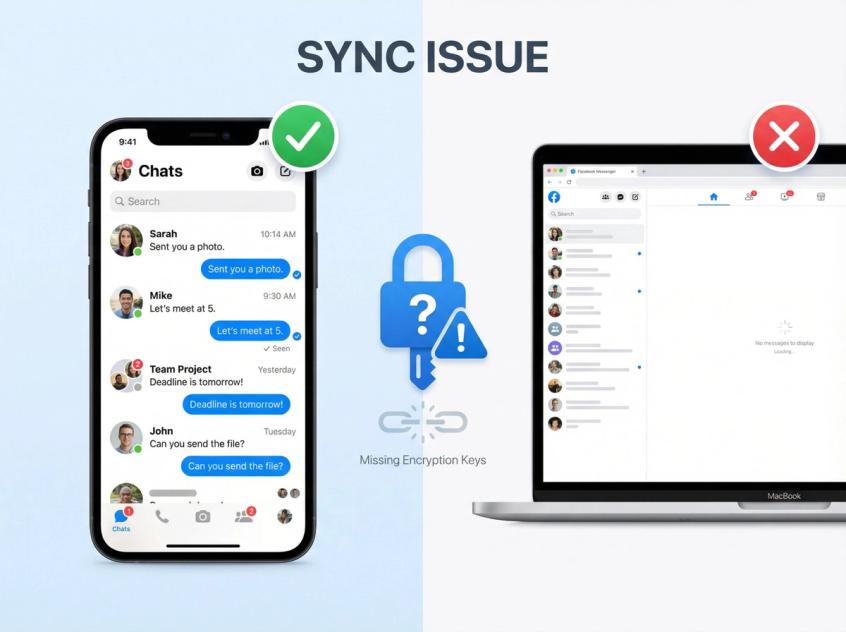
The Desktop App Was Discontinued (December 2025)
If you were using the standalone Messenger desktop app on Mac or Windows, it was removed and ended in December 2025. Users were directed to switch to the web experience instead.
So if your "desktop Messenger" suddenly stopped showing messages, the fix is simple: stop using the discontinued app and switch to messenger.com or facebook.com messaging.
End-to-End Encryption Changed How History Syncs
End-to-end encryption was rolled out for personal messages with Secure Storage so encrypted history can be restored across devices. The encryption is good for privacy, but it changes how message sync works.
Here's why this matters: With end-to-end encryption, message content is protected by encryption keys. If a new device or web session can't access the right keys (because Secure Storage isn't set up, or you haven't entered your PIN), your message history might not appear on that device.
What to do:
In Messenger settings, look for Privacy / End-to-End Encryption / Secure Storage (the exact naming varies). Enable Secure Storage and set a PIN (or use the cloud key option with Google Drive or iCloud). Then re-open Messenger on the device that's missing messages.
Meta also has recovery options using a 40-character recovery code in some cases. If you forgot your PIN, there are help flows for recovery using one-time codes or your recovery code, depending on what you set up initially.
Bottom line: If you recently switched phones or laptops and messages aren't syncing, it's almost always encryption keys. Set up Secure Storage on all your devices and the messages should sync properly.
Business Suite Inbox Not Showing Messages? (Fix Here)
This section is for businesses running a Facebook Page, ads, DM automation, or a shared inbox tool. If you're managing customer communications across multiple channels, a multi-channel marketing automation platform can help centralize message handling.
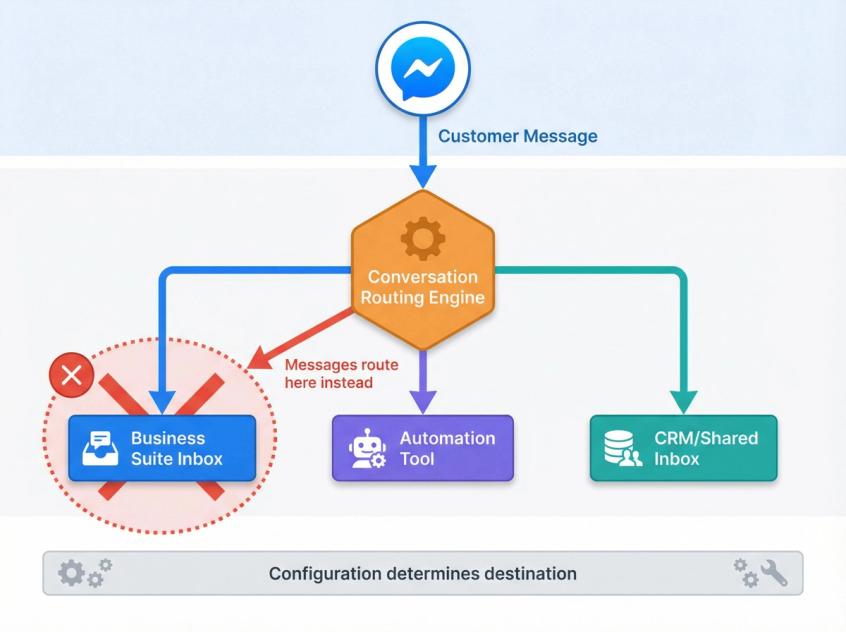
The Core Concept: Who Controls the Conversation?
Meta has been migrating businesses from the older Handover Protocol to Conversation Routing. Meta's developer docs explicitly describe conversation routing as the replacement, with backwards compatibility.
Translation: If your Page is connected to multiple apps (Business Suite, a chatbot, a CRM, a shared inbox), messages can route to a different app than you expect. When that happens, it looks like messages "aren't showing," but they're actually being delivered somewhere else. This is why customer communication management systems with proper routing are essential.
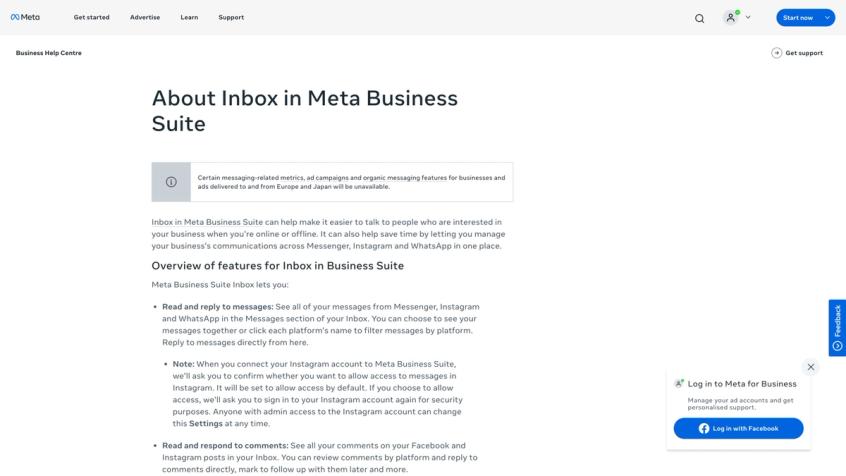
Step 1: Check the Obvious Folders in Business Suite Inbox
Meta's Business Inbox supports moving threads into folders like Spam and Done. If your team "clears" threads by marking them done, they might be sitting in the Done or Spam folder. Check those first.
Step 2: Check Routing / Connected Apps
In Meta Business Suite (desktop is easier), look for:
- Inbox Settings
- Conversation Routing (or older Handover Protocol settings)
- Connected Apps
- Which app is set as the default routing app
- Which app is set for marketing entry points (messages started from ads or sponsored entry points)
If the wrong app is set, your inbox won't receive the thread. Conversation routing determines where messages go, especially for conversations started through ads. Facebook automation tools like Spur help manage these routing complexities with a unified dashboard.
Step 3: Resolve "Take Control of Conversations" Conflicts
If you use automation tools, proper configuration is critical to avoid conflicts. Even though Meta's labels have shifted to "conversation routing," the underlying issue is the same: multiple apps fighting for thread control. If two apps both think they should handle a conversation, messages can end up in the "wrong" inbox from your perspective.
For businesses serious about automating customer support, using a platform designed for Facebook Messenger automation ensures messages route correctly to your team.
Step 4: Confirm Permissions and Roles
If the person checking the inbox doesn't have the right Page role (or lost access), messages can "disappear" for them only. Verify that your team members have the correct permissions to access the Page inbox.
Step 5: If Messages Are from Ads (Click-to-Message)
Ads can create different entry points and routing rules. If you're running Click-to-DM ads, double-check the routing configuration for marketing entry points. Sometimes messages from ads route differently than organic messages.
Complete Messenger Troubleshooting Checklist
If you only do one thorough sweep, do this. Check every single item:
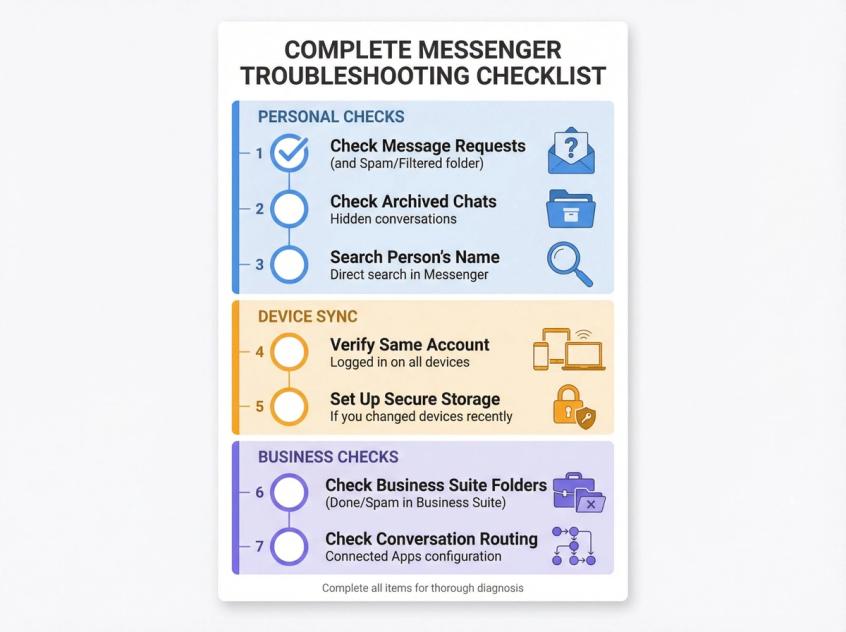
- Message Requests (and Spam/Filtered)
- Archived Chats
- Search the person's name inside Messenger
- Confirm you're logged into the same account on all devices
- If you changed phones/laptops recently: Set up Secure Storage
- If you're a business: Check Business Suite inbox folders (Done/Spam)
- If you're a business with tools: Check Conversation Routing / Connected Apps
Advanced Fix: Disable Data Saver and Low Data Mode
If the quick fixes and folder checks didn't work, try these more technical solutions.
Disable Data Saver and Low Data Mode
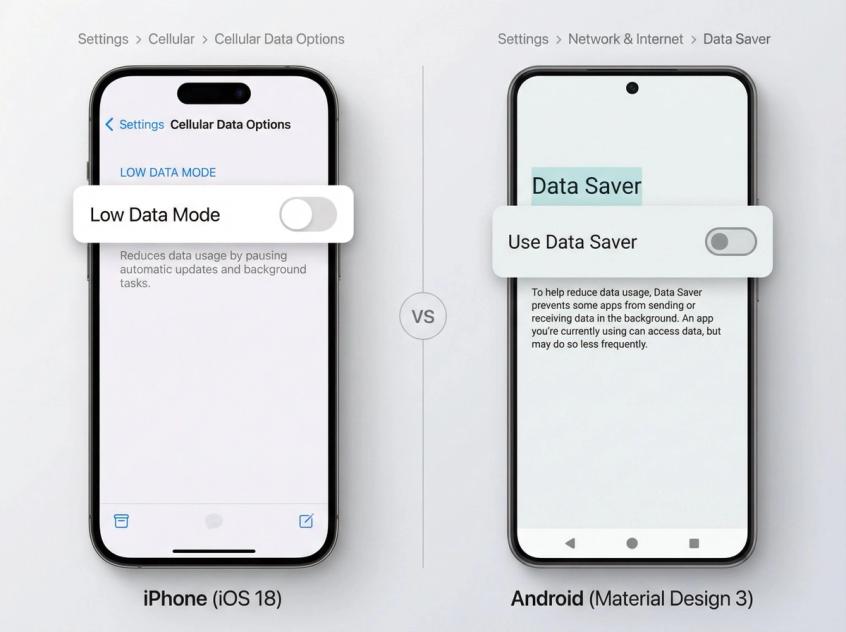
Messenger's built-in Data Saver (on Android) and your phone's system-wide data saving features can prevent media and messages from loading until you tap them.
In the Messenger app:
Go to Settings (⚙️) → Data Saver and disable it.
On iPhone:
Go to Settings → Cellular → Cellular Data Options → Low Data Mode and turn it off.
On Android:
Go to Settings → Network & Internet → Data Saver and ensure it's off.
Disabling these will allow Messenger to fetch messages freely without waiting for you to manually tap "load."
Enable Background Data and Permissions
For Messenger to consistently show messages, it needs the right permissions.
On iPhone:
• Go to Settings → Messenger and ensure Mobile Data is enabled (so Messenger can use cellular data)
• Enable Background App Refresh for Messenger (allows it to fetch new messages even when you're not actively using the app)
On Android:
• Long-press the Messenger app icon, tap App Info → Data Usage
• Make sure Background Data is allowed
• If you've restricted any permissions (like network access or storage), grant those as well
These settings ensure Messenger isn't being inadvertently "blocked" by your device from updating in real-time.
Offload the App (iPhone Alternative to Reinstalling)
If you don't want to fully uninstall Messenger but want to clear its cache, iPhone has an Offload App feature.
Go to Settings → General → iPhone Storage → Messenger → Offload App.
This frees up the app's storage but retains your account data. Then re-download Messenger from the App Store.
Reset Network Settings (Last Resort)
This is drastic, but if Messenger and other apps aren't loading content properly, your device's network configuration might be corrupted. Resetting network settings will wipe saved Wi-Fi networks and Bluetooth connections, so use this only if you're experiencing broader connection issues.
On iPhone:
Settings → General → Transfer or Reset iPhone → Reset → Reset Network Settings
On Android:
Settings → System → Reset Options → Reset Wi-Fi, Mobile & Bluetooth
After the reset, reconnect to the internet and try Messenger again. This can resolve deep network glitches that a simple reboot can't fix.
How to Stop Messenger from Hiding Messages (Prevention)
Once you've fixed the immediate problem, here's how to make sure it doesn't happen again.
For Personal Use
① Enable Secure Storage
Spur's encryption guide recommends turning on Secure Storage so your encrypted history survives device changes. Set it up now, before you switch phones or computers. It takes two minutes and will save you hours of frustration later.
② Keep Messenger updated
Always install the latest updates. They often fix bugs that cause messages not to appear.
③ Don't ignore Message Requests forever
Make it a habit to check your Message Requests folder occasionally. Important messages from new contacts (like potential clients or business inquiries) often land there.
For Businesses (Sales and Support)
If a missed Messenger message equals missed revenue, you need two things:
1. Routing you can trust
Conversation Routing means you must intentionally choose which app controls which entry points. Don't just connect apps and hope it works. Set it up deliberately.
2. An inbox that makes missed messages hard
This is where a shared inbox with automation helps. You want assignment, visibility, and audit trails instead of "whoever opens the app first sees it."
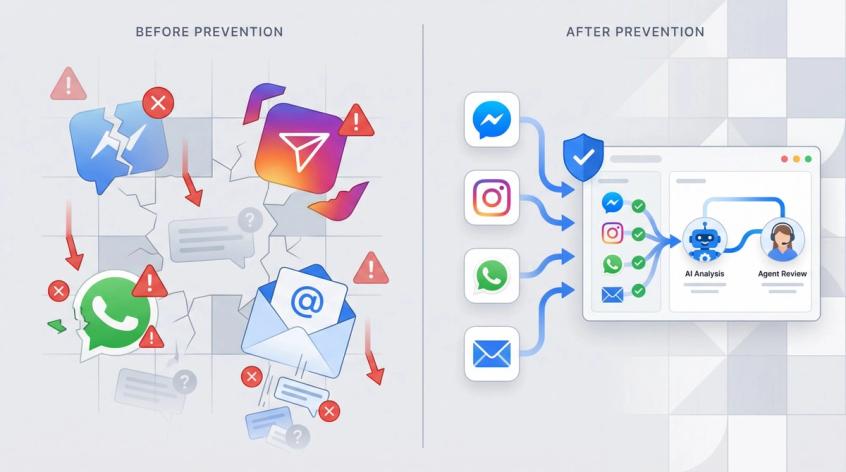
Spur is built exactly for this: a multi-channel AI messaging platform with a unified inbox across Messenger, Instagram, WhatsApp, and live chat. The platform handles repetitive queries with AI-powered customer service automation, while routing complex issues to your team in a unified dashboard.
For businesses managing customer communications at scale, Spur offers:
• Unified inbox across all messaging channels
• AI agents trained on your knowledge base to handle common questions
• Smart routing that prevents the "wrong inbox" problem
• Automation workflows for Facebook Messenger auto-replies
• Team collaboration with assignment and visibility
If Messenger messages "don't show up" because of routing conflicts, having a customer communication platform designed for multi-channel messaging removes an entire category of "I didn't see it" problems.
(This isn't just a pitch. It's a real solution. If your team is handling customer inquiries across multiple Meta channels, a single inbox removes an entire category of "I didn't see it" problems.)
Watch Out for Scams While Troubleshooting
When people panic about "missing messages," they're more likely to click suspicious links.
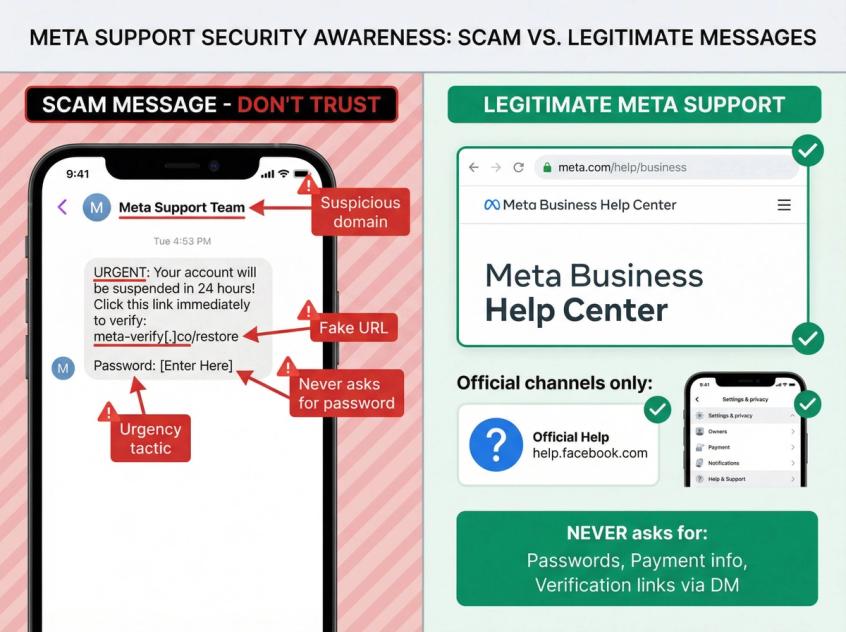
Meta's guidance is straightforward: If you get suspicious messages claiming to be from Meta, don't click links or attachments, don't reply, and treat it as phishing unless verified through official channels.
Legitimate Meta support won't ask for your password in a message, and they won't send you links to "verify your account" through Messenger.
Related Spur Resources
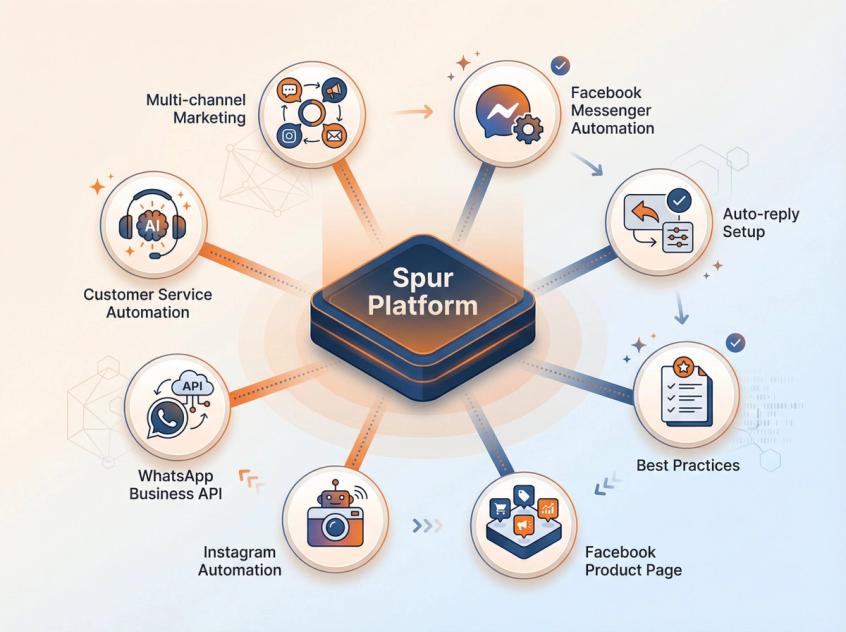

If you run Messenger for business, these guides will help you set up reliable, automated customer communications:
• How to Automate Facebook Messenger Replies (2026) - Complete guide to business workflows and automation
• Facebook Messenger Auto Reply Setup - Step-by-step automation configuration
• Automated Reply for Facebook Messenger - Best practices for automated responses
• Facebook Automation Product Page - See how unified inbox plus automation works at Spur
• Instagram Automation - Extend automation to Instagram DMs
• WhatsApp Business API - Multi-channel messaging strategy
• Customer Service Automation Guide - Automate support across all channels
• Multi-Channel Marketing Automation - Unified approach to customer engagement
A Note on Data Currency
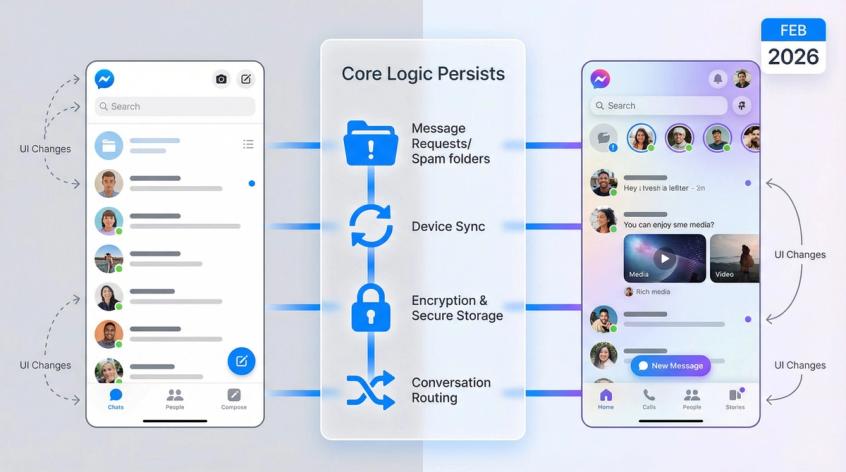
This article was written for February 2026. Meta changes UI labels and menu paths constantly, but the underlying mechanics in this guide are stable: inboxes and folders, device sync, encryption keys and Secure Storage, and Conversation Routing for business Pages.
The core troubleshooting logic (check folders, verify routing, set up encryption sync) doesn't change even when Meta redesigns their settings interface. If you find that a specific menu path has moved, use the search function in Messenger or Business Suite settings to find the feature by name.
FAQ
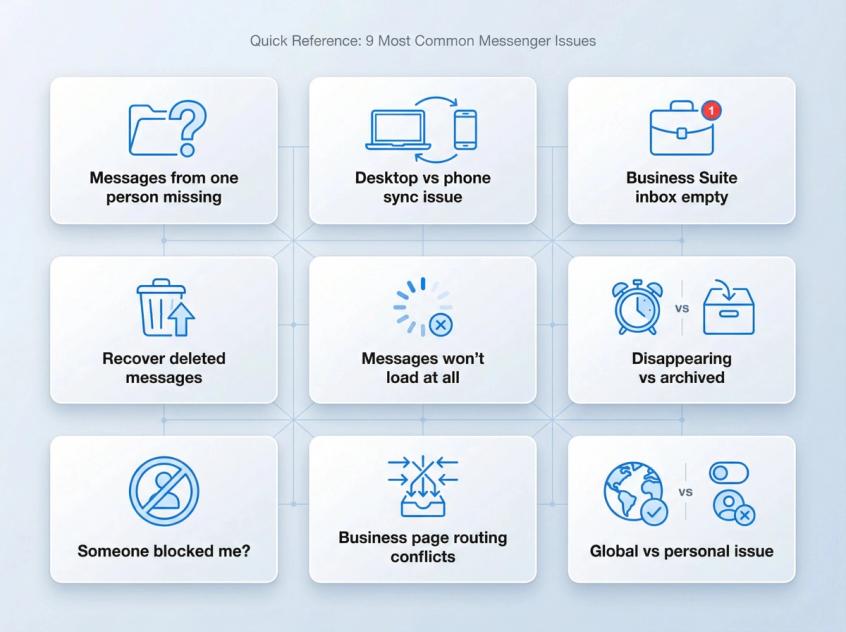
Most common causes: The message is in Message Requests or Spam, the conversation is archived, or someone is blocked. Start by checking Message Requests, then archived chats, then blocking status.
In 2026, think "desktop app shutdown plus encryption sync."
First, the standalone desktop apps ended in December 2025. If you were using that, switch to messenger.com or facebook.com.
Second, encrypted chats require Secure Storage to restore across devices. Set up Secure Storage with a PIN or cloud key, then your messages should sync properly.
Usually two reasons: Wrong folder (Done or Spam folder), or Conversation Routing sending the thread to a different app than you expect. Check both. For reliable business messaging, consider using a dedicated Facebook automation platform to centralize all customer communications.
Typically, no. Deleted means removed from your account view. But before you give up, check if the message is actually deleted or just in Message Requests, Archived, or Spam. Those aren't deleted, they're just hidden in different folders.
This is usually a network or cache issue. Try these in order:
- Switch from Wi-Fi to cellular (or vice versa)
- Disable VPN
- Clear cache (Android) or reinstall (iPhone)
- Restart your device
- Check if Messenger is down globally
Disappearing messages auto-delete after a set time period. You configured this in chat settings, and it's working as intended.
Archived messages are hidden from your main inbox but still exist. You (or the other person) manually archived the chat. You can unarchive it by searching for the person and sending a new message.
If someone blocked you, messages you send won't deliver, and you won't see their profile or any new messages from them. Try sending a message. If it consistently fails to deliver and you can't see their profile, blocking is likely.
Also check your own Blocked People list in Facebook settings to make sure you didn't accidentally block them.
This is almost always a Conversation Routing configuration issue. If your Page is connected to multiple apps (Business Suite, automation tools, CRM), you need to set which app controls which conversation types. Check your Page settings for Connected Apps and Conversation Routing. Set the correct app for organic messages and the correct app for ad-driven messages.
For businesses managing multiple messaging channels, Spur's unified inbox solves routing complexity by centralizing all conversations in one platform with proper assignment and visibility.
Sources
The pages this article links out to, in the order they appear.
- end-to-end encryption rollout about.fb.com
- December 2025 desktop app shutdown techcrunch.com
- Meta's business status page metastatus.com
- messenger.com messenger.com
- Meta's help docs facebook.com
- recovery options using a 40-character recovery code facebook.com
- forgot your PIN facebook.com
- Conversation Routing developers.facebook.com
- Meta's Business Inbox facebook.com
- Meta's guidance is straightforward meta.com
Was this article useful?