WhatsApp Template Rejected? Common Reasons & Fixes (2026)

Discuss with AI
Get instant insights and ask questions about this topic with AI assistants.
💡 Pro tip: All options include context about this blog post. Feel free to modify the prompt to ask more specific questions!
WhatsApp template rejections happen because Meta scrutinizes every template to prevent spam. The most common culprits? Formatting errors (mismatched variables, dangling placeholders), wrong category selection (marketing vs utility confusion), vague content that looks spammy, prohibited links (shorteners, wa.me URLs), and policy violations. This guide shows you exactly how to fix each issue with before/after examples, a 10-minute pre-submit checklist, and category selection rules that'll get your templates approved fast. At Spur, we help businesses navigate these approval hurdles every day with our WhatsApp automation platform designed to make template management seamless.
If your WhatsApp templates keep getting rejected, you're not alone and it's not because Meta "doesn't like your copy." It's because message templates are essentially permission slips that let you message people outside the 24-hour customer service window.
This is precisely where spam and scams thrive, so Meta's review system is built to be paranoid by design.
Here's the reality straight from WhatsApp's Business Messaging Policy:
- Outside the 24-hour window, businesses can only send messages using approved message templates
- Meta can review, approve, pause, and reject templates at any time
- You must have explicit opt-in consent and honor opt-out/block requests
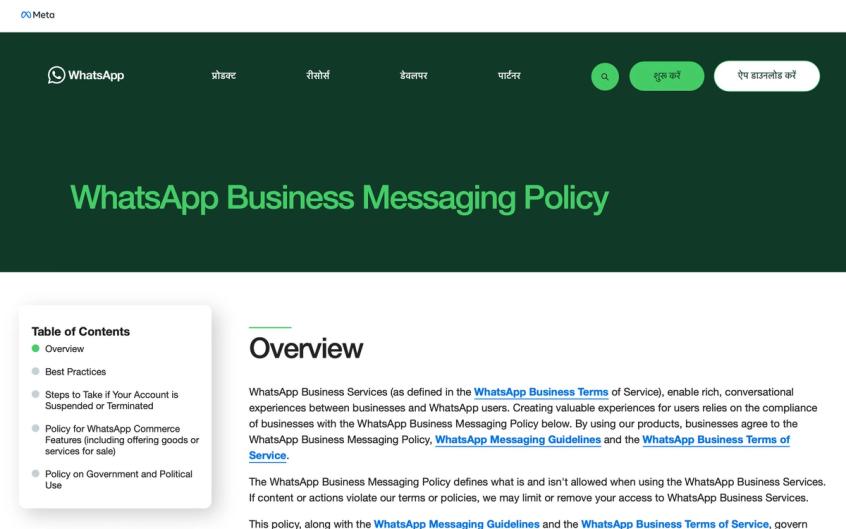
Official WhatsApp Business Messaging Policy - these are the rules Meta enforces when reviewing your templates.
When your template gets rejected, it usually falls into one of three buckets:
- Format/structure problems (variables, spacing, sample values, naming)
- Category mismatch (utility vs marketing vs authentication)
- Policy/compliance issues (sensitive info, prohibited industries, spammy patterns)
This guide gives you the "do this, not that" version with concrete rewrites you can implement immediately.
What Does WhatsApp Template Approval Look Like?
If you searched "why are my whatsapp templates getting rejected," you're trying to achieve one of these outcomes:
- Get this specific template approved today so you can launch your campaign or automation
- Stop the guessing game with vague rejection messages
- Avoid getting reclassified from utility to marketing (which means higher costs and delivery restrictions)
- Build a reusable template system that survives Meta's ongoing rule updates
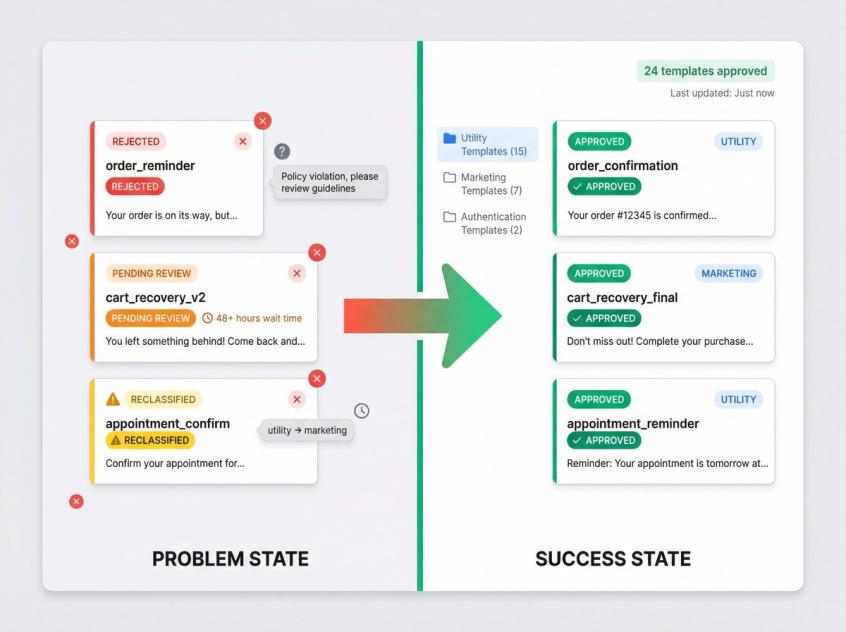
This post is structured to get you there quickly.
What Is Meta Actually Checking in WhatsApp Templates?
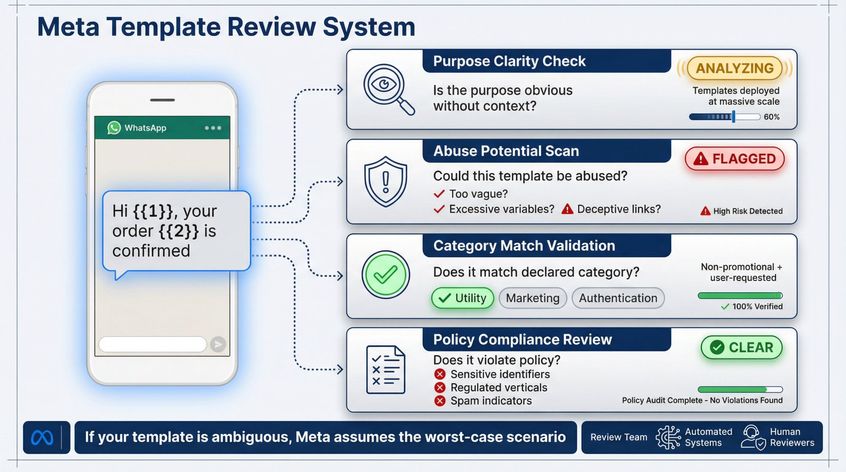
Meta reviews templates like a safety engineer, not a marketer. They're asking:
- Is the purpose obvious even without conversation context? (Templates can be deployed at massive scale)
- Could this template be abused? (Too vague, excessive variables, deceptive link tricks)
- Does it match the declared category? (Utility must be non-promotional and tied to a user action or request)
- Does it violate policy? (Sensitive identifiers, regulated verticals, spam indicators, political use bans)
WhatsApp also employs both automated systems and human review teams to enforce against spam, fraud, and bulk/auto messaging designed to harm users.
Translation: If your template is ambiguous, Meta assumes the worst-case scenario.
WhatsApp Template Pre-Submit Checklist (10 Minutes)
This checklist alone will eliminate most rejections.
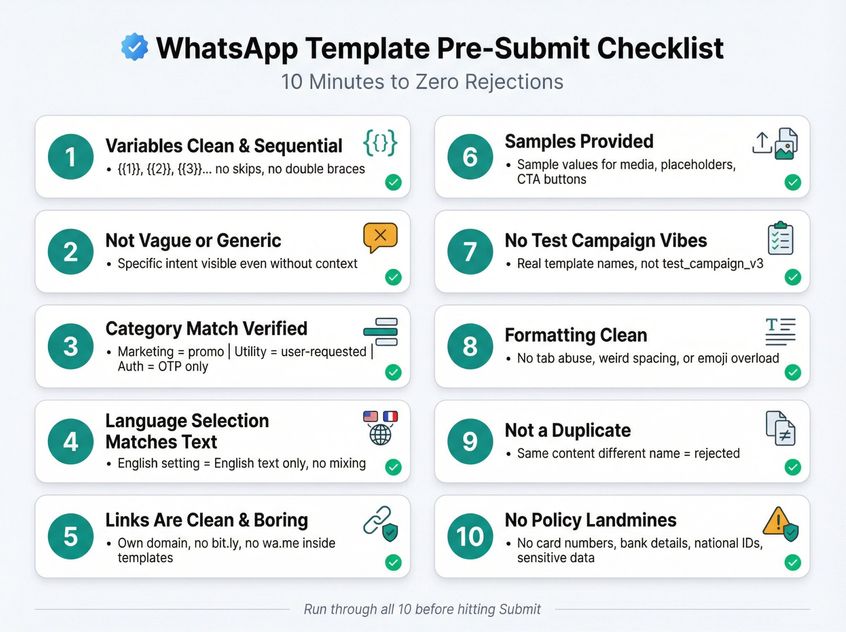
Spur's Help Center provides detailed guidance on template rejection patterns - a valuable resource for troubleshooting specific issues.
1) Variables Are Clean and Sequential
- Use
{{1}},{{2}},{{3}}… (no skips, no mismatched braces) - Don't put variables back-to-back
- Don't start or end your body with a variable
- No special characters inside variable parameters (like
#,$,%)
2) Your Template Is Not Vague
Templates like "Reminder: {{1}}" scream "I can use this for anything" exactly what spammers do.
3) Category Is Correct (And Defensible)
- Marketing = promos, sales, winbacks, back-in-stock, newsletters
- Utility = non-promotional + tied to a user request/action or essential info
- Authentication = OTP/2FA and nothing else
4) Language Selection Matches the Actual Text
If you choose English and write in French (or Hinglish), you'll get rejected.
5) Links Are "Boring"
- No shorteners (bit.ly, etc.)
- Avoid wa.me links inside templates
- Prefer your own domain with clean URLs
6) You've Provided Samples Where Needed
Upload sample values for media, placeholders, and CTA buttons when registering templates.
7) No "Test Campaign" Vibes
Template names like "test_campaign" get flagged immediately.
8) Formatting Isn't Weird
Avoid tab/newline abuse, messy spacing, or headers/footers full of emojis and markup.
9) It's Not a Duplicate
Exact duplicates (same content, different name) often get rejected.
10) It Doesn't Touch Policy Landmines
Don't request full card numbers, bank details, national IDs, or other sensitive identifiers.
12 Reasons WhatsApp Templates Get Rejected (With Fixes)
Below are the rejection patterns that show up across platforms with rewrites that usually pass.
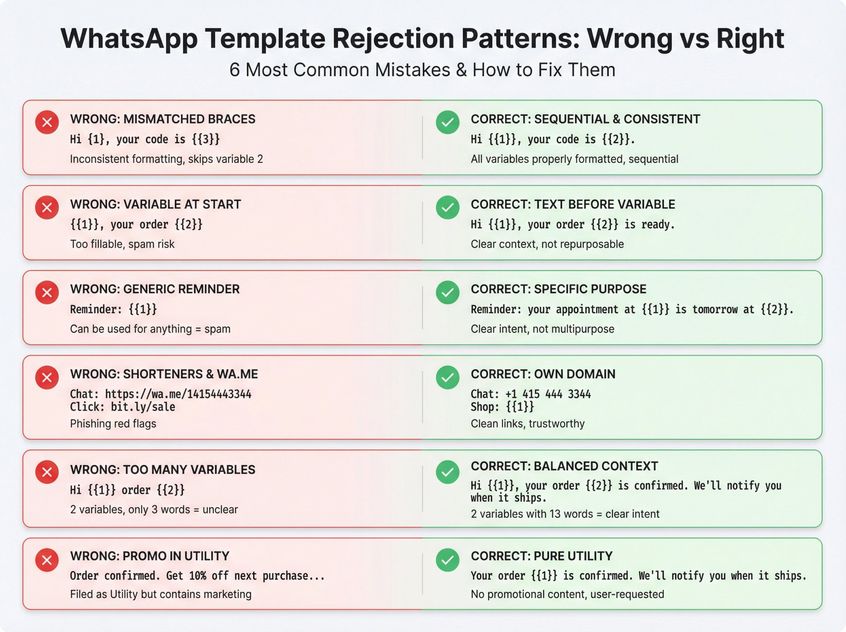
1) Misformatted or Non-Sequential Variables
Why it gets rejected: Reviewers see it as sloppy or unsafe, and automation systems fail when variables are malformed.
Bad Example:
Hi {1}, your code is {{3}}
Good Example:
Hi {{1}}, your code is {{2}}.
2) Variable at the Very Start/End, or Stacked Variables
Why it gets rejected: It's too "fillable," making it easy to repurpose for spam.
Bad Example:
{{1}}, your order {{2}}
Good Example:
Hi {{1}}, your order {{2}} is ready for pickup.
3) Vague or Spam-Like Template
Why it gets rejected: Vague templates are a known abuse pattern.
Bad Example:
Reminder: {{1}}
Good Example:
Reminder: your appointment at {{1}} is tomorrow at {{2}}. Reply 1 to confirm or 2 to reschedule.
4) Wrong Category (Utility vs Marketing Mismatch)
Why it gets rejected or reclassified: Utility templates must be non-promotional and either user-requested/specific or essential. Any persuasive intent makes it marketing.
Bad (Filed as Utility):
Your order is confirmed. Btw, get 10% off your next purchase with code...
Good (Utility):
Your order {{1}} is confirmed. We'll notify you when it ships.
Good (Marketing):
Thanks for your order {{1}}. Here's 10% off your next purchase: {{2}}. Reply STOP to opt out.
5) Language Mismatch
Why it gets rejected: You selected English but wrote in another language or mixed languages.
Fix: Pick the correct language setting for the exact text you're sending. Don't mix languages in one template unless your setup explicitly allows it.
6) Link Issues (Shorteners, wa.me, Off-Brand Domains)
Why it gets rejected: Shorteners and WhatsApp links are frequently used for phishing and spam.
Bad Examples:
Chat with us: https://wa.me/14154443344
Click: bit.ly/sale-now
Good Examples:
Chat with us: +1 415 444 3344
Shop here: {{1}} (use a clean link on your own domain)
7) Too Many Variables for Too Little Text (High "Variable Density")
Why it gets rejected: It's unclear what the message means; reviewers can't infer intent.
A practical guardrail: minimum words ≈ (3 × variables) + 1
Bad Example:
Hi {{1}} order {{2}}
Good Example:
Hi {{1}}, your order {{2}} is confirmed. We'll notify you when it ships.
8) Missing Samples for Media Templates or "Floating Parameters"
Why it gets rejected: Meta needs sample values/files to understand what will be sent, especially for media headers and dynamic fields.
Fix:
- Add sample values for every
{{n}}in the submission step - Upload a sample media file for headers that use image/video/document
9) Messy Formatting (Tabs/Newlines/Spacing Tricks)
Why it gets rejected: Weird formatting is an abuse signature and can break rendering.
Fix:
- Write normal sentences
- Avoid excessive spaces, tabs, or newline spam
- Keep formatting left-aligned and minimal
Why it gets rejected: Headers/footers with emojis, markup, or odd characters get flagged.
Fix:
- Keep header/footer simple and plain text
- Put your main message intent in the body
- If using media headers, upload relevant sample files
11) Duplicate Template
Why it gets rejected: Submitting identical content under a new name is treated as a duplicate.
Fix: If you need a variant, change the wording in the body (not just the name).
12) Policy Violations (Business Policy / Commerce Policy / Prohibited Verticals)
Why it gets rejected: Meta blocks messages that ask for sensitive identifiers, contain abusive/sexual content, political campaign messaging, or promote prohibited goods/services.
Examples that commonly trigger rejection:
- Asking for full card/bank details or national ID numbers
- Abusive, threatening, sexually explicit content
- Political campaign messaging
- Regulated categories (alcohol/tobacco, drugs, gambling, adult products, dating services, MLM, payday loans)
Fix:
- Remove the content entirely (don't try to "wordsmith around" it)
- If you must confirm identity, request only partial info (like last 4 digits), not full identifiers
WhatsApp Template Categories: Marketing vs Utility (2026)
Category selection is where most teams get burned especially because Meta can reclassify templates even after approval.
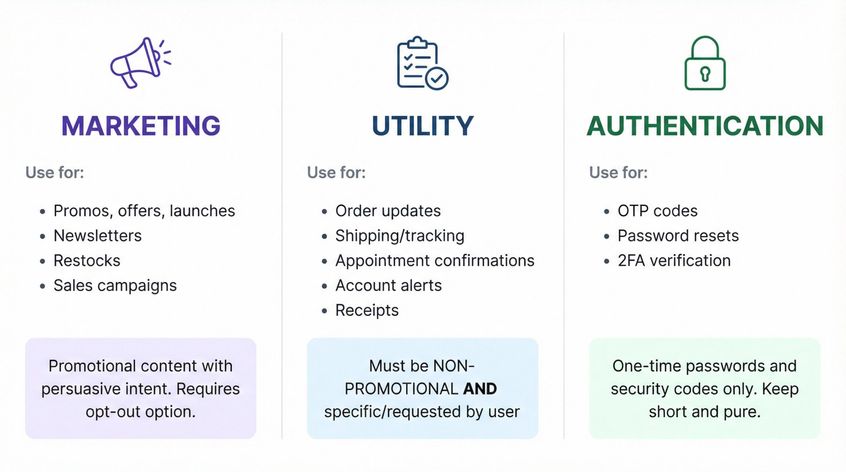
Marketing Templates
Use for: promos, offers, launches, newsletters, restocks
Best practice: Include an opt-out like "Reply STOP to unsubscribe" often required in tooling.
Utility Templates
Use for: order updates, shipping/tracking, appointment confirmations, account alerts, receipts things that support the customer's existing journey
Strict definition: Must be non-promotional AND specific/requested by the user (or essential/critical like safety)
Authentication Templates
Use for: OTP, password resets, 2FA. Keep it short and pure.
Can Meta Change WhatsApp Template Category After Approval?
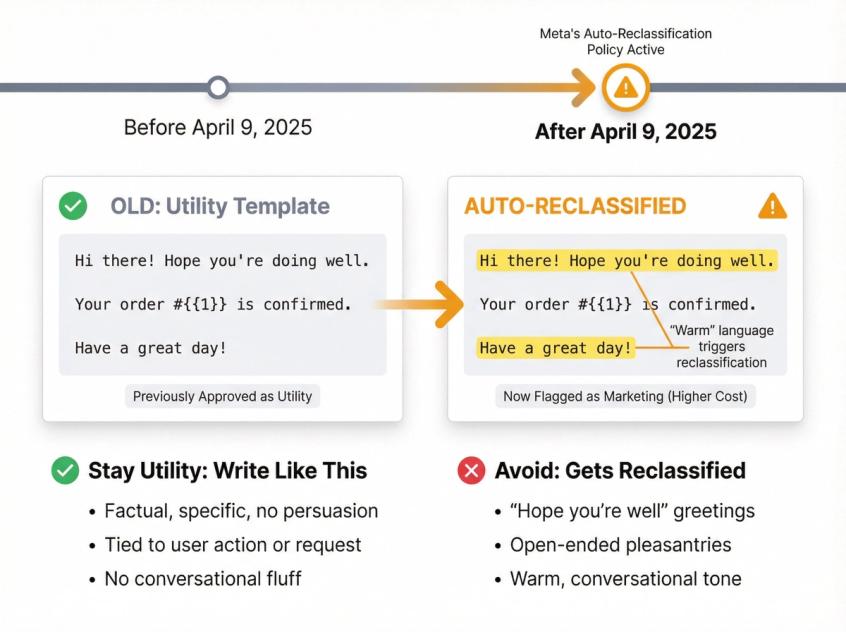
Two important shifts:
- Starting April 9, 2025, Meta may automatically update a template's category (example: utility → marketing)
- Since mid-April 2025, older utility templates can get silently moved to marketing if the wording is even slightly "warm" or open-ended
What this means: If you want a template to stay utility, write it like an alert, not a conversation:
- Factual, specific, no persuasion
- Avoid "hope you're well" style fluff
WhatsApp Template Variables: Rules That Prevent Rejection
Think of your template as a form with blanks. The more blanks, the more dangerous it is.
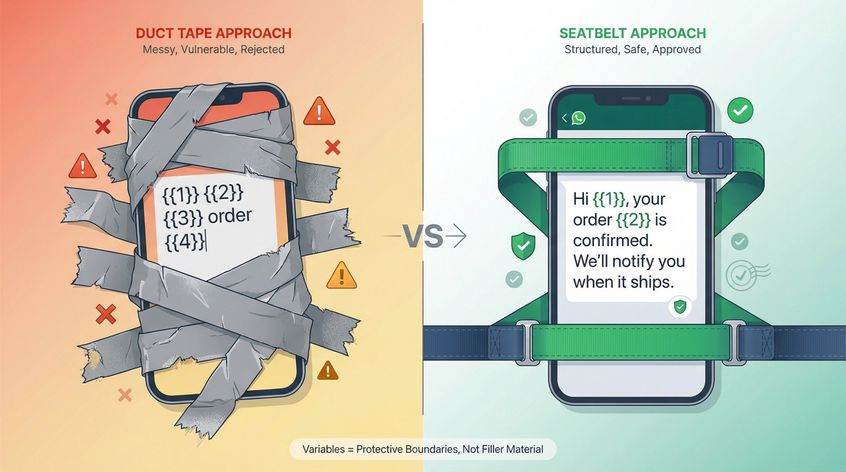
Variables: Use Them Like Seatbelts, Not Like Duct Tape
Rules that show up repeatedly:
- Variables must be sequential and properly formatted
- Avoid variables at the start/end; don't stack variables
- Keep variable density low; add context text
- Provide sample values when submitting for approval
How to Add Links to WhatsApp Templates Without Getting Flagged
Links are where scammers live, so Meta is jumpy.
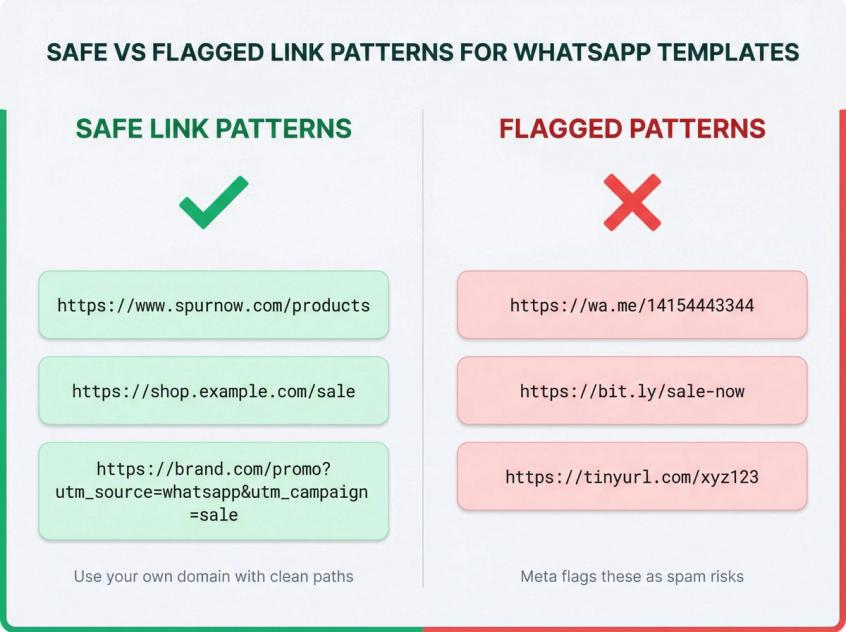
Do this:
- Use your own domain
- Avoid shorteners
- If you need tracking, prefer clean UTM parameters on your domain
Don't do this:
- wa.me links inside templates
- bit.ly / tinyurl / short domain redirects
WhatsApp Media Templates: Sample Files & Format Requirements
If you use a media header (image/video/document), you usually need to upload a sample media file for approval.
Real Screenshot Needed: WhatsApp Media Template Upload Interface
This AI illustration should be replaced with a real screenshot of the WhatsApp Business Manager template creation wizard showing:
- Media header type selection (Image/Video/Document options)
- Sample file upload interface
- Format and size requirements displayed on screen
- The actual upload flow users navigate
Why automated capture failed: Requires authentication AND multi-step wizard navigation (cannot be reached via direct URL)
Manual capture instructions: See web-screenshots/captures/SC-03-placeholder.md for detailed wizard navigation steps and screenshot requirements.
Alternative approach: Consider using Spur's template builder (use.spurnow.com) interface instead - may be easier to access and equally valuable for readers.
Current placeholder: Keeping AI illustration below until real screenshot is captured.
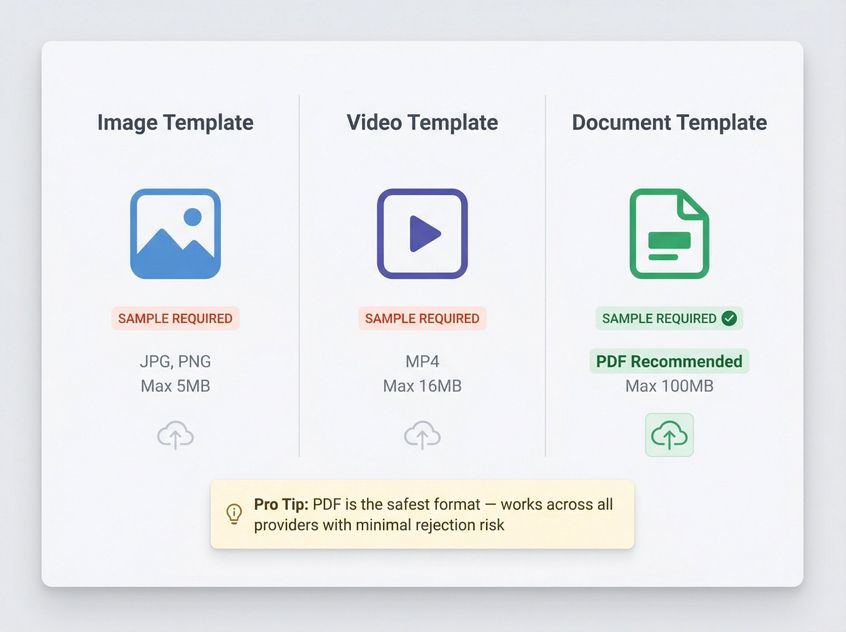
Practical move: If you're getting "media template without sample" or "invalid media" rejections, upload a PDF as your document sample first it's the least controversial format across providers.
Header images are cropped to the message bubble when the ratio is off. Our WhatsApp image size guide lists the exact ratios and file limits for template headers, carousel cards and every other WhatsApp surface.
WhatsApp Template Naming Rules (Meta Requirements)
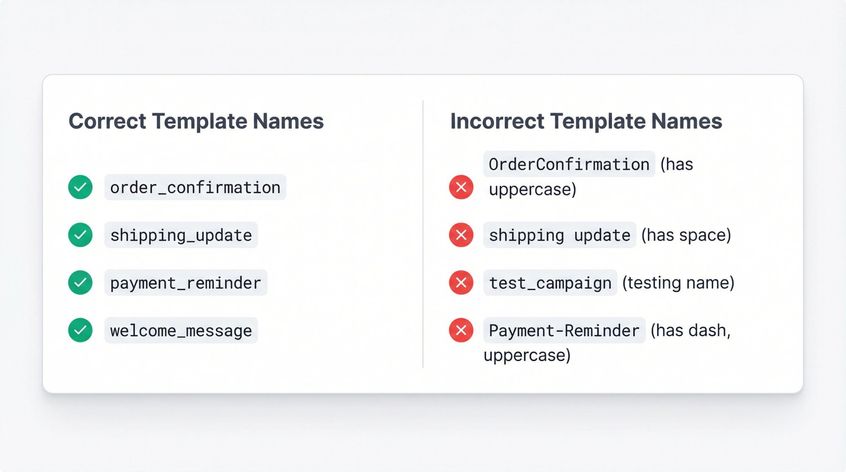
Requirements:
- Template name should be lowercase
- No spaces; use underscores (example:
greeting_template) - Avoid names that look like testing ("test_campaign")
How to Appeal a WhatsApp Template Rejection
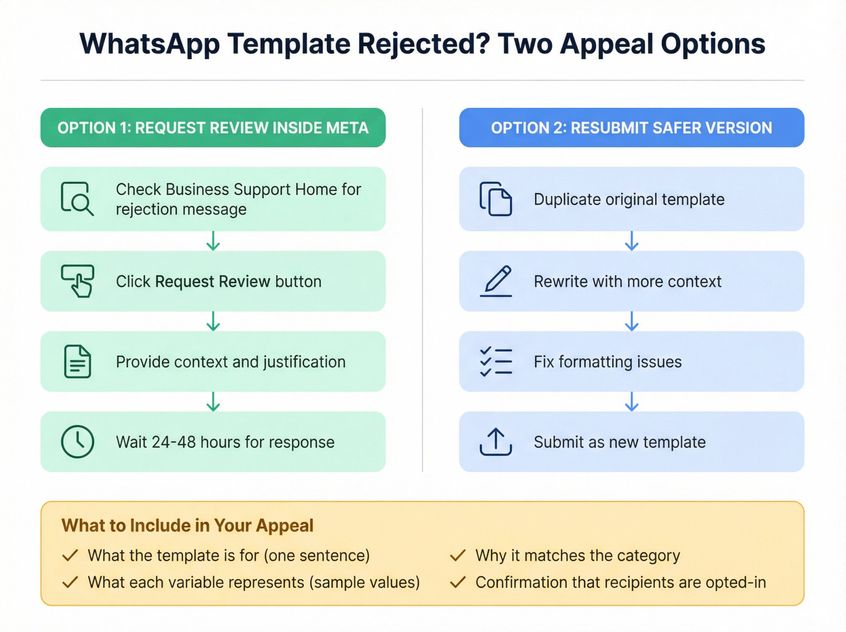
Two options if you believe it was wrongly rejected:
1. Request Review / Appeal Inside Meta
- Check rejected template messages in Business Support Home
- Use "Request Review" option
- You can also modify and resubmit
2. Resubmit a Safer Version
Sometimes the fastest route is to duplicate, rewrite with more context, fix formatting, and resubmit.
What to include in an appeal:
- What the template is for (one sentence)
- What each variable represents (sample values)
- Why it matches the category
- Confirmation that recipients are opted-in
WhatsApp Template Examples That Pass (Copy-Paste Ready)
These are intentionally "reviewer-friendly": clear intent, low ambiguity, clean variables, and opt-out where appropriate.
Utility: Order Shipped
Hi {{1}}, your order {{2}} has shipped. Track it here: {{3}}
Utility: Appointment Reminder
Reminder: your appointment is on {{1}} at {{2}}. Reply 1 to confirm or 2 to reschedule.
Marketing: Back in Stock (With Opt-Out)
Hi {{1}}, {{2}} is back in stock. Shop now: {{3}}. Reply STOP to opt out.
Authentication: OTP
Your {{1}} code is {{2}}. Do not share this code with anyone.
How Spur Makes WhatsApp Template Management Effortless
At Spur, we've built our entire WhatsApp Business API platform around making template approvals smooth and straightforward. Here's how we help:
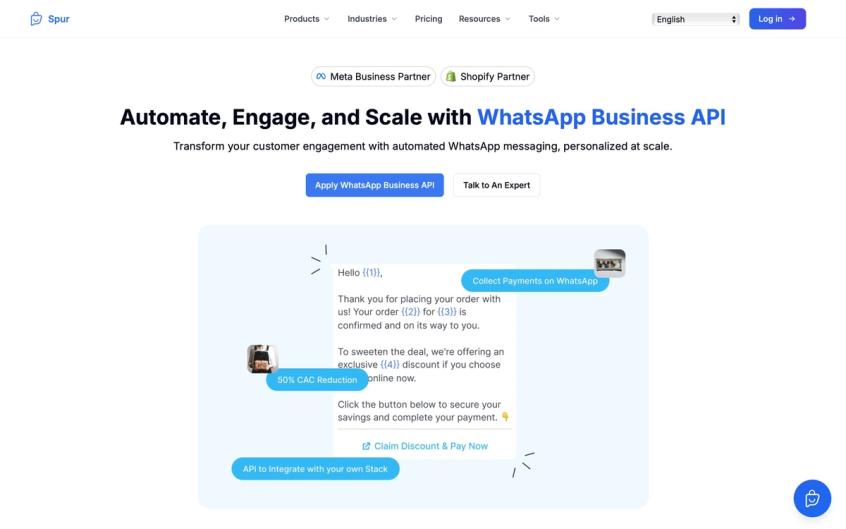
Why automated capture failed: Requires Spur account authentication (use.spurnow.com requires login)
Manual capture instructions: See web-screenshots/captures/SC-01-placeholder.md for detailed navigation, login flow, and screenshot requirements.
High-priority note: This is a key trust signal for the article - showing Spur's real platform builds credibility and helps readers visualize the actual tool being recommended.
Current placeholder: Keeping AI illustration below until real screenshot is captured.
Template Dashboard with Real-Time Status
Our template management system shows you exactly where each template stands approved, pending, or rejected with category, language, and last updated timestamp. No more hunting through Meta's interface.
Pre-Submission Validation
Before you even submit to Meta, Spur's template builder automatically checks for common errors:
- Proper variable formatting (sequential numbering, no dangling placeholders)
- Category-content alignment
- Link hygiene (flags shorteners and wa.me URLs)
- Variable density warnings
Sample Value Management
When creating templates, you can add sample values right in the Spur interface. These samples are used for approval only you'll set real values later in broadcasts and automations.
Category-Specific Guidance
We provide detailed guidelines for Utility, Marketing, and Authentication templates directly in the platform, so you know exactly what content fits each category before you hit submit.
Automatic Reclassification Monitoring
Since Meta can reclassify templates from Utility to Marketing without warning, Spur alerts you when this happens so you can adjust your messaging strategy and budget accordingly.
Quick Resubmission Workflow
If a template gets rejected, our platform shows you the rejection code (INVALID_FORMAT, TAG_CONTENT_MISMATCH, etc.) and provides specific fixes based on the error. You can edit and resubmit directly no need to start from scratch.
Integration with Your Entire Customer Engagement Stack
Unlike standalone template tools, Spur integrates template management with:
- Shared inbox for WhatsApp, Instagram, Facebook, and Live Chat
- Visual automation builder for drip campaigns and abandoned cart flows
- Broadcasts and segmentation for targeted campaigns
- E-commerce integrations (Shopify, WooCommerce, Razorpay, Stripe)
- AI agents trained on your knowledge base for automated responses
This means your templates aren't just sitting in a vault they're actively powering customer conversations that drive revenue.
Why D2C Brands and Service Businesses Choose Spur
With a 4.9/5 rating on Shopify App Store across 78+ reviews, businesses trust Spur because:
- Fast approval rates: Our template best practices are battle-tested across thousands of submissions
- No surprises: We track Meta policy changes and update our guidelines proactively
- All-in-one platform: No need to stitch together separate tools for templates, broadcasts, automation, and support
- Responsive support: Priority WhatsApp and email support on higher tiers, dedicated account managers on AI Max
Start your 7-day free trial and see how much faster template approval becomes when you have the right tools.
Frequently Asked Questions
Why did a totally harmless template get rejected?
Reviewers don't only check "harm." They check abuse potential. Vague templates with lots of blanks are easy to repurpose for spam. That's why "Reminder: {{1}}" is risky and "Reminder: your appointment..." is safer.
How long does approval take?
It varies. Typical template review is 24–48 hours. Some teams see faster approvals, but plan for that window.
Can Meta change my template category after approval?
Yes. Meta may automatically update a template's category starting April 9, 2025.
Do I really need opt-in and opt-out?
What's the difference between Marketing and Utility templates in terms of cost?
Marketing templates typically have higher conversation fees than Utility templates. When Meta reclassifies a Utility template to Marketing, your per-conversation cost increases. Spur provides transparent WhatsApp conversation pricing by category and country.
Can I use emojis in templates?
Yes, but strategically. Emojis are okay in the body (counted as 2 characters each), but not in header or footer sections, which only accept plain text. Excessive emojis can make your template look spammy.
What if I need to ask for payment information?
Never request full credit card numbers, bank account details, or sensitive financial data in templates. This violates WhatsApp's Business Policy. If identity verification is needed, ask for partial info only (e.g., last 4 digits).
How many templates can I have approved at once?
There's no hard limit on approved templates, but Meta does limit how often you can edit a single template (a few times per month). If you hit edit limits, create a fresh template instead of trying to modify the old one.
Final Thoughts: Send Templates with Confidence
Getting WhatsApp templates approved doesn't have to be a frustrating guessing game. By understanding Meta's review criteria, using our pre-submit checklist, and following category-specific guidelines, you can dramatically increase your approval rate.
Remember these core principles:
- Follow the format correct placeholders, clean text, proper naming
- Be clear and honest show value and context, don't mislead
- Choose the right category align with Marketing vs Utility rules
- Respect the policies keep content user-friendly, lawful, and privacy-conscious
At Spur, we've helped thousands of businesses navigate WhatsApp template approvals while building entire customer engagement systems on top of approved templates. Whether you're running abandoned cart campaigns, sending order updates, or automating Instagram DM responses, we make it seamless.
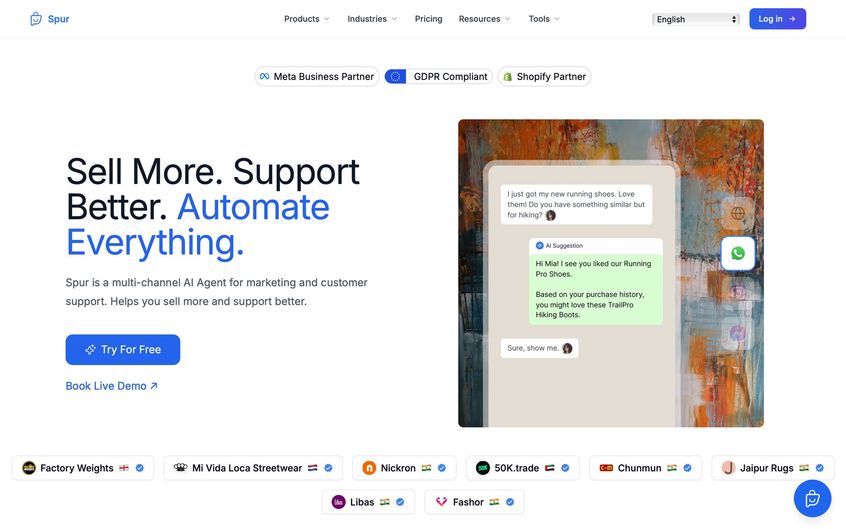
Start your free trial today and experience WhatsApp automation done right where template approvals are just the beginning of what you can achieve.