Let customers call you on WhatsApp
Customers can now call you from their WhatsApp chat, and your team answers in Spur. You can call customers too, once they allow it.
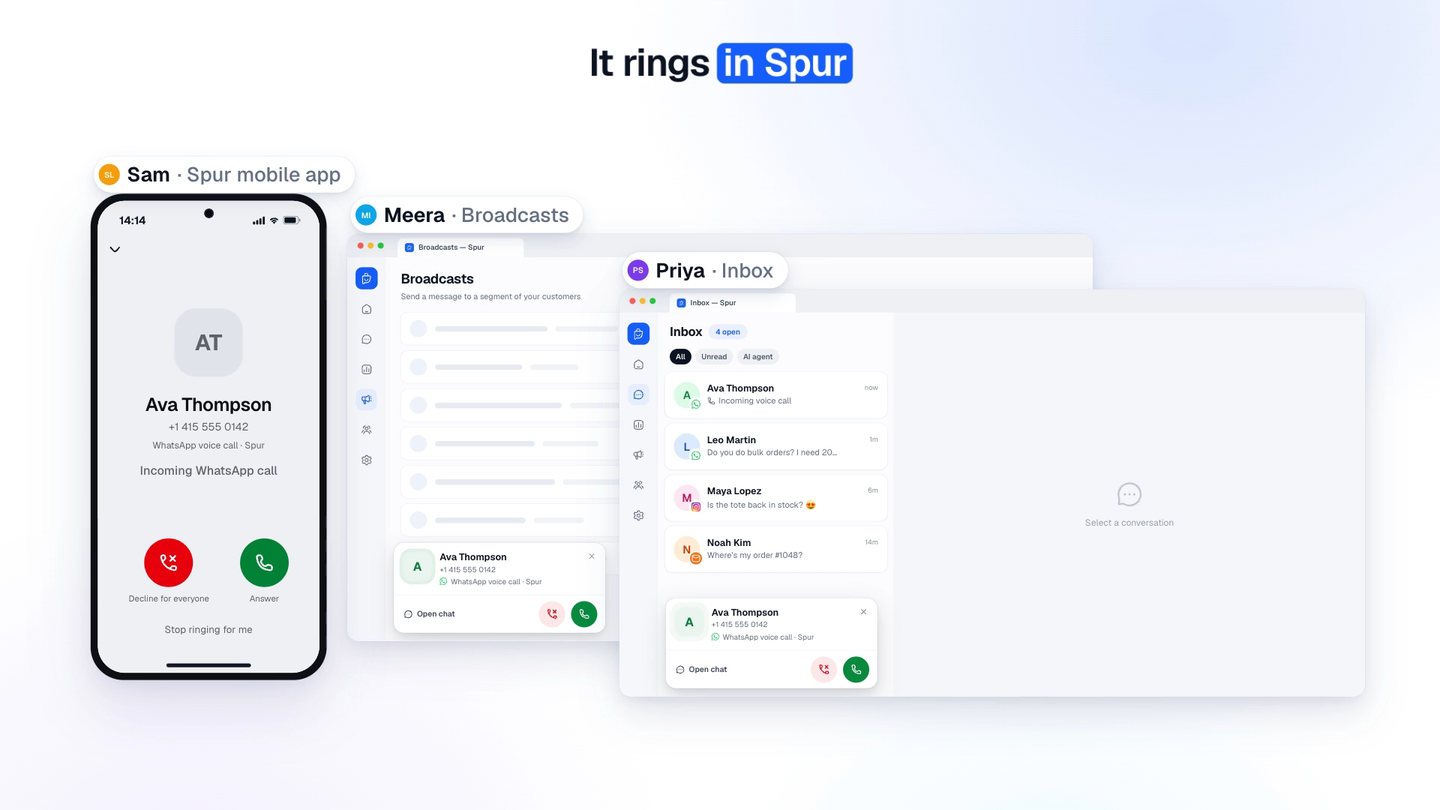
Some questions are faster to answer on a call: where’s my order, which size fits, can I get a price for 50. With WhatsApp Calling in Spur, customers can call you from the WhatsApp chat they already have with you, and your team answers in Spur. You can call customers too, once they allow it.
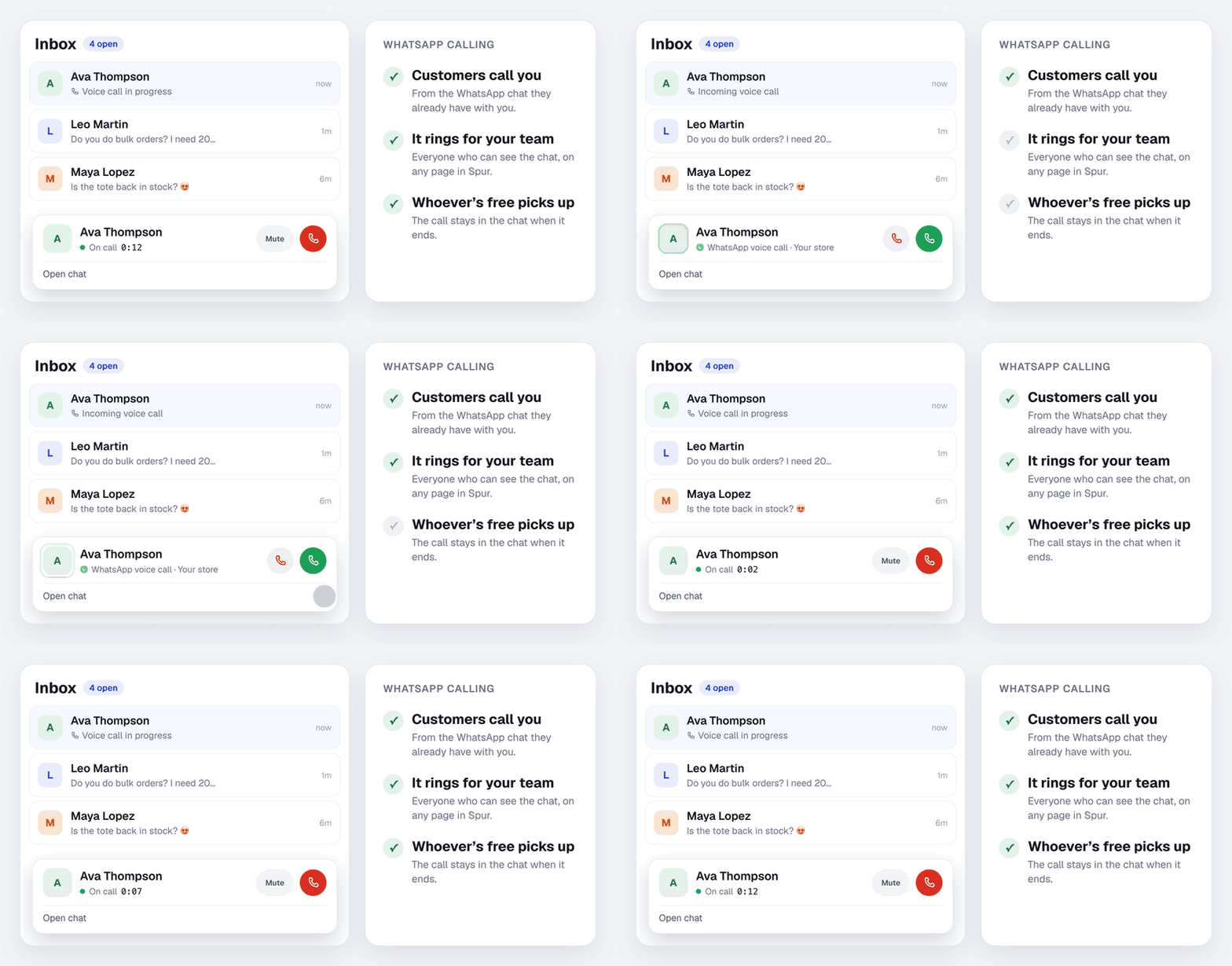
Watch the 1-minute video to see it in action.
What you can do
- Take calls as a team. The call rings in Spur for everyone on your team who can see that chat, on any page, and the first person free answers it. No separate phone line, no personal numbers.
- Call customers. Call a customer straight from their chat, once they have allowed calls.
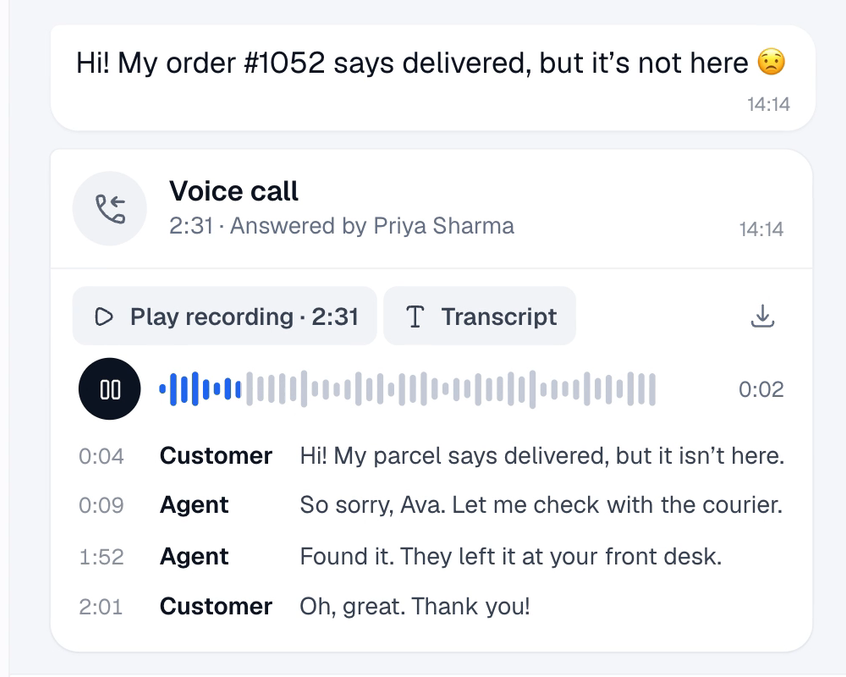
- Keep every call in the chat. Each call shows who answered or placed it and how long it lasted. Missed calls show up too.
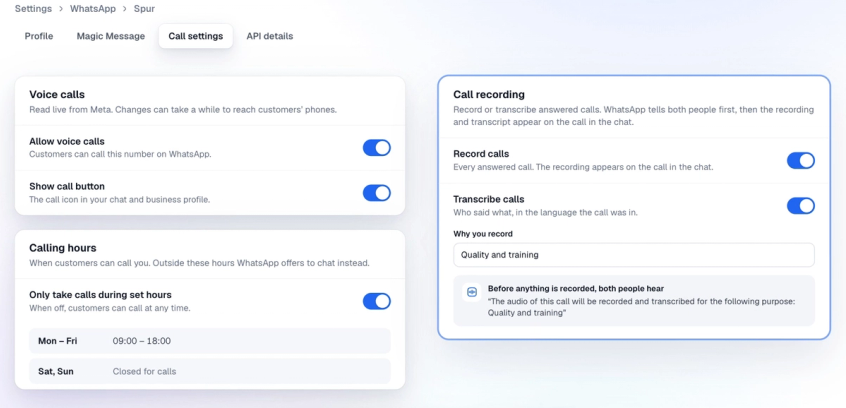
- Record and transcribe calls. Both are optional and off until you switch them on. The recording and a transcript, in the language the call was in, appear on the call in the chat. WhatsApp tells both people before anything is recorded.
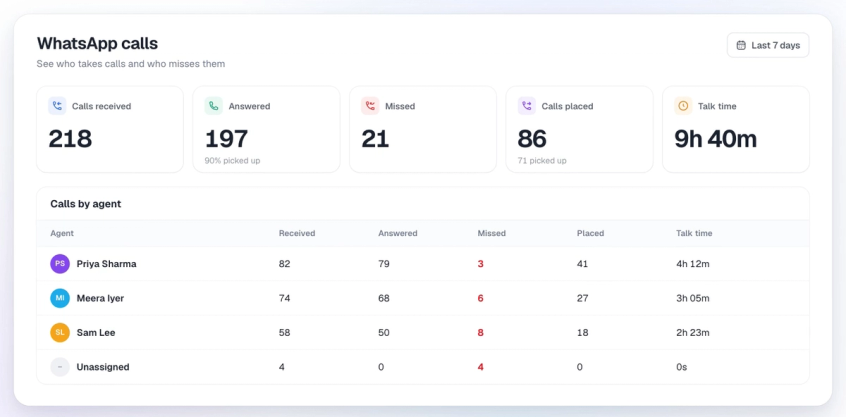
- See who takes calls. Analytics, then Calls shows calls received, answered, missed and placed, and talk time, for each teammate.
How to turn it on
- In Spur, go to Settings, then WhatsApp, and click Manage next to your number.
- Open the Call settings tab and switch on Allow voice calls. Changes can take a while to reach customers’ phones.
- Set up the rest to suit your team: Show call button, Who sees the call button (by country), Ask callers for permission to call back, Calling hours, Voicemail, and Record calls or Transcribe calls.
How to call a customer
WhatsApp only lets businesses call customers who have said yes. Here’s how it works:
- Open the customer’s chat and click the call icon at the top.
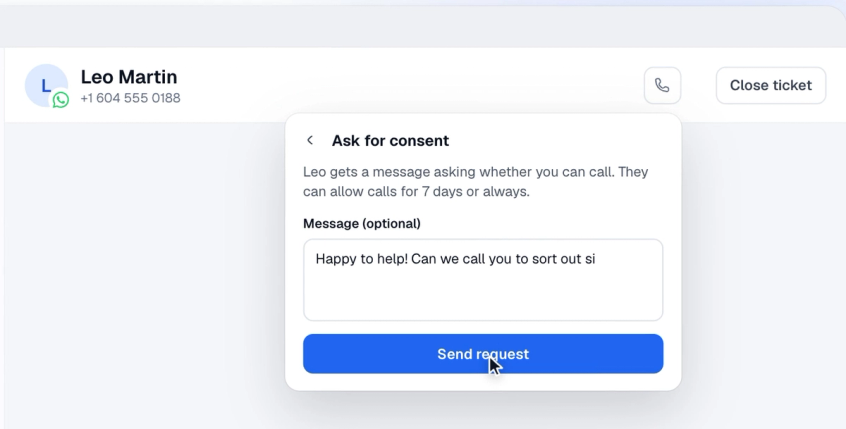
- If they haven’t allowed calls yet, click Ask for consent and send the request. If they messaged you in the last 24 hours, it goes as a normal message. If not, you need an approved Utility or Marketing template with Ask for permission to call ticked.
- The customer chooses to allow calls for 7 days, or always. Their answer shows up in the chat.
- Click the call icon again to call them from Spur.
Customers who call you can also let you call them back for 7 days, if you switch on Ask callers for permission to call back. WhatsApp allows 1 permission request per customer every 24 hours and 2 every 7 days, and a connected call resets this.
Who can use it
- Every Spur plan.
- Numbers connected to Spur through the WhatsApp Cloud API or OneXtel, with a messaging limit of at least 2,000 a day. You can see your limit in Settings, then WhatsApp.
- Not numbers that are also used in the WhatsApp Business app.
- Numbers from the US, Canada, Egypt, Vietnam and Nigeria can receive calls but can’t make them.
What it costs
- Customers never pay to call you. Ringing and unanswered calls are free.
- Calls are paid from your Spur WhatsApp wallet, per minute of connected call, the same on every plan. You don’t need to pay Meta separately. Calls are counted in 6-second steps.
- Calls customers make to you cost ₹0.25 a minute (0.005 a minute if you’re billed in USD, GBP or EUR), whichever country they call from.
- Calls you make are priced by the country of the number you call, for example ₹0.50 a minute to India. See all call rates, or open your WhatsApp wallet in Spur and click Rate card, then Calls.
- A permission request sent as a template is charged like any other template message.
Tips so no call goes unanswered
- Keep Spur open. Calls ring in Spur on any page, for everyone who can see the chat.
- Set calling hours so customers call only when someone can pick up. Outside those hours, WhatsApp offers to chat instead.
- Turn on voicemail so a caller you miss can leave a message. It arrives in the chat as audio. Voicemail works best with calling hours switched off.
- Pick up as many calls as you can. If too many customer calls go unanswered, WhatsApp warns you and then hides your call button from customers.
- Only call customers who expect it. If a customer misses 2 of your calls in a row, WhatsApp asks them whether they still want your calls. After 4, their permission is removed. If many customers block or report your calls, WhatsApp can pause calling on your number for 7 days.