Key takeaways
Browse 80+ ready to use WhatsApp templates by industry and use case. Hit 90%+ delivery with utility templates. Plus: duplicate templates, status refresh, rejection reasons, and category warnings, all live now.
Ask an AI about this article
What's New?
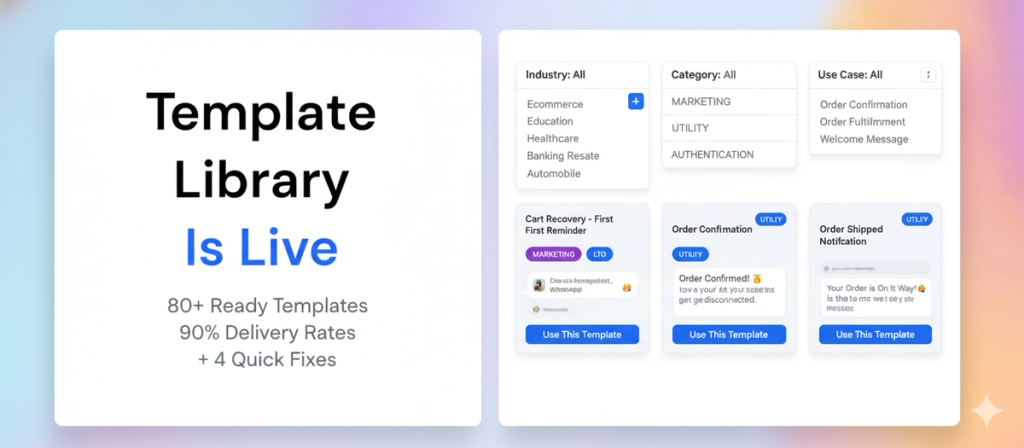
We built a template library so you never have to write WhatsApp templates from scratch again.
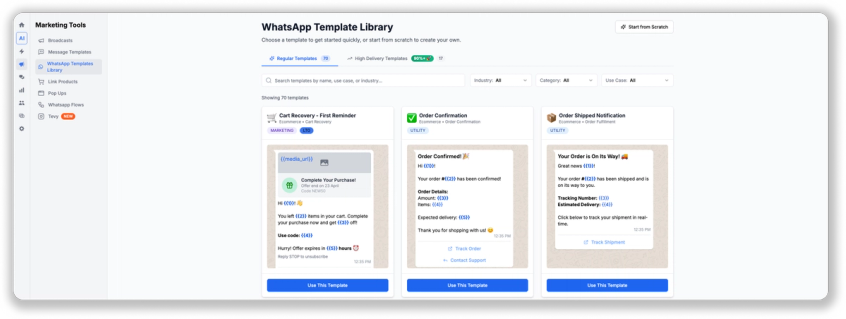
Browse 80+ ready-to-use templates organized by industry, category, and use case. Click, customize, submit. Approved in minutes instead of hours of trial and error.
The best part? There's also a section for high-delivery utility templates that bypass Meta's per-user marketing limits. Send promotional content through utility templates and hit 90%+ delivery rates even in markets with heavy restrictions (India, Brazil, Mexico, USA).
Filter by:
- Industry (Ecommerce, Healthcare, Real Estate, Education, etc.)
- Category (Marketing, Utility, Authentication)
- Use Case (Cart Recovery, Order Confirmation, Flash Sales, etc.)
Pick a template. Swap in your copy. Use any image or video when broadcasting (Meta doesnt scan media during approval). Done.
Learn more about it in this video:
4 More Template Fixes
We also fixed 4 annoying things about managing templates:
1. Duplicate Templates
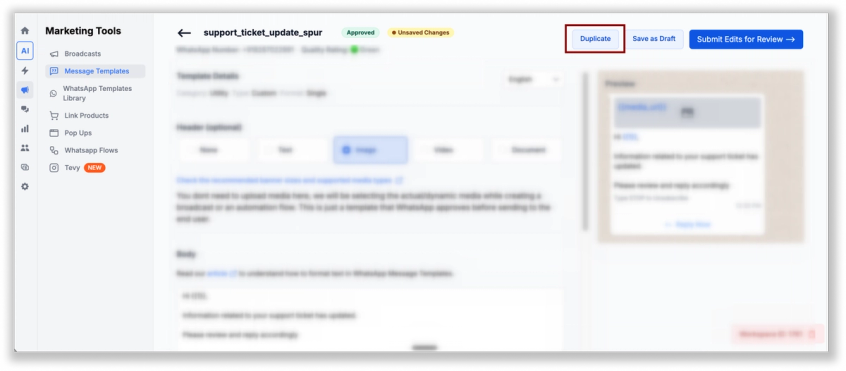
Need a similar template? Hit duplicate. The structure, buttons, and variables carry over. Just change the copy and save. Duplicates auto-number themselves (Flash Sale, Flash Sale 2, etc.) so you dont lose track. Perfect for A/B testing or running multiple campaigns with slight variations.
2. Refresh Pending Templates
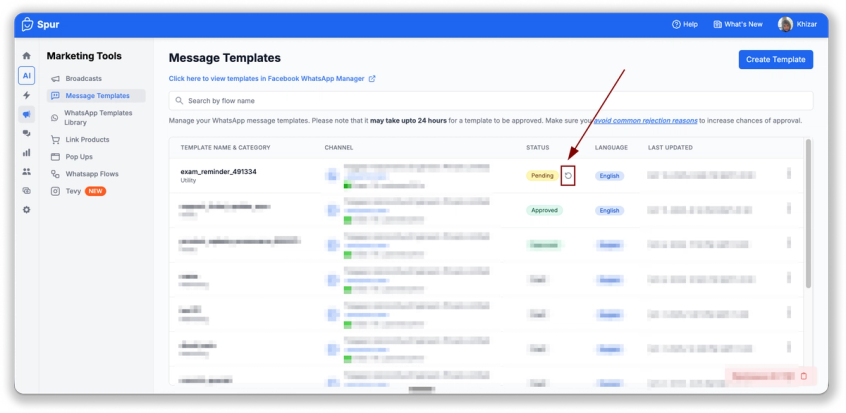
Stop wondering if Meta approved your template yet. Hit the refresh button on pending templates to check status instantly instead of waiting for an email that may or may not come. No more checking your inbox every 10 minutes.
3. Rejection Reasons Visible
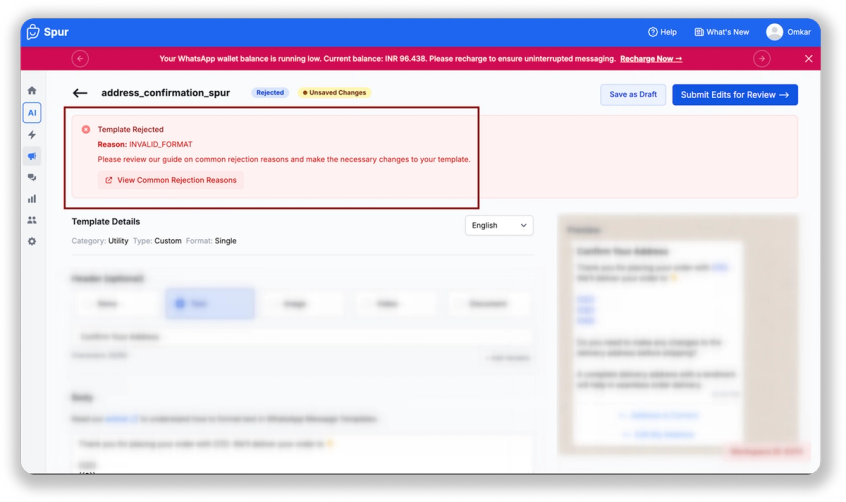
If Meta rejects a template, the reason now shows directly in the editor. No hunting through emails. Fix it right there and resubmit in 30 seconds. Common issues like wrong category or missing opt-out language are flagged immediately.
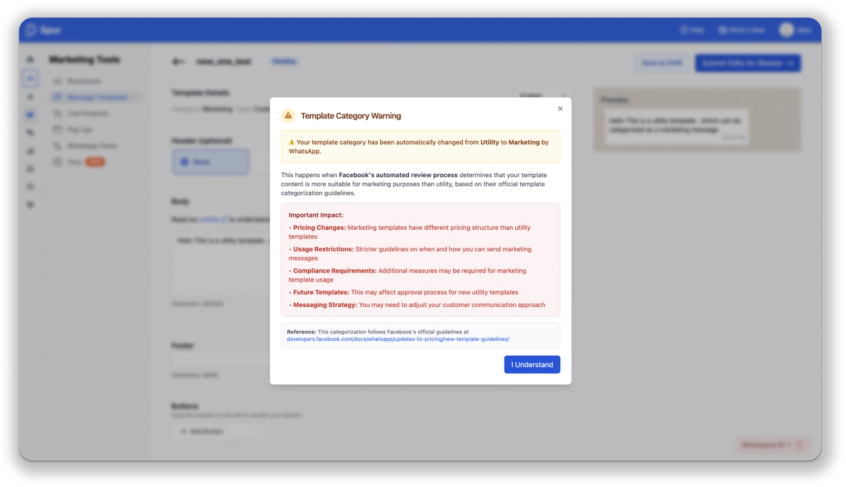
4. Category Change Warning
Switching a template from Marketing to Utility (or vice versa)? A dialog pops up to confirm. This prevents accidental category changes that get your template rejected or reclassified later by Meta's automated systems.
How to Use
- Template Library: Templates > Create Template > Browse Library > Filter by Industry/Category/Use Case > Pick > Customize > Submit for Review
- Duplicate: Open any template > Duplicate button > Edit > Save
- Refresh Status: Templates page > Pending templates > Refresh icon
- Check Rejections: Templates > Click rejected template > Reason shows at top
Faster template creation. Less waiting around. Higher delivery rates. More broadcasts out the door.
Was this article useful?