Key takeaways
- A WhatsApp Business catalogue lets customers browse products, pick a variant, add to a cart and send you the order without leaving the chat.
- Spur creates the catalogue in your Meta business; you add products in Spur or sync them from Shopify, variants included.
- The WhatsApp Business app catalog holds up to 500 items added by hand; the API uses one Meta catalog per WhatsApp Business Account that you can sync from Shopify.
- Every product is reviewed against the Meta Commerce Policy and stays hidden until it is approved, usually within hours.
- Inside the 24-hour window you can send product messages without a template; outside it you need catalog, multi-product or carousel templates, billed as marketing.
Ask an AI about this article
A WhatsApp Business catalogue (or catalog) is a list of your products, with photos and prices, that customers browse and order from inside a WhatsApp chat. You can create one by hand in the free WhatsApp Business app, or let Spur create it for you on the WhatsApp Business API, where you add products yourself or sync them from Shopify.
This guide walks through both routes step by step, the limits and approval times Meta sets, real examples, and the fixes for a catalogue that will not show up.
What is a WhatsApp Business catalogue?
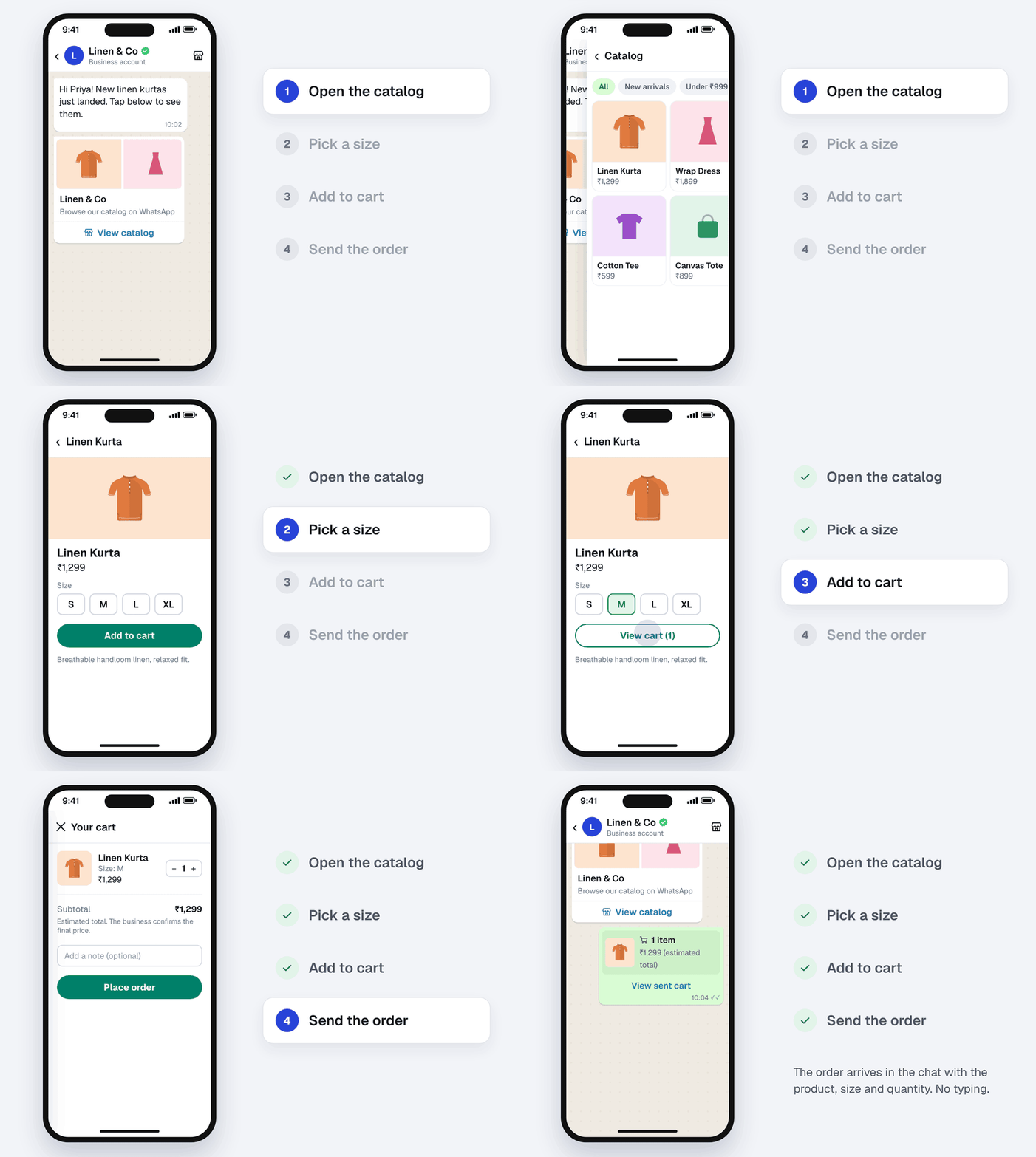
A WhatsApp Business catalogue is a mobile storefront attached to your WhatsApp business profile, and the catalog feature is free in the WhatsApp Business app. Customers open it from your profile or from a link you send, browse your products, and order in the same chat where they ask you questions.
Each item in a WhatsApp Business product catalog has a title, at least one image, and usually a price, a description and a link to the product page on your website. With a catalogue, customers can:
- Browse every product you have listed, or a collection you have grouped together.
- Open a product to see its photos, price and description.
- Pick a variant, such as size or colour, when the product has them.
- Add items to a cart, change quantities and send the cart to you as an order.
What a catalogue does not do is take payment. The order arrives as a message, and you follow up with a checkout link, payment details or a cash on delivery confirmation. Meta's help article on carts says the same: after a customer places an order, the business reaches out to discuss payment.
The reason a catalogue beats a PDF or a string of product photos is that the customer never has to type what they want. The cart tells you the exact product, variant and quantity, which removes the back and forth that loses sales in WhatsApp for ecommerce.
Limits, image sizes and approval times
A WhatsApp Business app catalogue holds up to 500 items with up to 10 photos or videos each, and WhatsApp reviews every item before customers can see it, usually within a few hours. Here is the full set of limits, checked against WhatsApp's and Meta's own documentation in October 2026:
| What | Limit | Source |
|---|---|---|
| Products in the WhatsApp Business app | Up to 500 items | WhatsApp Business |
| Photos or videos per item | Up to 10 | WhatsApp Help Center |
| Required on every app item | Name, at least one image, country of origin | WhatsApp Help Center |
| Catalogues on the API | One per WhatsApp Business Account, shared by its numbers | Meta for Developers |
| Required on every API item | Price, image and product page link | Meta Commerce Manager |
| Product image | Square, 1080 by 1080 px recommended | Spur image size guide |
| Item review | Usually a few hours, sometimes up to a day | Spur catalogue status |
| Collection review | Should take no more than 24 hours | WhatsApp Help Center |
| Multi-product message | Up to 30 products in up to 10 sections | Meta for Developers |
| Product carousel | 2 to 10 cards | Meta for Developers |
| Cart | Up to 99 units per item; a sent cart cannot be edited | Meta for Developers |
Every item is checked against the Meta Commerce Policy and stays hidden from customers until it is approved. Products like alcohol, prescription drugs and weapons cannot be listed at all.
Product photos cropped badly? Here is the right WhatsApp catalogue image size for every placement.
How to create a catalogue in the WhatsApp Business app
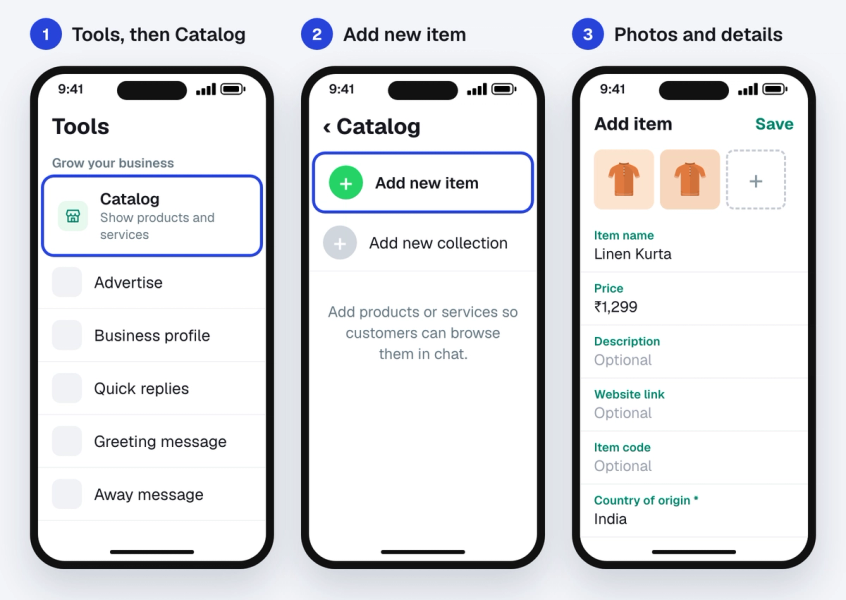
To create or add a catalogue in WhatsApp Business, open Tools, tap Catalog, tap Add new item and fill in the product details. The app route is free and works well for a small seller adding products by hand.
On Android and iPhone
- Open the WhatsApp Business app and go to the Tools tab (on older versions, Settings, then Business tools).
- Tap Catalog, then Add new item.
- Add up to 10 images or videos for the product.
- Enter the item name, then the price, description, website link and product code if you want them.
- Set the country of origin, which WhatsApp asks for on every item.
- Tap Save.
On WhatsApp Web or desktop
- Click the business tools icon, then Catalog.
- Click Add new item, then Add images to upload up to 10 images from your computer.
- Enter the name, choose the country of origin and add any optional details.
- Click Add to catalog.
Meta's catalogue help article lists the steps for every device. Items appear to customers only after WhatsApp approves them. A rejected item shows a red exclamation mark; open it and choose Request another review if you think the decision is wrong.
Edit, hide or delete products
Open the item and tap Edit to change it. Turn on Hide item to take a product off the catalogue without losing it, for example when it is out of stock, and turn it off again when it is back. To remove a product for good, open it, tap Edit, scroll down and choose Delete item.
Group products into collections
Collections let customers jump to "New arrivals" or "Under ₹999" instead of scrolling through everything. In the catalogue, tap Add new collection, name it and pick the items. WhatsApp says collection review should take no more than 24 hours.
The app works until it doesn't. Every product is typed in by hand, on one phone, and nothing changes when your prices or stock change on your website. Variants are the other gap: a T-shirt in four sizes means four items, or one item and a lot of "is M available?" messages.
How to create a WhatsApp catalogue with Spur
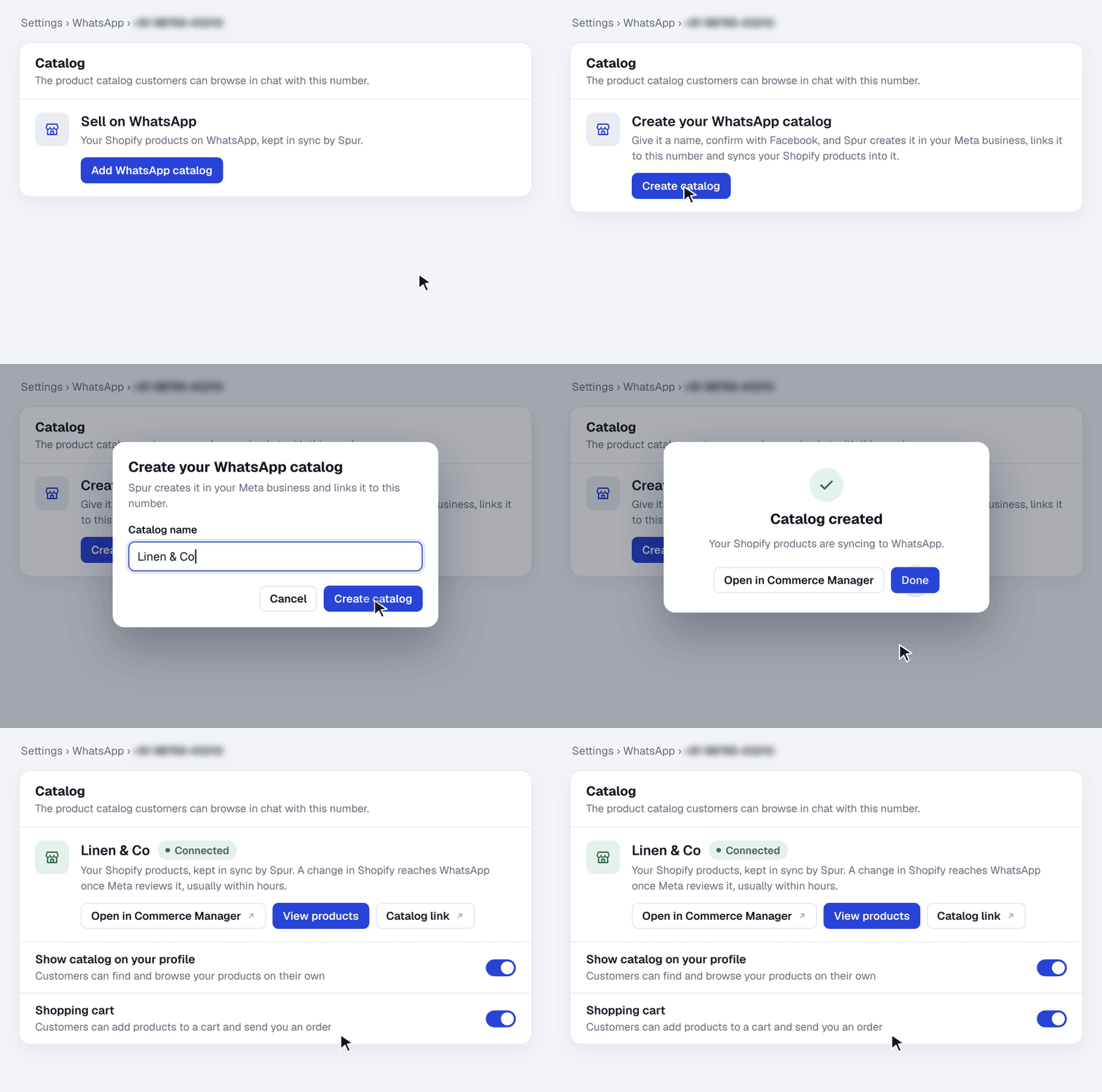
To create a WhatsApp catalogue with Spur, open your WhatsApp number's settings, add the catalogue, name it and confirm once with Facebook. Spur creates it in your own Meta business and links it to your number, so you never open Commerce Manager or upload a product feed. Then you fill it with products, by hand or from Shopify.
- In Spur, go to Settings, open your WhatsApp number and find the Catalog card.
- Click Add WhatsApp catalog to add the catalogue to your plan.
- Click Create catalog and give it a name.
- Confirm with Facebook. The person who confirms needs admin access to your Meta business.
- Spur links the catalogue to your number and turns on Show catalog on your profile and Shopping cart, so customers can browse and order as soon as Meta approves the products.
Already using another catalogue tool? Spur shows it as Connected outside Spur, and Switch to a Spur catalog takes the old catalogue off your number without deleting anything, then creates the new one. Spur's catalogue works on numbers connected to the WhatsApp Business API. Numbers that also run in the WhatsApp Business app (coexistence) keep using the app's own catalogue.
Whether you sell on Shopify or not, create your WhatsApp catalogue with Spur and manage every product from one place.
Add products in Spur or sync them from Shopify
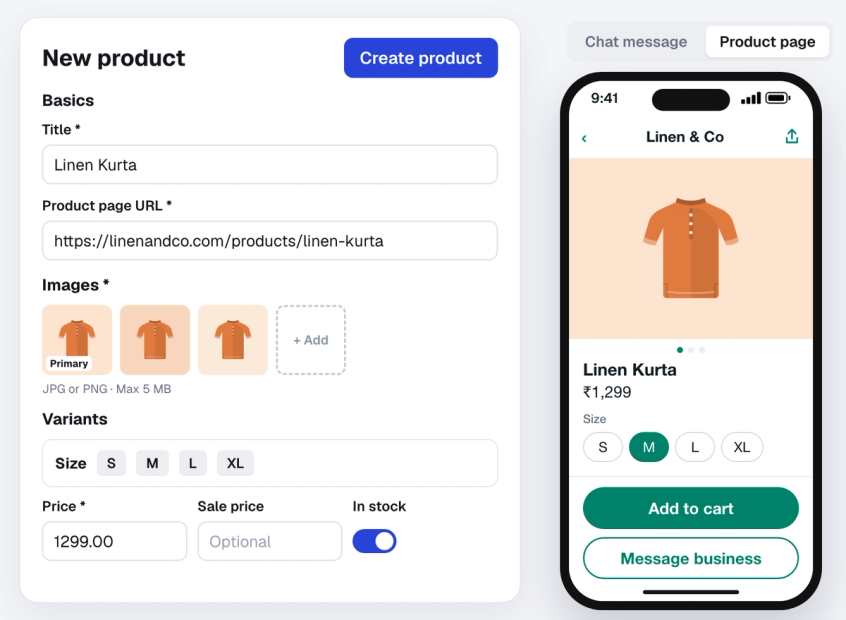
Once the catalogue exists, there are two ways to fill it, and a Shopify store can use both.
Add products by hand, for any business
Click Create product on the catalogue page and add a title, a product page link, at least one image and a price. Add up to three options, such as Size, Colour or Flavour, and each variant gets its own price, stock and photo. Customers pick the variant on WhatsApp.
A live preview shows the product two ways: as the message a customer receives, and as the product page they open from it. Save, and the product goes to Meta on its own. This route works for WooCommerce and custom websites, Instagram sellers, local shops and services. Products are added one at a time, and Meta needs a working product page link for each one.
Sync products from Shopify
Connect Shopify and every product comes in on its own. Each Shopify variant becomes a WhatsApp item grouped with its siblings, so customers see one Linen Kurta with a size picker instead of four lookalike listings.
Edits to products, prices and images reach Meta within about a minute, Spur re-checks changed products every 6 hours, stock levels are refreshed every night, and a Refresh from Shopify button is there when you cannot wait. Only changed products are sent again, so untouched ones never go back into review.
WhatsApp Business app vs API catalogue
The WhatsApp Business app catalogue is free but typed in by hand on one phone, while a WhatsApp Business API catalogue lives in Meta Commerce Manager and can be filled automatically.
Spur is the easier way to run an API catalogue because it creates the catalogue for you, lets you add products in Spur or sync them from Shopify, and shows Meta's review status for every product. There are three ways to get a catalogue in front of customers: the app, a Meta catalogue you build and connect yourself in Commerce Manager, or a catalogue Spur creates and fills for you. Here is how they compare:
| Compared on | Spur | Commerce Manager plus a sync tool | WhatsApp Business app |
|---|---|---|---|
| Setup | Name it, confirm with Facebook | Create a catalogue, set up a feed or sync app, connect it in WhatsApp Manager | Add items one by one on your phone |
| Getting products in | Add them in Spur, or sync from Shopify | A feed file or sync app you set up | Typed in on your phone |
| Variants (size, colour) | One product with a picker | Depends on the tool | One item per variant |
| Price and stock changes | Edited in Spur, or synced from Shopify | On the feed's schedule | Edited by hand |
| Product limit | No 500-item cap | No 500-item cap | Up to 500 items |
| Meta review status | Shown per product in Spur | Checked in Commerce Manager | Shown in the app |
| Products in broadcasts | Product carousels, multi-product and catalogue templates | Needs a separate WhatsApp tool | Not available |
| Carts | In the inbox with a subtotal; Shopify carts get a checkout link | Handled by hand | Handled by hand |
Three things make the biggest difference day to day:
- One place for every product. Add products in Spur or let Shopify sync them. Either way, nobody has to open Commerce Manager.
- You can see what customers can see. The catalogue page in Spur splits products into Needs attention, Waiting on Meta and Live, so a missing image never quietly hides a bestseller.
- Carts land where your team works. Every cart shows up in the Spur inbox with a subtotal, and Shopify carts can get a checkout link automatically.
What Meta needs before a product goes live
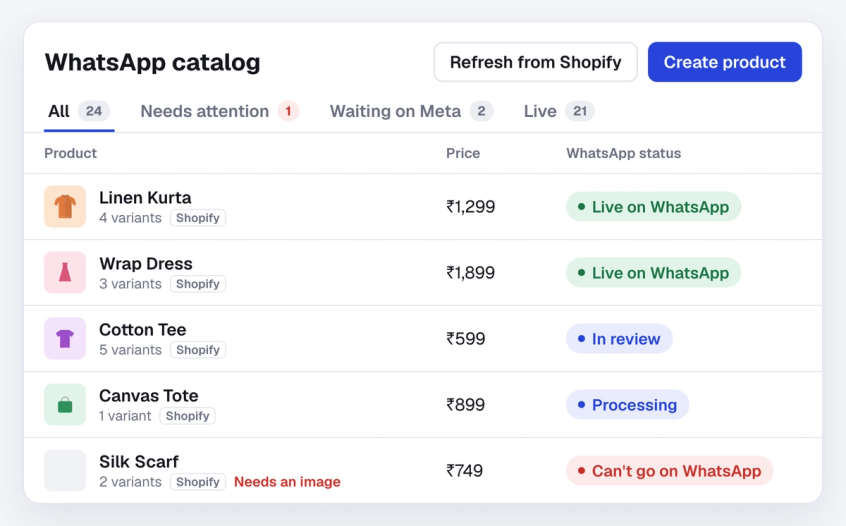
Meta only accepts an item that has a price, an image and a product page URL. After that, WhatsApp reviews every item, usually within a few hours and sometimes up to a day, before customers can see it. Spur shows where each product stands:
- Live on WhatsApp: approved, and customers can see and order it.
- In review or Processing: Meta has it and is still reviewing it.
- Can't go on WhatsApp: Spur is holding it back because it is missing a price, an image or a product page URL.
- Rejected: WhatsApp will not show it. You can appeal in Commerce Manager.
How to share your catalogue link
Every catalogue has a link in the format wa.me/c/ followed by your number. In the app, open the catalogue, tap the share icon and copy the link. In Spur, the Catalog link button on the Catalog card opens it and the copy button next to it copies it.
Put the link where shoppers already are: your Instagram bio, a QR code at your shop counter or on packaging, your order confirmation emails, or a WhatsApp link button on your website. You can also share a single product the same way.
Four ways to send products in a WhatsApp chat
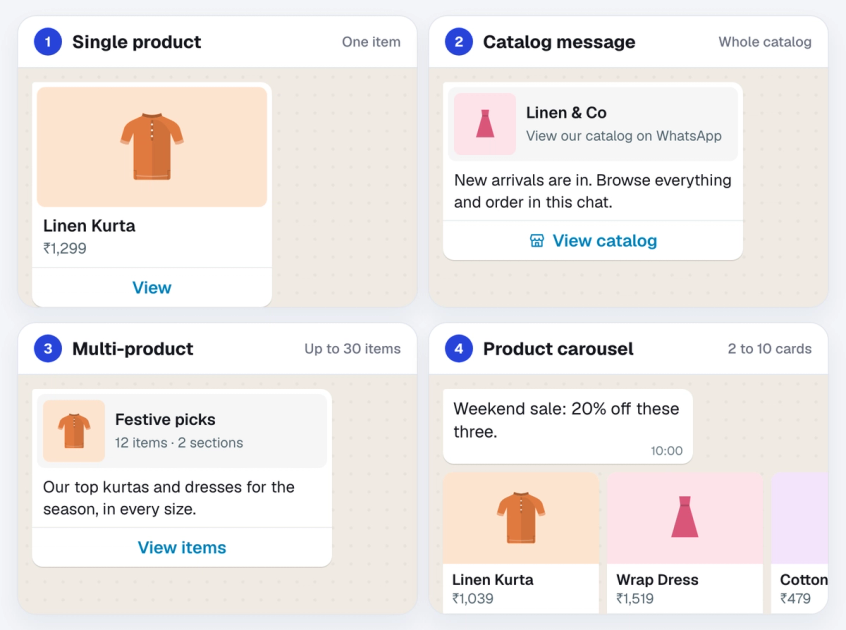
There are four ways to send products in a WhatsApp chat: a single product message, a catalogue message, a multi-product message and a product carousel. They need a catalogue connected to the API, and each one opens the product inside WhatsApp with an add to cart button:
- Single product message. One product with its image, price and a View button. Best when a customer asks about a specific item.
- Catalogue message. A View catalog button that opens your whole catalogue. Best for "what do you have?" questions.
- Multi-product message. Up to 30 products in up to 10 sections, such as "Shirts" and "Trousers", behind a View items button. Section titles can be 24 characters long.
- Product carousel. Between 2 and 10 swipeable product cards, each with its own button. Best for launches, sales and new arrivals.
Inside the 24-hour customer service window, after a customer has messaged you, these can go out as normal interactive messages. Outside it, for example in a broadcast to past buyers, you need the template version, which Meta classes as marketing and bills per delivered message.
Since 1 October 2026, Meta also charges for messages sent inside the window once a number passes its monthly free allowance. Our guide on new WhatsApp charges from October 1 breaks it down.
In Spur, catalogue, multi-product and product carousel templates go out in broadcasts, where you pick the products for each card. Your team can send a single product or a product list from the inbox, and the Product Message step sends them from automations. To make a carousel open your website instead of the cart, see how catalog carousel website links work.
Planning a sale? These WhatsApp carousel template ideas show how stores lay out ten cards.
How to turn WhatsApp carts into orders
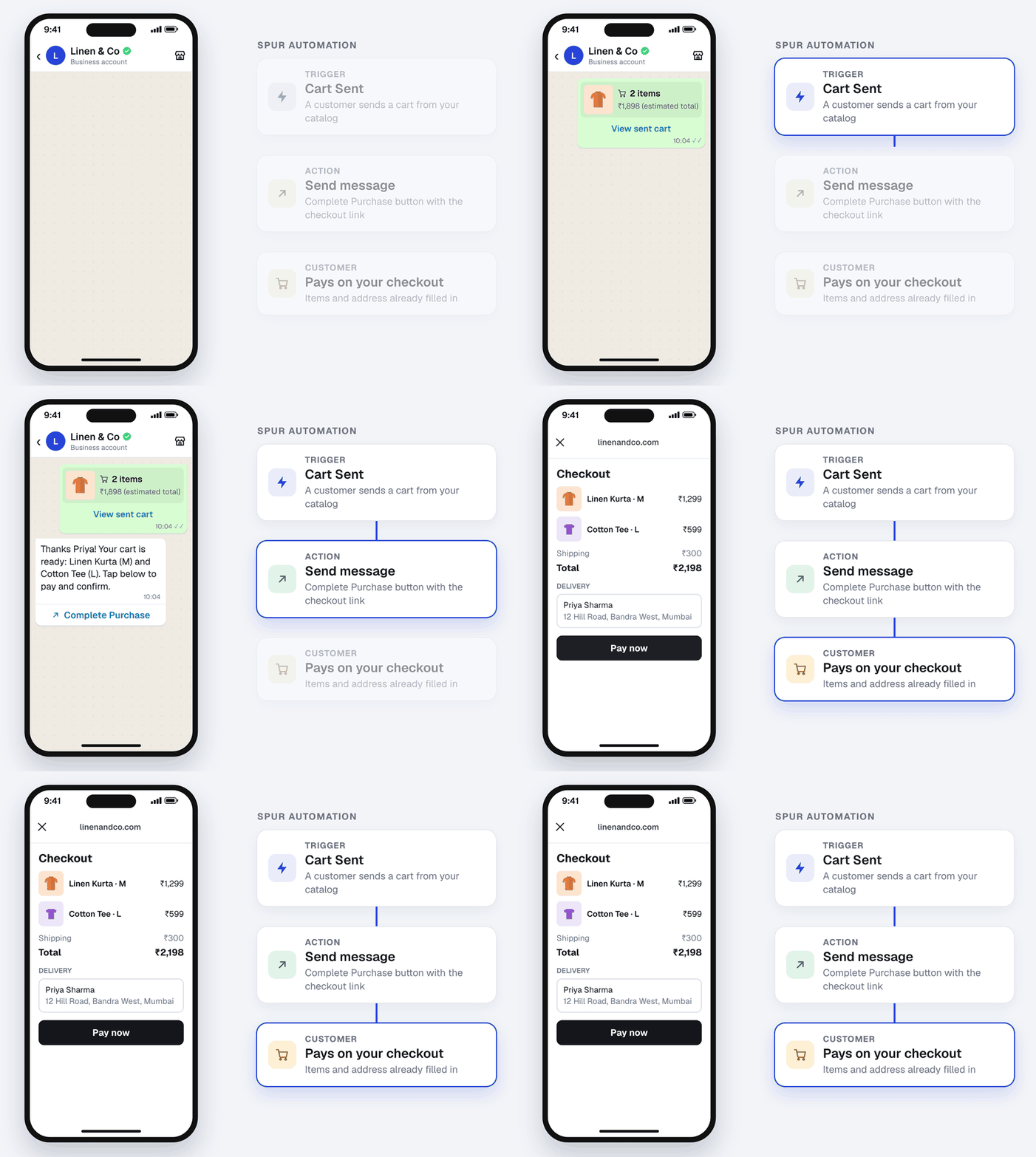
To turn a WhatsApp cart into an order, reply with a way to pay: a checkout link, payment details or a cash on delivery confirmation. When a customer taps Place order, you receive an order message listing each product, its quantity and price, plus any note they added. WhatsApp does not process the payment, so what happens next decides whether you get paid.
By hand, someone reads the order, checks stock, works out the total and sends a payment link. That is fine for ten orders a day and painful for a hundred, especially at night.
In Spur, the cart shows up in the inbox with each item, the quantity and a subtotal, and it starts a Cart Sent automation.
For Shopify stores, turn on the ready-made WA Catalog Checkout automation and it replies right away with a Complete Purchase button that opens your Shopify checkout with the same items already in the cart. If the customer has shared an address on WhatsApp, it is filled in for them. They pay on your normal checkout and the order lands in Shopify like any other.
For products you add in Spur, there is no Shopify checkout to send. The Cart Sent automation can still reply straight away, for example to confirm the order and say how to pay, and your team follows up with payment details from the inbox.
From there you can send a WhatsApp order confirmation, follow up if the checkout is not finished, and tag the customer for your next broadcast.
Customers who send a cart and never pay are the easiest to win back. These cart abandonment solutions show what to send and when.
WhatsApp Business catalogue examples
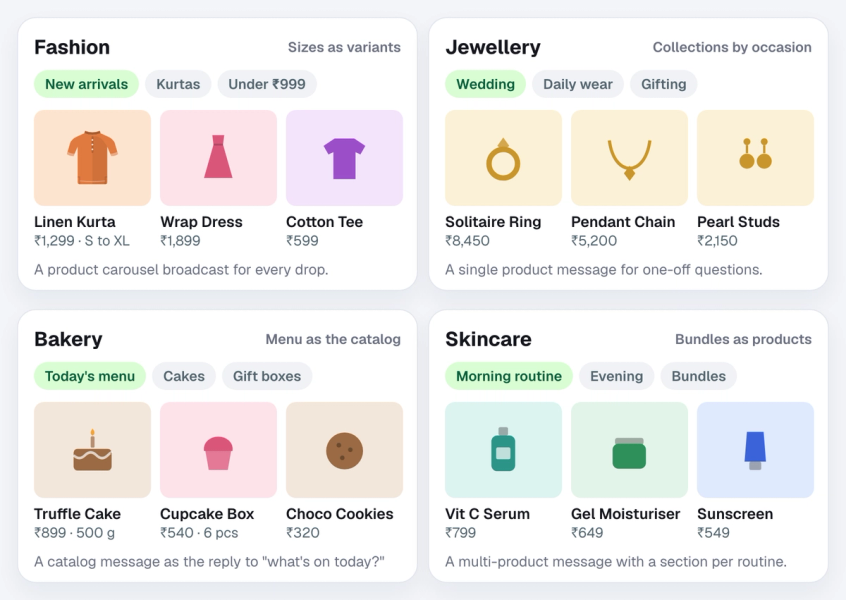
Every WhatsApp Business catalog example below uses the same layout, so the difference comes from how you name, group and send products. Four setups that work well for Indian D2C brands and local shops:
- Fashion and apparel. One product per design with sizes and colours as variants. Collections for "New arrivals", each category and "Under ₹999". A product carousel broadcast for every drop.
- Jewellery. Collections by occasion (wedding, daily wear, gifting), several close-up photos per piece, and a product link in every item. A single product message when someone asks about a piece they saw in a reel.
- Bakeries and food. The menu as the catalogue, with sizes or flavours as variants and the delivery area in each description. A catalogue message as the reply to "what's on today?".
- Beauty and skincare. Bundles listed as their own products, with collections by skin concern. A multi-product message with a "Morning routine" and an "Evening routine" section.
Can you list services in a WhatsApp catalogue?
Yes. A catalogue can hold services as well as products, such as a haircut, a consultation or a cake tasting. List each one as an item with a clear name, a photo and a price, and use the description for what is included and how to book.
Whatever you sell, keep titles short enough to read on a phone, lead with one clear photo, and price every item. A catalogue without prices just moves the "how much?" question into the chat.
Why your catalogue is not showing
A WhatsApp catalogue usually does not show because items are still in review, catalogue visibility is turned off, or the app needs an update. If the catalogue option is missing or customers cannot see your products, check these in order:
| Problem | Likely cause | Fix |
|---|---|---|
| No Catalog option in the app | Old app version | Update WhatsApp Business; the catalogue sits under Tools |
| Item missing for customers | Still in review or rejected | Wait for review, or request another review |
| No storefront icon on the API number | Catalogue visibility is off | Turn on Show catalog on your profile |
| "Invalid catalog link" | Catalogue hidden or not connected | Connect the catalogue and turn visibility on |
| API item never appears | Missing price, image or product page link | Add the missing field; Spur flags it as Can't go on WhatsApp |
| Item rejected | Breaks the Meta Commerce Policy | Edit the listing or appeal in Commerce Manager |
Final thoughts
A WhatsApp Business catalogue turns a chat into a shop: customers browse, pick a variant and send a cart without leaving the conversation. The app catalogue is enough for a small seller adding products by hand. For a store with real inventory, the API catalogue stays accurate and lets you sell from broadcasts and automations.
Spur takes the work out of it: the catalogue is created in your Meta business, you add products in Spur or sync them from Shopify, and every cart lands in one inbox, with checkout links for Shopify stores. To set up your WhatsApp Business catalogue without touching Commerce Manager, create your WhatsApp catalogue with Spur.
Frequently asked questions
Yes. Creating a catalogue in the WhatsApp Business app or in Meta Commerce Manager is free. On the API, Meta charges per message: catalogue, product and carousel templates are billed as marketing messages. Spur's managed catalogue, which creates and syncs it for you, is a paid add-on to a Spur plan.
The WhatsApp Business app catalogue holds up to 500 items, each with up to 10 photos or videos. A catalogue connected through the WhatsApp Business API is not held to the app's 500-item cap, and a multi-product message can show up to 30 products at a time.
Most items are reviewed within a few hours, and some take up to a day. Collections in the app should be reviewed within 24 hours. Items stay hidden from customers until they are approved.
Update the app first, since the catalogue now sits under the Tools tab. On the API, the catalogue has to be connected to your WhatsApp Business Account with catalogue visibility turned on. Numbers that run in both the app and the API (coexistence) use the app's catalogue.
No. A WhatsApp catalogue is built from individual items with images, so a PDF cannot be imported into it. You can still send a PDF as a document in a chat, but customers cannot add products from it to a cart.
Not inside the catalogue itself. Customers send you a cart, and you follow up with payment. Meta's separate WhatsApp payments API currently covers India and Brazil. In Spur, Shopify stores can reply to every cart with a checkout link that already holds the customer's items.
No. In the WhatsApp Business app you add items by hand. With Spur, you can add products in Spur with their variants, or sync them from Shopify if you sell there. Spur does not sync WooCommerce stores yet, so they add their products in Spur.
In the WhatsApp Business app, yes: the website link on an item is optional. On the WhatsApp Business API, including Spur, Meta needs a product page link for every item, so each item needs a link to a page that shows it, usually on your own website.
Sources
Checked against the original source. Dates are when we last verified each one.
- About catalog WhatsApp Help Center. Retrieved 5 October 2026
- How to create and manage your catalog WhatsApp Help Center. Retrieved 5 October 2026
- WhatsApp Business catalog WhatsApp Business. Retrieved 5 October 2026
- Catalogs overview Meta for Developers. Retrieved 5 October 2026
- Multi-product message templates Meta for Developers. Retrieved 5 October 2026
- Product card carousel templates Meta for Developers. Retrieved 5 October 2026
- Connect a catalogue to your WhatsApp Business account Meta Business Help Center. Retrieved 5 October 2026
Was this article useful?