Key takeaways
Free WhatsApp order confirmation template examples for 2026. Meta-approved formats, address verification flows, and one-click Shopify integration.
Ask an AI about this article
WhatsApp order confirmations achieve ~98% open rates and instantly reassure customers their purchase went through. This guide shows you exactly how to create Meta-approved templates, automate confirmations via WhatsApp Business API, and reduce support tickets while preventing delivery failures. Get ready-to-use templates, approval strategies, and a proven workflow that turns "order confirmed" into an intelligent conversation that catches address mistakes before shipping.
When someone clicks "Buy," they immediately wonder: Did it go through? When will I get it? Did I enter the right address?
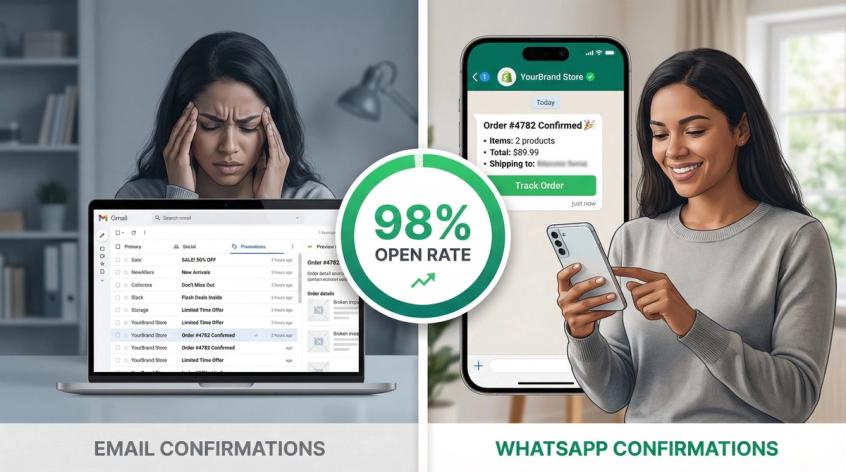
A WhatsApp Order Confirmation Template answers all of those questions in a channel customers check constantly, delivering instant reassurance with around 98% open rates (far higher than email). But most businesses miss this: it's not just about sending a receipt. It's about preventing expensive mistakes before they ship and deflecting the "where is my order?" support flood.
In this guide, you'll learn:
- What WhatsApp order confirmation templates actually are (and why WhatsApp requires approval)
- How to craft templates that meet Meta's strict 2026 policies
- Ready-to-use template examples you can copy and customize
- The step-by-step process to automate order confirmations
- Advanced tactics like address verification flows that reduce failed deliveries
- How Spur makes this entire process one-click simple for e-commerce brands
By the end, you'll have everything you need to turn order confirmations into a conversion-boosting, support-deflecting system that customers genuinely appreciate.
What Is a WhatsApp Order Confirmation Message?
A WhatsApp Order Confirmation Template is a pre-approved message format that businesses use to automatically notify customers that their order has been received and confirmed. On the WhatsApp Business Platform (the API businesses use for automation), you can't just send whatever you want whenever you want. WhatsApp requires businesses to use message templates for any proactive outreach outside of an active customer conversation.
Think of it like this: WhatsApp is people's personal communication space, not an inbox where brands can spam freely. To keep the platform valuable for users, Meta enforces strict rules. Templates are WhatsApp's way of ensuring business messages stay helpful and relevant.
The Template System Explained
Order confirmation templates fall under WhatsApp's "Utility" category, meaning they're transactional messages containing essential order details, with zero promotional content. It's the WhatsApp equivalent of your email receipt or order confirmation page, delivered right into the customer's chat.
What makes templates special:
- Pre-approval required: You must submit your template to WhatsApp for review and approval before using it. This prevents spam and policy violations.
- Fast approval: Order confirmations typically get approved in minutes (sometimes under 5 minutes) if they follow the guidelines. The automated approval system recognizes common transactional patterns.
- Utility category = strict rules: Your template must deliver transaction-specific information without any marketing language, upsells, or promotional content. Violate this and WhatsApp will flag or reject your template.
- Reusable and dynamic: Once approved, you can use the same template repeatedly, automatically filling in unique customer details (name, order number, items, etc.) using placeholders like {{1}}, {{2}}, etc.
Common Use Case
Send these messages immediately after an order is placed or payment is confirmed. They're especially powerful when integrated with your e-commerce platform. For example, connecting Shopify or WooCommerce to Spur lets you automatically send order updates like confirmations, shipping alerts, and delivery notifications to customers via WhatsApp.
Why Use WhatsApp for Order Confirmation Messages?
Customers practically live on WhatsApp. It's where they talk to friends, family, and increasingly, the brands they buy from. Using WhatsApp for order confirmations isn't just convenient, it's strategic.
Instant Visibility That Email Can't Match
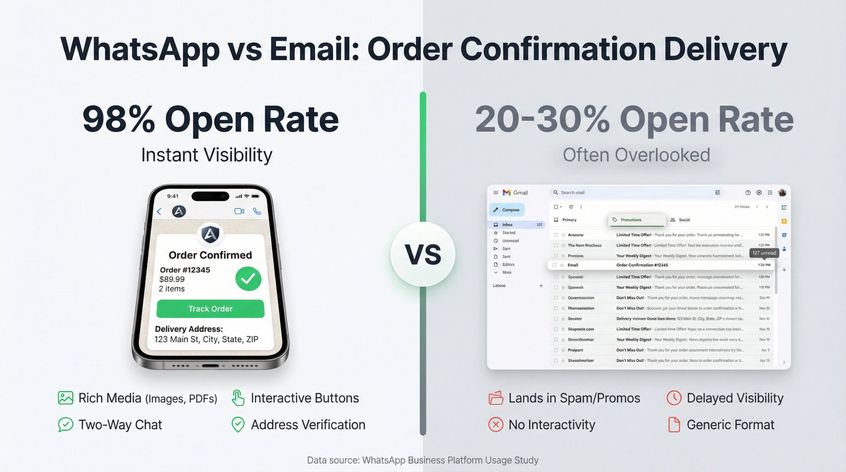
WhatsApp messages pop up like a text from a friend. With 98% open rates, your order confirmation will almost certainly be seen[[1]](https://business.whatsapp.com/blog/use-whatsapp-business-goals#::text=With%20a%2098,messages%20when%20you%20approach). Compare that to email (which often lands in promotions folders or goes unopened) and the difference is stark. Customers get immediate reassurance: "Yes, my order went through!" This instant certainty reduces anxiety and the inevitable support ticket asking "Did my payment succeed?"
Rich, Interactive Format
Unlike SMS or plain email, WhatsApp allows rich content. You can include:
- Product images or your brand logo
- PDF receipts or invoices
- Interactive buttons like "Track Order" that link directly to tracking pages
- Two-way conversations (customers can reply with questions, all in the same thread)
It's a conversational experience, not a dead-end notification. This transforms a simple receipt into an opportunity for helpful interaction.
Personalized and Trust-Building
A well-crafted template greets the customer by name and details exactly what they bought. This personal touch builds trust and creates a sense of service. It feels like a custom message even though it's automated. By proactively providing order details on WhatsApp, you keep customers in the loop, which increases satisfaction and reduces chargebacks or complaints.
Opportunity for Address Verification
WhatsApp's interactive features let you go beyond confirmation. You can ask customers to confirm their delivery address or order details via quick-reply buttons. This catches mistakes early, especially valuable for Cash on Delivery (COD) scenarios where wrong addresses mean expensive failed deliveries.
A WhatsApp order confirmation combines the reliability of a receipt with the immediacy of a chat. It meets customers where they already are and sets a positive tone for the entire post-purchase journey.
What to Include in Your Order Confirmation Template
What should you include in a WhatsApp order confirmation? Here are the essential ingredients that make up a comprehensive, clear, and helpful message:
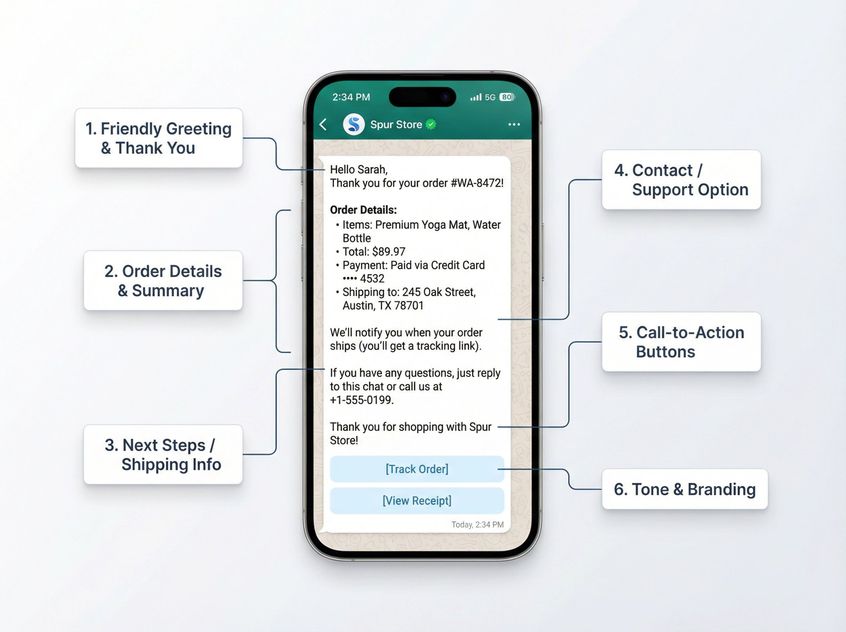
1. Friendly Greeting and Thank-You
Start politely. Include the customer's name if possible, and thank them for their order. This reinforces that the message is intended for them personally.
Example: "Hello John, thank you for your order!"
Using personalization tokens like {{name}} or {{1}} in the template will insert the actual name when sent[15].
2. Order Details and Summary
Clearly state the order ID or reference number and key purchase details. At minimum, mention:
- Product name(s) or item count (e.g., "2 items: Widget A, Widget B")[16]
- Order total amount and currency
- Order number/ID for easy reference
- Payment confirmation (e.g., "Paid via Credit Card ending 1234" or "COD, to be paid on delivery")
- Delivery address (especially useful to reconfirm what was entered)
The goal is to mirror the important information from an email receipt, so customers have everything they need at a glance.
3. Next Steps / Shipping Info
Set expectations about what happens next. Common phrases include:
- "We'll notify you when your order ships"
- "You'll receive a shipping confirmation with tracking details soon"
- "Expected delivery: 3-5 business days"
Setting clear expectations reduces uncertainty and prevents customers from reaching out with "when will this ship?" questions.
4. Contact or Support Option
Make it easy for customers to reach out if they have questions. This can be as simple as:
"If you have any questions, just reply to this message or call us at 123-456-7890."
WhatsApp allows direct replies, so customers know they're talking to a real business that's ready to help. Some companies also include a "Chat with support" button to make this even easier through customer service automation.
5. Call-to-Action Buttons (Recommended)
One of WhatsApp's most powerful features is interactive buttons. You can include:
- "Track Order" button that links to the order status or tracking page. This saves customers from hunting through emails.
- "View Receipt" or "Download Invoice" button, or simply attach the PDF as a document header.
- Quick-reply buttons for simple responses like "Order Details" or "Contact Support".
Pro tip: Some businesses include an "Unsubscribe" or "Stop" quick-reply to let customers opt out easily. While not required for order updates, it builds trust and prevents users from blocking you.
6. Tone and Branding
Ensure the message aligns with your brand voice. Order confirmations can be upbeat and appreciative ("We're excited for you to receive your items!") or simply professional and factual. The key is consistency with your brand.
Critical rule: Avoid any language that sounds like marketing or solicitation. Do not include coupon codes, cross-sell suggestions, or promotional offers, that would violate the utility template rules.
Example Structure
Here's a template combining all these elements:
Hello {{1}},
Thank you for your order #{{2}} from {{3}}!
**Order Details:**
• Items: {{4}}
• Total: {{5}}
• Payment: {{6}}
• Shipping to: {{7}}
We'll let you know as soon as your order ships (you'll get a tracking link).
If you have any questions, just reply to this chat or call us at {{8}}.
Thank you for shopping with {{3}}!
In this template:
- {{1}} = customer name
- {{2}} = order number
- {{3}} = brand name
- {{4}} = items ordered
- {{5}} = total price
- {{6}} = payment method/status
- {{7}} = delivery address
- {{8}} = support phone number
When sent, it populates with actual customer details, creating a personalized yet automated experience.
WhatsApp Template Approval Rules You Must Know (2026)
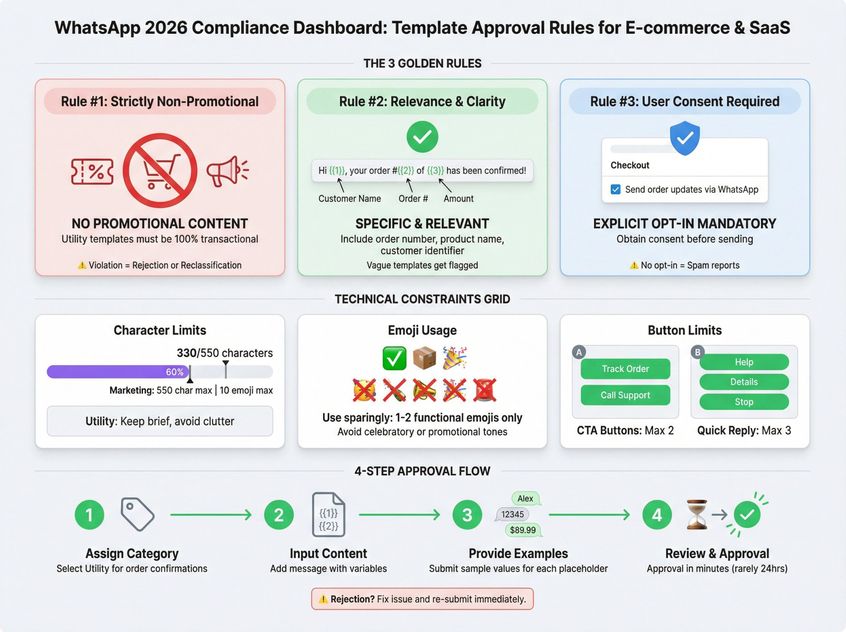
WhatsApp is a user-centric platform with strict policies for template messages. To get your order confirmation template approved (and keep it approved), you must follow these rules:
Rule #1: No Promotional Content in Utility Templates
This is the golden rule. Order confirmations are Utility templates, which must be strictly non-promotional.
That means:
- ❌ No marketing offers
- ❌ No upsell language
- ❌ No cross-sell product suggestions
- ❌ No coupon codes or discounts
If you try to sneak promotional content into an order confirmation, Meta's system will likely reclassify your template as Marketing or reject it outright.
As of the July 2025 update, Meta began automatically re-categorizing templates that violate category rules, "any template mixing Utility + Marketing content will be treated as Marketing". This isn't just about approval; reclassification can incur higher messaging fees (more on pricing below).
Keep it transactional.
Rule #2: Relevance and Clarity
WhatsApp expects utility messages to be specific and relevant to a user's transaction. Don't be vague. Include identifying information like order number, product name, or customer name. A template that just says "Your order is confirmed" without context might get flagged for being unclear.
Rule #3: User Consent Required
You can only send WhatsApp template messages to users who opted in to receive messages from your business. Before sending order confirmations on WhatsApp, ensure you obtained customer consent, typically via a checkbox at checkout saying "Send my order updates via WhatsApp."
If users receive messages without opting in, they might report it as spam, hurting your WhatsApp business account's quality rating.
The Approval Process
Creating and submitting a template is straightforward:
- Assign category: Utility (for order confirmations)
- Input message content: Use placeholders like {{1}}, {{2}}, etc.
- Provide example values: WhatsApp requires sample values for each placeholder. For example, {{1}} = "Alex", {{2}} = "12345", etc.
- Submit for review: Most templates get approved within minutes[8]. In rare cases, manual review can take up to 24 hours.
If rejected, you'll receive a reason. Common issues include forbidden phrases or overly vague content. Fix the issue and re-submit. Platforms like Spur display rejection reasons in the dashboard to help you avoid WhatsApp template rejections and adjust quickly.
Language and Localization
You can create templates in multiple languages. Each language variant needs separate approval. For example, you might have English and Spanish versions. The same content rules apply across all languages.
Formatting Constraints
A few technical constraints to keep in mind:
- Max length: Templates should be concise. Marketing templates have a max of 550 characters or 10 emojis. While this specifically applies to Marketing category, best practice is to keep utility templates brief too.
- Emojis: A few emojis (✅, 🎉, 📦) are fine for clarity or warmth, but don't overdo it. Avoid tricky Unicode symbols that might not render properly.
- Buttons: You can add up to 2 Call-To-Action buttons (website or phone) or up to 3 Quick Reply buttons. Button text also gets reviewed, so name them clearly ("Track Order", "Call Support", etc.).
Adding a header image or PDF invoice to the confirmation? The WhatsApp template image size is 1200 by 700 pixels, JPG or PNG under 5 MB, and documents can be up to 100 MB.
2025-2026 Pricing Changes (Important)
WhatsApp changed its pricing model in 2025. From July 1, 2025, Meta moved to per-message template fees for business-initiated chats.
What this means:
- You pay for each template message sent, based on template category and recipient's country
- Utility templates generally have lower fees than Marketing templates
- If a utility message is sent during an open customer service window (within 24 hours of a customer's last message), it may be free or much cheaper
- Proper categorization keeps your messaging costs down
If your order confirmation gets accidentally marked as Marketing, you'd incur marketing message charges for each send (and in some regions, marketing templates have faced temporary restrictions).
Stick to transactional content, get user opt-in, and follow WhatsApp's template submission process carefully. The 2025 policy updates target abuse (no more sneaky promos masked as "order updates"). If you play by the rules, you'll have no trouble getting approved and maintaining a high quality rating.
Free WhatsApp Order Confirmation Template Examples
Let's look at examples you can customize and use. These templates follow WhatsApp's strict 2026 guidelines and are designed for quick approval.
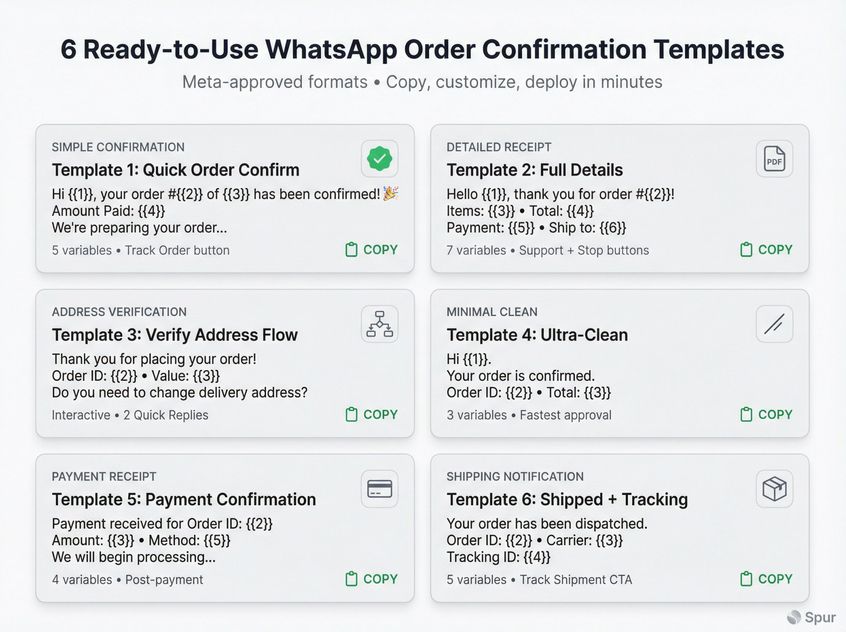
Template 1: Simple Order Confirmation (Utility)
Best for: Quick, clean notification
Hi {{1}}, your order #{{2}} of {{3}} has been confirmed! 🎉
Amount Paid: {{4}}
We're preparing your order and will update you when it ships.
Track your order: {{5}}
Thank you for shopping with us! 🙏
Variables:
- {{1}} = Customer name (e.g., "Alice")
- {{2}} = Order number (e.g., "12345")
- {{3}} = Items summary (e.g., "2 items")
- {{4}} = Total paid (e.g., "$89.99")
- {{5}} = Tracking link
Why it works: Confirms essential details, provides next step (tracking), uses upbeat tone. Zero marketing content, making it clearly a utility message.
Template 2: Detailed Order Confirmation with Address
Best for: Comprehensive receipt-style confirmation
Hello {{1}}, thank you for your order #{{2}}! 🙌
**Order Summary:**
– **Items:** {{3}}
– **Total:** {{4}}
– **Payment:** {{5}}
– **Shipping Address:** {{6}}
We've received your order and it's being processed. You'll get a WhatsApp once it's shipped (ETA {{7}}).
📄 Your invoice is attached.
Need help or have a question? Just reply to this chat, or tap "Support" below.
Quick Reply Buttons:
- Support
- Stop messages
Variables:
- {{1}} = Customer name
- {{2}} = Order number
- {{3}} = Items list
- {{4}} = Total amount
- {{5}} = Payment method
- {{6}} = Delivery address
- {{7}} = Estimated delivery timeline
This template includes a PDF invoice attachment option and offers support plus opt-out buttons for trust.
Template 3: Order Confirmation + Address Verification Flow
Best for: Preventing delivery failures
Some businesses (especially in regions where addresses might be incorrect or for COD orders) use WhatsApp to confirm details before shipping. Spur's Order Confirmation automation flow does exactly this.
Initial message:
Thank you for placing your order with {{1}}! 🎊
Order ID: {{2}}
Order Value: {{3}}{{4}}
Items: {{5}}
Do you need to make any changes to the delivery address before shipping?
Quick Reply Buttons:
- Address is Correct
- Edit My Address
Follow-up logic:
- If "Address is Correct": Send final confirmation with tracking
- If "Edit My Address": Collect new address, update order, then confirm
This two-step confirmation significantly reduces failed deliveries and returns. It's especially valuable for COD confirmation flows where you want to verify the buyer is genuine.
Template 4: Minimal Order Confirmation (Ultra-Clean)
Best for: Fastest approval, least risk
Hi {{1}}.
Your order is confirmed.
Order ID: {{2}}
Total: {{3}}{{4}}
We will send tracking when your order is dispatched.
CTA Button:
- Track order → {{5}}
Why use this: When you want the cleanest, safest template that will never get flagged. Perfect for brands prioritizing speed over personality.
Template 5: Payment Confirmation (Post-Payment Receipt)
Best for: Separating payment from order confirmation
Hi {{1}}.
Payment received for Order ID: {{2}}
Amount: {{3}}{{4}}
Method: {{5}}
We will begin processing your order.
Use this when payment confirmation is separate from order confirmation (common with certain payment gateways like Razorpay or Stripe).
Template 6: Shipped + Tracking (Dispatch Confirmation)
Best for: Shipping notification
Hi {{1}}.
Your order has been dispatched.
Order ID: {{2}}
Carrier: {{3}}
Tracking ID: {{4}}
Use the button below to track delivery status.
CTA Button:
- Track shipment → {{5}}
Pro tip: Use these as starting points and customize to your brand voice and needs. The best order confirmation is one your customers appreciate and that fits your workflow, while staying compliant with WhatsApp's strict rules. Spur's template library includes 80+ pre-approved templates you can customize instantly.
How to Set Up WhatsApp Order Confirmations (Step by Step)
Ready to set this up? Here's your roadmap:
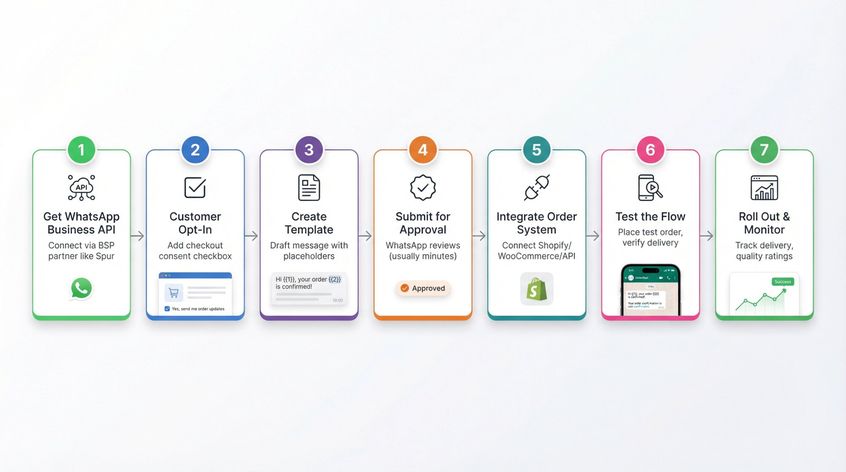
Step 1: Get Access to WhatsApp Business API
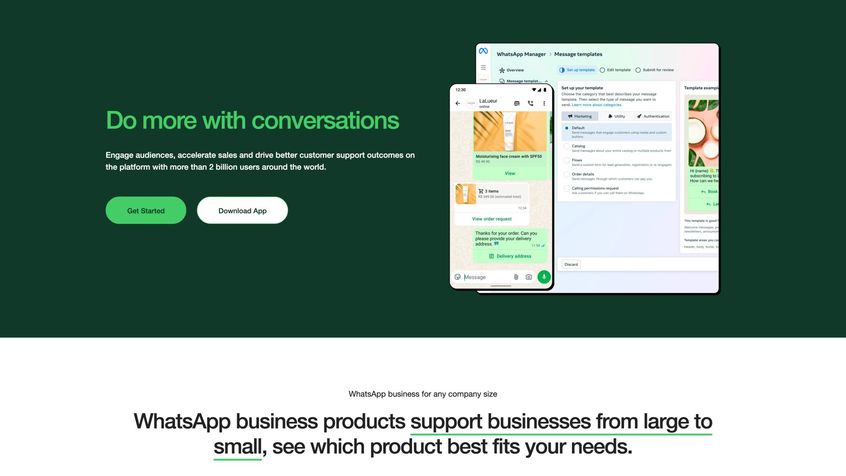
The WhatsApp Business App (mobile app) is limited to manual sends and broadcasts to max 256 contacts. For automation at scale, you need the WhatsApp Business Platform (API).
You can access this through a WhatsApp Business Solution Provider (BSP) like Spur, Twilio, WATI, or others. Spur offers an all-in-one platform specifically designed for e-commerce automation.
Step 2: Ensure Customer Opt-In
Have a mechanism at checkout to collect consent to message customers on WhatsApp. This might be a checkbox like:
"☑ Yes, send me order updates on WhatsApp at +1234567890"
Only proceed with customers who agreed. This is a legal and policy requirement.
Step 3: Compose Your Template Content
Draft your message following the guidelines we covered:
- Decide on text with placeholders for dynamic parts
- Choose if you want a header (None, Text, Image, Video, or Document)
- Image for brand logo or product photo
- Document for invoice PDF
- None for text-only
- Decide on buttons:
- CTA button for "Track Order" (link to tracking/order status page)
- Quick reply for "Talk to Support" or "Stop messages"
- Remember limits: up to 2 CTA buttons or 3 quick replies
Tip: Keep a consistent style. If you use emojis, stick to 1-2 for professionalism.
Step 4: Submit Template for Approval
In your BSP's dashboard (e.g., Spur):
- Navigate to Message Templates section
- Click Create Template
- Enter:
- Template name (e.g., "order_confirmation_v1")
- Category = Utility
- Language
- Header: Select type and add sample if needed
- Body: Paste your text with variables {{1}}, {{2}}, etc.
- Footer (optional): Static text like "– Your Brand Team"
- Buttons: Add your chosen buttons
- Sample values: Provide realistic examples for each placeholder
- {{1}}: "Alice"
- {{2}}: "12345"
- {{3}}: "2 items (Shoes & Shirt)"
- {{4}}: "$89.99"
- Submit
The status will show "Pending" then usually approve within minutes.
Step 5: Integrate with Your Order System
Creating the template is only half the work. Now you need to send it when orders happen.
Option A: No-Code Integration (Recommended)
If you use Shopify, WooCommerce, or similar, use a direct integration.
For example, by integrating Shopify with Spur, every order triggers the WhatsApp Order Confirmation flow automatically. You just map template variables to Shopify order data, most of this is pre-configured in native integrations.
Option B: Via API Calls
If you have a custom backend, use the WhatsApp API to send templates programmatically. This involves calling the messages endpoint with template ID, user's WhatsApp number, and variable values.
Option C: Via Automation Builder
Platforms like Spur have flow builders. Create a flow with trigger "Order Created" and add "Send WhatsApp Template" step. Map each placeholder to relevant data (e.g., {{1}} = customer.firstName, {{2}} = order.number).
The flow captures an order event and immediately sends the WhatsApp confirmation, completely hands-free after setup.
Step 6: Test the Whole Flow
Before rolling out to all customers:
- Place a test order using your own number
- Verify the WhatsApp confirmation comes through correctly
- Check that all variables populated (no {{placeholder}} showing up)
- Test buttons to ensure links work
- Adjust if needed (common issues: wrong variable mapping, timezone problems with dates)
Step 7: Roll Out and Monitor
Once testing succeeds, turn on automation for real customers. Monitor:
- Delivery rates: Your dashboard should show if messages are delivered and read
- Customer responses: Ensure your team/chatbot is ready to handle replies
- Quality rating: WhatsApp assigns quality ratings based on user feedback (blocks, reports). Transactional messages usually keep users happy, maintaining a Green quality rating
Pro tip: Spur's platform includes a library of 80+ pre-approved templates for common use cases, including Order Confirmation, which can save you time[51]. Instead of crafting from scratch, choose a ready template, tweak it to fit your brand, and it's already optimized for approval.
WhatsApp Order Confirmation Best Practices That Work
To make your order confirmations truly excellent, follow these proven tactics:
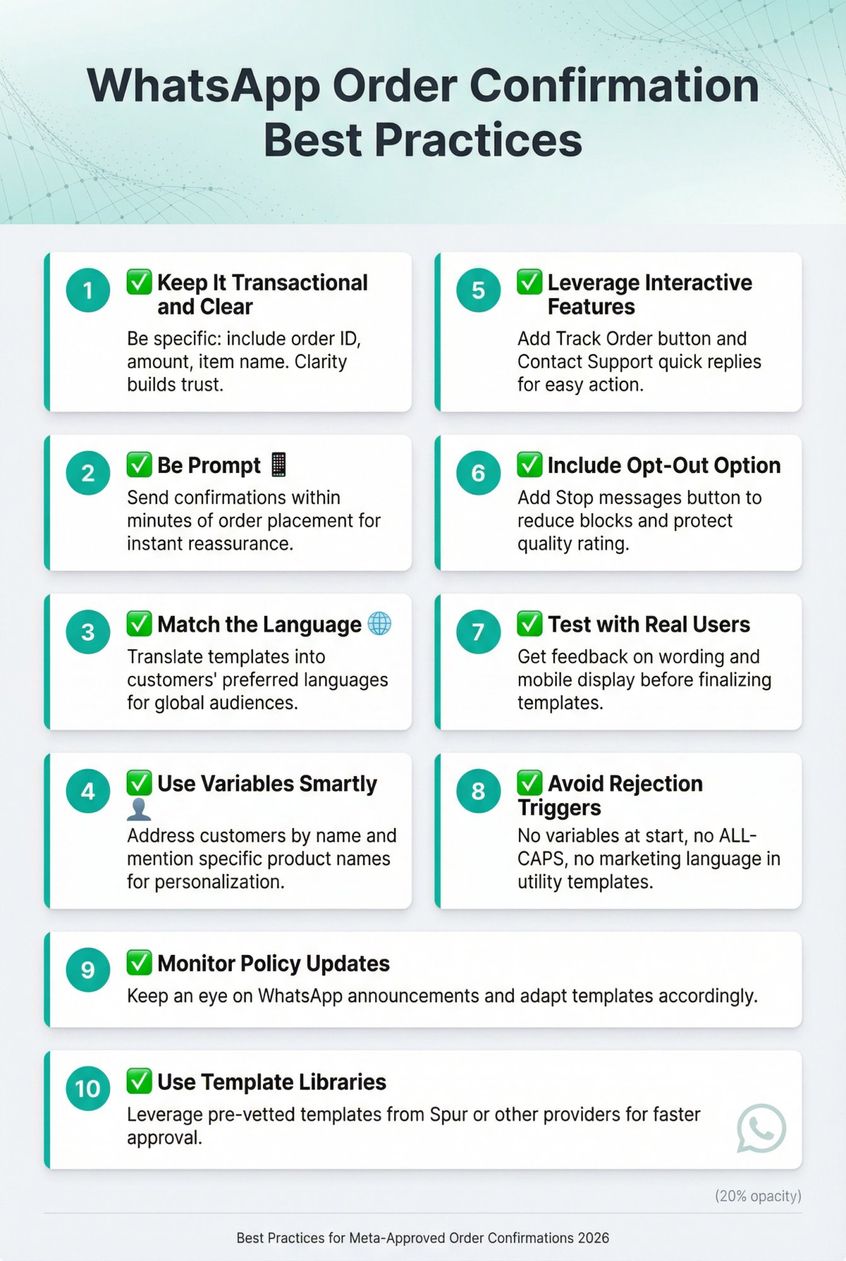
1. Keep It Transactional and Clear
Stick to the facts of the order. Be specific: include order ID, amount, or item name[15]. A vague "Your order is confirmed" with no context annoys customers who then ask "Which order? What amount?" Clarity builds trust.
2. Be Prompt
Send confirmations within minutes of order placement. The whole point is instant reassurance. If the WhatsApp comes an hour later, the impact is reduced because the customer already checked out or got an email.
3. Match the Language to Your Customer
If you serve a global audience, translate your template into customers' preferred languages. WhatsApp templates support multiple languages. Have English, Spanish, French versions, etc., and use the appropriate one based on customer locale.
4. Use Variables Smartly
Personalization is key. Address customers by name if you have it. Mention the product name especially for single-item orders ("your order of SuperComfy Pillow is confirmed"). For multiple items, list the first item and "+2 more items" or simply say "of 3 items".
5. Leverage Interactive Features
Add that "Track Order" button or quick replies. Customers love being in control of tracking. A "Contact Support" button makes escalation one tap away. These features turn a static message into an interactive mini-service.
6. Include an Opt-Out Option
While not required for utility messages, adding "Reply STOP to unsubscribe" or a quick-reply "Stop messages" button is healthy practice. First-time recipients might not remember opting in. An opt-out gives a non-confrontational alternative to blocking. This significantly reduces blocks and protects your number's quality rating.
Truly interested customers rarely opt out of transactional updates, it's just a safeguard.
7. Test with Real Users
Before finalizing, get feedback. Is the wording clear? Does it display nicely on mobile? Sometimes line breaks or emojis change how a message chunks in WhatsApp, do a visual check on mobile.
8. Avoid Common Rejection Triggers
- Don't start with a variable: Always have static text before {{1}}. WhatsApp can't infer context if a template begins with a variable.
- No ALL-CAPS or excessive symbols: A little is okay ("ORDER #{{2}}"), but don't write the whole message in caps.
- Stay away from marketing language: Avoid "excited," "love," "special offer," or excessive emojis in utility templates. Write like a receipt, not like a friend.
9. Monitor WhatsApp's Policy Updates
The messaging policy evolves. We saw big changes in mid-2025. Keep an eye on announcements. If WhatsApp introduces new features or categories, adapt your templates accordingly.
10. Use Template Libraries
If using Spur, WATI, or others that offer pre-vetted templates, take advantage. Spur's template library highlights "high-delivery" utility templates that bypass certain limits and achieve 90%+ delivery in strict markets. Just customize any template to fit your exact scenario.
By following these best practices, your WhatsApp order confirmations become not just compliant and effective, but genuinely appreciated by customers. You're providing a service, a timely, convenient update, that reinforces your brand's reliability and responsiveness.
How Spur Simplifies WhatsApp Order Confirmations
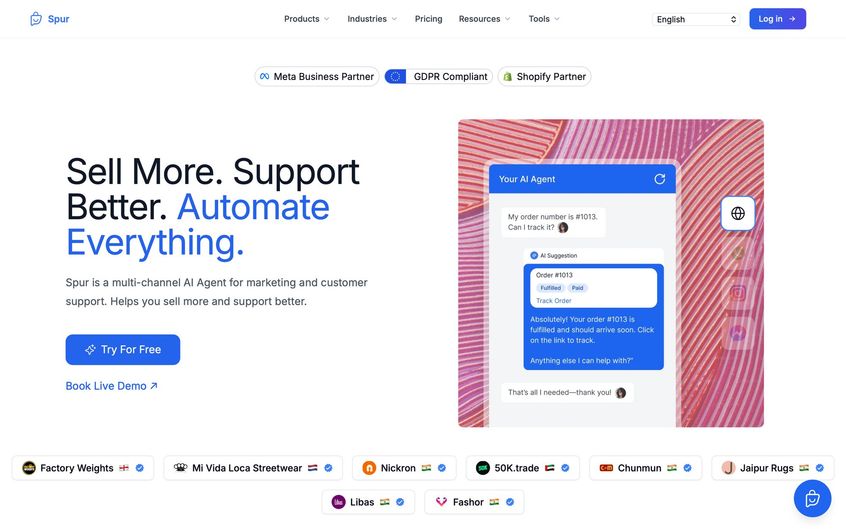
While you can set up WhatsApp order confirmations manually through various providers, Spur is purpose-built to make this process seamless for e-commerce brands, especially if you're on Shopify or WooCommerce.
Why Spur for Order Confirmations?
Official WhatsApp Business API Partner
Spur is an official Meta Business Partner with direct WhatsApp Business API access. This means faster template approvals, better deliverability, and support directly from Meta's ecosystem.
One-Click E-Commerce Integration
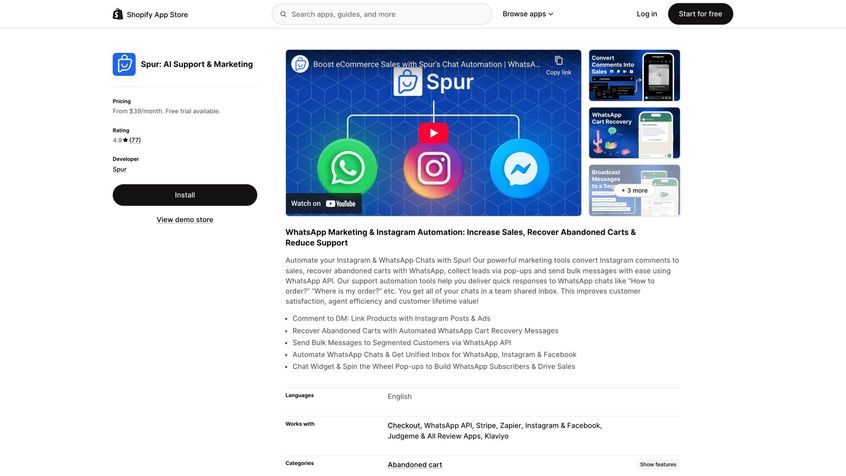
Connect your Shopify or WooCommerce store in minutes. Spur automatically syncs order data, customer details, and triggers WhatsApp confirmations without any coding.
Pre-Built Automation Flows
Spur provides ready-to-use automation flows specifically for:
- Order confirmations with address verification
- COD confirmations (confirm/cancel flow to reduce fake orders)
- Shipping notifications
- Delivery confirmations
These flows include the logic for address edits, COD verification, and support routing, all pre-configured and tested.
80+ Pre-Approved Templates
Why important: Readers need to see the real template selection interface mentioned in this paragraph
Instead of crafting templates from scratch, browse Spur's template library with 80+ ready-to-use, Meta-approved templates[51]. Filter by use case (order confirmation, shipping update, etc.), customize the wording to your brand, and deploy in minutes.
No-Code Automation Builder
Why important: Demonstrates the no-code builder mentioned in this paragraph with actual address verification flow
Spur's visual automation builder lets you create complex flows without coding. Drag and drop triggers (order created, payment confirmed), add actions (send template, collect response), and set conditions (if address OK, proceed; if edit requested, collect new address).
AI-Powered Support
Spur's AI agent can handle customer replies to order confirmations automatically through customer support automation. If a customer asks "When will this ship?" or "I need to change my address," the AI can respond instantly or route to your team based on complexity.
Shared Inbox for Human Support
When customers reply to order confirmations with questions, everything flows into Spur's shared inbox. Your team can see the full conversation context, order details, and respond from one place, no switching between platforms.
Built-In Deliverability Features
Spur includes features like DeliveryBoost to maximize message delivery rates, ensuring your order confirmations actually reach customers. This is especially valuable in markets with strict message filtering.
How Spur Handles Address Verification
One of Spur's most powerful features is the automated address confirmation flow:
- Order created trigger: When a paid order comes through Shopify, Spur immediately sends a WhatsApp message
- Address confirmation request: "Do you need to make any changes to the delivery address?"
- Quick reply buttons: "Address is Correct" or "Edit My Address"
- If address is correct: Send final confirmation with tracking link
- If edit requested: Collect new address, update order note in Shopify, confirm the change
This simple flow prevents wrong deliveries before they happen, saving you from costly returns and failed COD deliveries.
Pricing That Makes Sense
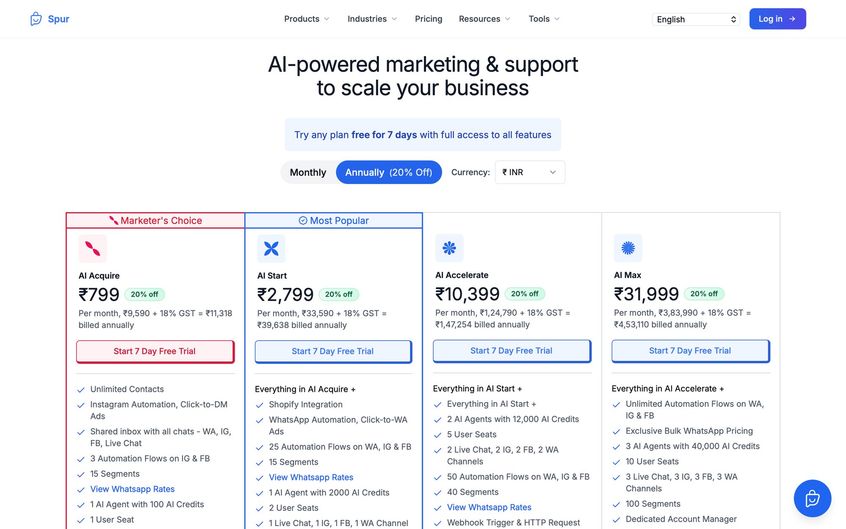
Spur offers transparent, affordable pricing for businesses of all sizes. With plans starting at $12/month (billed annually), you get WhatsApp automation, AI agents, and e-commerce integrations without breaking the bank.
Plus, Spur handles WhatsApp conversation charges through a wallet system, showing you exactly what you're paying for message delivery in each country, no hidden fees.
Ready to automate your WhatsApp order confirmations? Try Spur with a 7-day free trial and see how easy it is to set up professional, conversion-boosting order notifications.
Conclusion
WhatsApp order confirmations aren't just nice to have, they're a must-have tool for modern e-commerce. They combine the critical post-purchase confirmation with the convenience of a chat app customers open constantly, delivering instant reassurance with unmatched open rates.
Here's what we covered:
✅ What order confirmation templates are: Pre-approved message formats that deliver transactional order details via WhatsApp Business API
✅ Why WhatsApp wins: ~98% open rates, rich interactive features, two-way conversations, and immediate visibility
✅ WhatsApp's strict rules: Utility templates must be non-promotional, specific, and require user opt-in to stay compliant
✅ Ready-to-use templates: Copy-paste examples from minimal confirmations to advanced address verification flows
✅ Step-by-step implementation: From getting API access to automating sends via e-commerce integration
✅ Best practices: Prompt delivery, smart personalization, interactive buttons, opt-out options, and avoiding rejection triggers
✅ How Spur simplifies everything: One-click Shopify/WooCommerce integration, pre-built automation flows, 80+ approved templates, and AI-powered support
A well-executed WhatsApp order confirmation does three things simultaneously:
- Reassures customers instantly with order details and next steps
- Prevents expensive mistakes through address verification and COD confirmation
- Deflects support tickets with tracking buttons and clear help paths
When customers feel informed and in control, they're satisfied. When you catch address mistakes before shipping and reduce "where is my order?" volume, you save money and time. When you deliver all of this through a channel customers check constantly, you build loyalty.
Ready to transform your post-purchase experience?
If you're serious about setting up professional WhatsApp order confirmations, Spur makes it effortless. With native Shopify and WooCommerce integrations, pre-built automation flows, and a library of Meta-approved templates, you can launch in minutes, not weeks.
Start your 7-day free trial with Spur and see how easy it is to send order confirmations that customers actually appreciate. No credit card required. No complicated setup. Just instant, professional order notifications that work.
Your customers are already on WhatsApp. Meet them there with confirmations that reassure, prevent mistakes, and build trust, one order at a time.
WhatsApp Order Confirmation FAQs (Common Questions)
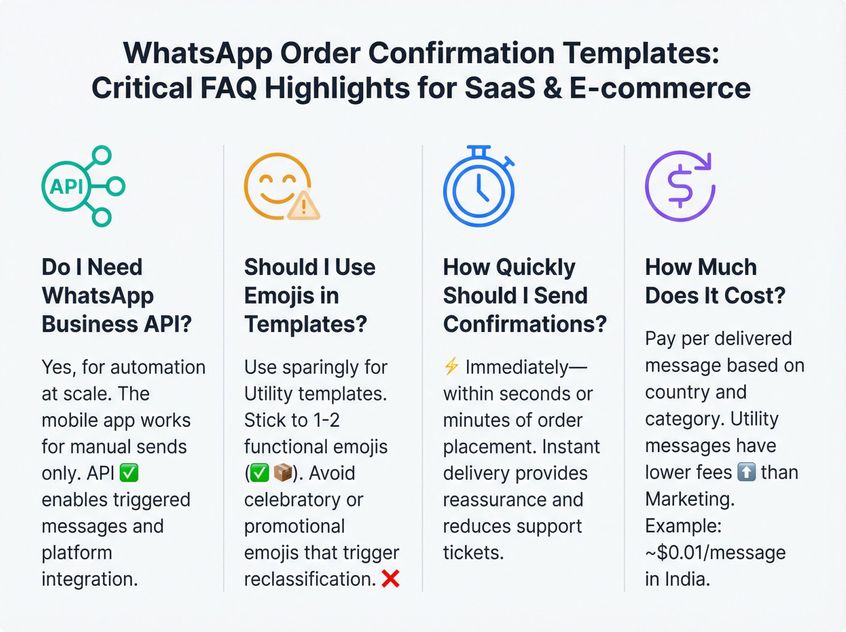
The WhatsApp Business App (mobile app) works for manual sends to individual customers or small broadcasts (up to 256 contacts). If you're just starting out or have very low order volume, you can manually send confirmations using the app.
For automation at scale, you need the WhatsApp Business Platform (API). This allows you to:
- Send automated messages triggered by order events
- Use pre-approved templates for reliability
- Integrate with your e-commerce platform
- Handle thousands of confirmations without manual effort
If you're processing more than a few orders per day, the API is the right choice. Platforms like Spur make API access simple and affordable.
No. Order confirmations are Utility templates, which must be strictly non-promotional[9][3].
That means:
- ❌ No coupon codes
- ❌ No "add one more item for free shipping"
- ❌ No product recommendations
- ❌ No upsells or cross-sells
If you sneak promotional language into an order confirmation, Meta will likely reclassify your template as Marketing or reject it. Reclassification means higher costs and potential delivery restrictions.
Better approach: Keep order confirmations purely transactional. Send marketing messages separately, after obtaining explicit opt-in for promotional content.
For Utility templates, use emojis sparingly or not at all. Meta has become stricter about what qualifies as Utility, and even "warm/friendly" wording, including emojis, can trigger reclassification to Marketing.
Rule of thumb: Write like a receipt, not like a friend. If you do use emojis, stick to 1-2 functional ones (✅ for confirmation, 📦 for shipping) and avoid anything that looks celebratory or promotional.
Immediately. Send confirmations within seconds or minutes of order placement (or payment success). The entire value of WhatsApp order confirmations is instant reassurance. Uncertainty drives support tickets. If customers wait an hour for confirmation, they've already checked out or gotten an email, reducing the impact.
WhatsApp positions these as time-sensitive utility updates during and after purchase. Immediate delivery is part of the value proposition.
If WhatsApp rejects your template, you'll receive a specific reason (usually within the platform where you submitted it). Common rejection reasons include:
- Promotional language in a Utility template
- Vague or unclear content
- Variables starting the message without context
- Forbidden content or policy violations
Platforms like Spur display the rejection reason in your dashboard, making it easy to understand why templates get rejected and what needs fixing.
Fix the issue and re-submit. Template approval is usually quick once you address the specific concern.
No. WhatsApp requires explicit opt-in from customers to receive business messages.
Before sending order confirmations via WhatsApp, you must:
- Collect the customer's WhatsApp number
- Obtain their consent to receive messages (typically via checkout checkbox)
- Honor opt-outs if they request to stop receiving messages
Sending messages without opt-in can result in:
- Customers reporting your messages as spam
- Lower quality ratings on your WhatsApp business account
- Potential messaging restrictions from Meta
Always get opt-in first. Make it easy during checkout: "☑ Send my order updates via WhatsApp"
WhatsApp Business Platform pricing changed in 2025. As of July 1, 2025, businesses pay per-message fees based on:
- Recipient's country
- Message category (Utility, Marketing, Authentication, Service)
- Whether the message is within a free conversation window
Key pricing mechanics:
- You're charged when a message is delivered (not sent)
- Utility messages (like order confirmations) typically have lower fees than Marketing messages
- Messages sent within 24 hours of a customer's last message may be free (customer service window)
- Messages sent via Click-to-WhatsApp Ads get a free entry point window of up to 7 days
Example:
If you send 1,000 order confirmations per month to Indian customers at Utility rates (~$0.01 per message), you'd pay approximately $10 in WhatsApp fees. Add your platform fee (Spur starts at $12/month) for total cost.
Important: Proper categorization (Utility vs Marketing) directly affects costs. Staying compliant keeps fees low.
This is where WhatsApp shines. Spur's order confirmation automation flow handles this intelligently:
If the order hasn't been fulfilled yet:
- Collect the new address via WhatsApp (using structured form or free text)
- Update the order note in your e-commerce system
- Confirm the change with the customer
If the order has already been fulfilled:
- Block the address edit (can't change what's already shipped)
- Provide tracking link so customer can monitor delivery
- Offer support escalation option
This logic prevents impossible address changes while helping customers fix real mistakes before shipping. The result: fewer failed deliveries, lower return rates, and happier customers.
Yes. WhatsApp templates support document attachments. When creating your template, choose "Document" as the header type.
Then, when sending the actual message, attach the PDF invoice. Many businesses do this to provide:
- Detailed order receipts
- Tax invoices
- Shipping labels
- Return instructions
The customer receives the PDF directly in WhatsApp, making it easy to access and save.
Both serve the same purpose, confirming an order, but deliver different experiences:
WhatsApp Order Confirmations:
98% open rate[[1]](https://business.whatsapp.com/blog/use-whatsapp-business-goals#::text=With%20a%2098,messages%20when%20you%20approach)- Instant delivery and visibility (like a text from a friend)
- Interactive buttons for tracking, support, address changes
- Two-way conversation capability
- Rich media support (images, documents, buttons)
- Requires opt-in and template approval
Email Order Confirmations:
- Lower open rates (often 20-30%)
- May land in promotions/spam folders
- Better for detailed receipts and archiving
- No opt-in barriers (can email all customers)
- Easier to include extensive information
- Better for printing/record-keeping
Best practice: Use both. Send WhatsApp for immediate reassurance and interactivity, and email for a detailed receipt customers can print or file. Just don't spam across too many channels, one confirmation in the customer's preferred channel is usually enough.
Failed deliveries and RTO are expensive problems, especially for COD orders. WhatsApp order confirmations can dramatically reduce these issues:
1. Address Verification Flow
Ask customers to confirm their delivery address right after ordering:
- Send quick-reply buttons: "Address is Correct" vs "Edit My Address"
- Catch mistakes before shipping
- Reduce wrong address deliveries by 30-50%
2. COD Confirmation
For Cash on Delivery orders, verify intent before shipping:
- Send confirmation request: "Confirm order" vs "Cancel order"
- Identify fake/prank orders early
- Reduce RTO rates significantly
- Spur's COD confirmation flow automates this
3. Proactive Shipping Updates
Keep customers informed throughout delivery:
- "Your order has shipped" with tracking
- "Out for delivery today"
- Reduce "customer not available" failures
4. Last-Mile Communication
Enable customers to coordinate with delivery:
- "If you're not available, reply to this message"
- Real-time conversation with delivery team
- Reschedule deliveries instead of failed attempts
Brands using these tactics with Spur report significantly lower RTO rates and higher successful delivery percentages.
Absolutely. While most examples focus on physical products with shipping, WhatsApp order confirmations work great for:
Digital Products:
- Software licenses (include download link or license key)
- E-books or courses (provide access link)
- Subscriptions (confirm signup and next billing date)
Services:
- Appointment confirmations (include date, time, location)
- Booking confirmations (hotel, travel, events)
- Consultation confirmations (link to video call)
Just adapt the template to include relevant details:
- Instead of "shipping address," include "appointment time"
- Instead of "tracking link," include "download link" or "join meeting"
- Keep the same principles: clear details, immediate confirmation, next steps
The Utility template rules still apply, keep it transactional and non-promotional.
Sources
The pages this article links out to, in the order they appear.
- Use whatsapp business goals business.whatsapp.com
- Whatsapp templates engagelab.com
- Whatsapp api message template category guidelines update ycloud.com
Was this article useful?