How to Use Google Gemini: Complete Guide (2025)

Discuss with AI
Get instant insights and ask questions about this topic with AI assistants.
💡 Pro tip: All options include context about this blog post. Feel free to modify the prompt to ask more specific questions!
TL;DR: Google Gemini isn't just another chatbot. It's a multimodal AI assistant that can analyze data, create images and videos, automate tasks across your Google apps, and actually help you get work done. Whether you're drafting emails, researching topics, or managing customer conversations, Gemini brings AI power directly into your daily workflow. Ready to move from basic Q&A to real productivity? Let's get you set up.
Google Gemini represents a major shift in how we interact with AI. It's Google's answer to the question everyone's been asking: "How can AI actually help my business beyond just answering questions?" Gemini combines the conversational ease of chatbots with practical integrations across Gmail, Drive, Maps, and more. Plus, it's deeply multimodal, meaning you can work with text, images, audio, and even video all in one place.
This comprehensive guide walks you through everything you need to know about how to use Google Gemini in 2025. From your first conversation on the web to advanced automation features, we'll cover the practical steps that actually matter. By the end, you'll understand not just how to use Gemini, but how to integrate AI into your actual workflows (from automating customer service to training chatbots on your own data).

Google Gemini is Google's next-generation AI chatbot and personal assistant, built to handle multiple types of information at once. Think of it as a tool that can:
• Converse naturally about virtually any topic, understanding context across long conversations
• Generate content like emails, blog posts, code, or creative writing based on your prompts
• Work with images and video, letting you upload visuals for analysis or create original images and short videos from text descriptions
• Browse the web for current information and cite its sources (something many AI tools struggle with)
• Analyze data you provide and even create charts or graphs from your input
• Control your apps by connecting with Google services like Gmail, Calendar, Drive, and Maps to take real actions
The name "Gemini" actually refers to two things, which can get confusing. It's both the family of AI models Google built AND the user-facing chatbot app that lets you access those models. For this guide, we're focusing on the chatbot experience (similar to how Spur focuses on delivering actionable AI that goes beyond simple Q&A).
What makes Gemini different from competitors? Google's official documentation emphasizes its tight integration with Google's ecosystem. You can ask Gemini to summarize an email thread, find a file in Drive, or get directions without ever leaving your chat. That seamless connection to tools you already use daily is Gemini's biggest strength.
Google CEO Sundar Pichai has called the latest version "our most intelligent model" yet, highlighting performance improvements on benchmarks that measure reasoning and problem-solving capabilities. This mirrors the ongoing competition in AI capabilities, as explored in our Gemini vs ChatGPT comparison.
The easiest way to start using Gemini is through its web interface. Here's your step-by-step guide:
Visit the website and sign in: Go to gemini.google.com and sign in with your Google account. If you don't have one, you'll need to create a free account first. Gemini is accessible to anyone with a Google account at no cost.
One quick note: if you're using a Google Workspace account (for business or school), your administrator might need to enable Gemini access for your organization first.
Choose your AI model (if available): Once logged in, you'll see a model selection option at the top of the chat interface. Gemini offers different models with varying trade-offs. For example, a "Flash" model responds faster and uses fewer resources, perfect for quick queries. A "Pro" model might be slower but handles complex reasoning better. At Spur, we've noticed that the Pro models deliver more nuanced responses for intricate customer service scenarios, though the Flash models work great for most everyday tasks.
If you're unsure which to choose, stick with the default. You can always switch later (similar to how Spur allows you to switch between different AI models like OpenAI, Claude, and Gemini for optimal results).
Start your first conversation: In the text box at the bottom of the screen, type your question or request and hit Enter. You can ask anything from "Explain quantum computing in simple terms" to "Draft an email declining a meeting politely." Gemini processes your prompt and responds in seconds.
Explore advanced input tools: Look for the small icons near the prompt box. These unlock Gemini's more powerful features:

→ Deep Research
Click Tools > Deep Research when you need comprehensive information from across the web. Gemini will search hundreds of sources and provide a detailed answer with citations. This is incredibly useful for research-heavy questions where you need verifiable facts.
→ Canvas
Want Gemini's response in a separate editable document? Click Tools > Canvas. This opens a workspace where you can refine long-form content without cluttering your main chat.
→ Image Uploads
Click the "+" icon to attach images or drag-and-drop them directly into the chat. You can upload a chart for analysis, a photo for description, or even a screenshot to ask questions about what's shown.
→ Voice Input
Click the microphone icon to speak instead of typing. Gemini transcribes your voice and responds. This is great when you're away from your keyboard or just prefer talking.
→ Create Images
Gemini can generate original images from text descriptions. Click Tools > Create Images and describe what you want. For example, "a modern office space with plants and natural light, architectural photography style." Gemini will produce an AI-generated image you can refine or regenerate.
Refine and continue: After Gemini responds, you have several options:
① Continue the conversation: Just type your next question. Gemini remembers the context of your chat, so you can ask follow-ups like "Can you explain that more simply?" or "Give me three examples."
② Edit your prompt: If the response misses the mark, hover over your original question and click the Edit icon. Tweak your wording and Gemini will regenerate an answer based on the revised prompt.
③ Regenerate responses: Click "Redo" to get a fresh take on the same question. Gemini might generate multiple variations, and you can cycle through them to find the best one.
④ Fact-check: Use the built-in fact-check feature to have Gemini verify its own statements by finding supporting sources. It will either confirm with citations or correct itself if it finds mistakes.
⑤ Copy or share: Use the Copy button to grab text for use elsewhere, or share the response with others.
Pro tip: Don't be afraid to experiment. Ask Gemini to refine answers, provide more context, or even feed it large chunks of text for analysis. The more you use it, the better you'll understand its capabilities. And if things get off track, you can always start a Temporary Chat (more on that later) or begin a fresh conversation.
Google has made Gemini central to the Android experience in 2025, positioning it as the successor to the classic Google Assistant. The mobile app brings all of Gemini's power to your phone with some unique mobile-only features.
Install or launch the app: Many Android phones come with Gemini pre-installed, especially Pixel devices. If you don't see it, download the official Google Gemini app from the Play Store. It's available on hundreds of phone models in over 45 languages and requires Android 10 or above with at least 2GB RAM.
Set Gemini as your default assistant (optional): For the smoothest experience, make Gemini your default assistant. This lets you invoke it quickly. On most recent Android phones, long-pressing the power button summons your assistant. After installing Gemini, a long-press will bring up Gemini instead of the old Google Assistant. You'll be prompted to confirm this change.
If that doesn't happen automatically, you can set it manually: go to Settings > Apps > Default Apps > Digital Assistant App and select Google Gemini. With this setup, you can also use "Hey Google" to launch Gemini.
Start chatting: Using Gemini on mobile works just like the web. You can type in the text box and hit Send, or tap the microphone icon to speak your query. But mobile has a special trick: you can share images or use the "Add This Screen" feature to have Gemini analyze whatever's currently displayed on your phone. Looking at a webpage? Summon Gemini, tap "Ask about this screen," and it will read the content and answer questions about it. This makes instant explanations or translations incredibly easy.
Grant permissions: The first time you use certain features, Gemini will ask for permissions like microphone access (for voice), camera and storage (for images), and so on. Approve these to unlock full functionality. Google maintains that Gemini won't access personal content from other apps without permission, and any data usage is governed by your Google account privacy settings.
Mobile-specific capabilities:
• Screen context: Gemini can take into account what's on your screen when you invoke it. Perfect for "Explain this to me" moments while reading articles or emails.
• System-wide help: Because it's integrated at the OS level, you can use Gemini to send texts, set reminders, create calendar events, or navigate somewhere just by asking.
• Seamless continuity: Start a conversation on your phone and continue it on your computer. Chats sync across your Google account, so your research on the go is available when you sit down at your desk.
A note for iPhone/iOS users: As of 2025, Google hasn't released a dedicated Gemini app for iOS. You can still use Gemini on an iPhone or iPad through the web interface at gemini.google.com via Safari or Chrome. The experience will be similar to the web version, though without system-level integration. The Google app on iOS offers some AI features, but it's not as fully featured as the Android Gemini app.
One of Gemini's standout features is Gemini Live, a mode that lets you have real-time, back-and-forth voice conversations with the AI. It's like chatting with an incredibly knowledgeable assistant over the phone.
What is Gemini Live? It's a continuous conversation mode where Gemini listens and responds via voice without you needing to press "send" after each utterance. You can even interrupt Gemini while it's speaking to ask a follow-up or change direction, making it feel like a natural dialogue.
How to start a Live session: Currently, Gemini Live is only available on the mobile app, not on the web. Here's how to use it:

① Open the Gemini app on your Android device
② Tap the Gemini Live icon (it looks like a star floating above three vertical bars) at the far right of the input box
③ Start talking naturally. For example, "I'm planning a camping trip next month. Can you help me create a packing list?"
④ Gemini responds with a human-like voice, and you can continue the conversation freely
Controlling the session: During a Live conversation, you'll see on-screen controls:
• Hold: If Gemini is speaking and you need to pause, tap Hold. When you're ready to continue, tap Continue.
• End: When you're done, tap End to terminate the voice session. The conversation will be saved in your chat history.
Why use Gemini Live?
• Hands-free convenience: Perfect when you're cooking, driving, or otherwise occupied but still need assistance.
• Natural brainstorming: Talking out loud often sparks creativity. Gemini Live lets you riff on ideas and get real-time responses.
• Practice and learning: You can converse in different languages to practice or simulate interview scenarios out loud.
Gemini Live essentially transforms the chatbot into an interactive voice assistant that's far more capable than previous voice tools. Just keep in mind that speaking out loud to your AI might turn heads in public spaces.
If you're using Google Chrome and want lightning-fast access to Gemini, there's a shortcut built right into your address bar:

① Type @gemini in the address bar: In Chrome's URL bar, enter @gemini but don't press Enter yet.
② Select "Ask Gemini": Chrome will recognize this keyword and show an auto-complete suggestion. Click "Ask Gemini" or press the spacebar.
③ Type your question: Your address bar transforms into a Gemini query box. Type your question directly and press Enter.
④ Continue in the Gemini tab: This instantly opens Gemini in a new tab with your question already asked. If you're not signed in, you'll be prompted to log in first.
This shortcut is a huge time-saver. It turns Gemini into an extension of your browsing experience. Reading something and want a quick fact-check? Just @gemini and ask. It eliminates the extra step of navigating to the Gemini homepage.
Note: This feature works on desktop Chrome (and some Chrome-based browsers). Make sure your Chrome is updated to the latest version to have this functionality.
Google Gemini isn't just about Q&A in a chat box. It comes loaded with advanced capabilities that elevate it from a simple chatbot to a full productivity platform.
One of Gemini's most powerful features is its ability to act as a unified interface for your Google apps. Google calls these "Gemini apps" or extensions, and they let Gemini pull real-time information from your other Google services without you leaving the chat.
Using @ app commands: In any Gemini chat, type @Gmail, @Drive, @Maps, @YouTube, etc., followed by a query. For example:

• @Gmail find the email from Alex about the project timeline
• @Drive open the Q4 goals document
• @Maps how long will it take to drive to the airport?
Gemini will tap into that service and retrieve what you need. It might return a summary of an email thread, details from a document, or a link to the content.
Contextual queries: You can also ask in natural language and Gemini might automatically use the relevant app. "Show me my events for tomorrow" uses your Google Calendar data. "Where is my next meeting?" could pull from Calendar and Maps.
Examples of cross-app help:
• Ask Gemini to find a specific email and it can summarize it and provide a direct link
• Search Drive files: "Find my presentation on marketing trends"
• Use Maps for traffic info: "How's traffic to downtown right now?"
• Pull YouTube content summaries or transcripts
Privacy and permissions: The first time you invoke Gmail or Drive, Gemini will ask for permission to access that data. It won't access personal content without your explicit consent, and you can revoke access anytime through your Google account settings.
This integration essentially makes Gemini a universal assistant for your digital life. Instead of manually opening apps and searching, you ask in plain language and save significant time (similar to how Spur integrates across WhatsApp, Instagram, Facebook Messenger, and live chat for unified customer communication management).
Note: Google offers Gemini for Workspace (around $24 per user per month) for businesses that want even tighter integration with company data and admin controls. For personal use, most integrations work on the free version.
Gemini isn't limited to text. It can create images and even videos from your prompts, opening up creative possibilities.
AI Image Generation
Gemini has image generation capabilities built in. When you use the "Create images" tool or simply ask Gemini to "draw" or "show" something, it uses its image model to produce original graphics.
For example, ask "Gemini, create an image of a cozy cabin in the woods during winter, oil painting style." Within seconds, it generates a graphic matching your description. You can then refine by saying "make the cabin larger" or "add a frozen lake in the foreground."
This is hugely useful for quick mockups, concept art, social media visuals, or just creative exploration. The results are AI-generated, so they won't always be photo-perfect, but they're often impressively good.
AI Video Generation
Gemini can generate short video clips based on text prompts. It uses technology Google calls Veo 3 for video creation. Describe a scene as if writing a movie snippet: "a 10-second video of a golden retriever puppy playing in slow motion in a garden." Gemini processes this and creates a brief video with synthesized visuals and audio.
These videos are short (a few seconds) and relatively simple, but they're perfect for prototyping ideas or adding dynamic content to presentations. You can also upload a static image to guide the video generation, and Gemini will animate or extend it.
Note: Video generation requires the Google AI Pro plan as of 2025.
| Feature | Capability | Quality | Use Cases |
|---|---|---|---|
| AI Image Generation | Text-to-image creation | Impressively good, not photo-perfect | Mockups, concept art, social visuals |
| AI Video Generation | Text-to-video clips | Short (few seconds), relatively simple | Prototyping, presentation content |
Quality and limits: AI-generated images and videos have limitations. Results might look "AI-ish" or include unexpected elements. Google often labels or watermarks these creations. For important use cases, always review the output. And remember to use generated media responsibly.
Have you ever wished you could listen to a lengthy document instead of reading it? Gemini's Audio Overview feature turns text-heavy files into spoken podcast-style summaries.
Here's how it works:
① Upload a file (PDF, DOC, or slideshow) using the "+" button
② After upload, look for a "Generate Audio Overview" option
③ Gemini processes the file and produces an audio playback where two AI voices discuss the content in a conversational format
For example, if you upload a 30-page research paper, the audio overview might feature one voice summarizing key sections while the other asks questions or adds context. It's more engaging than monotone reading.
The audio can take a few minutes to generate for large files, but once done, you can play it in the interface or download it as an MP3 for offline listening.
Use cases: This shines when you're reviewing dense material on the go. Upload a quarterly report and listen to highlights during your commute. Turn a lengthy article into a mini podcast for a walk. It's like having your own personal audiobook narrator for any document.
Remember: This is a high-level synopsis, not a verbatim reading. While surprisingly accurate, it might miss some nuances. For critical details, refer back to the original document.
Gemini is exploring the frontier of AI that doesn't just answer but actually does things for you on a schedule. Scheduled Actions let you tell Gemini to perform tasks at future times.
What scheduled actions can do: Currently, Gemini's scheduled tasks are largely about creating reminders or tasks in Google apps like Google Tasks and Calendar. For example:
• "Gemini, every Monday at 9 AM, remind me to send a status update to the team"
• "On December 15th at noon, remind me to check the year-end sales report"
Gemini interprets these requests and creates recurring reminders or calendar entries.
How to set a scheduled action: Describe what you want in a single prompt, including the time and frequency. Gemini will set it up in your Google account.
Viewing or canceling: Ask "Gemini, show my scheduled actions" or check your Google Tasks/Calendar app directly. To cancel one, say "Cancel the daily tech news reminder" and Gemini will remove it if it recognizes which task you mean.
Limitations: Gemini's native scheduled actions are conservative. It won't send emails or execute complex workflows autonomously out of the box. It sticks to nudging you via Google's channels. For more powerful business process automation, you can integrate Gemini with tools like Zapier, or use platforms like Spur that provide no-code automation for customer service and marketing workflows.
Gemini is impressive for Q&A, research, and content creation. But there's a gap between what chatbots can do and what businesses actually need: actionable AI that completes real tasks.
Think about your customer service workflow. A basic chatbot can answer "What are your hours?" But what if a customer asks "Where's my order?" or "Can I reschedule my appointment?" Suddenly, you need an AI that can actually look up order status in your database, update appointment calendars, or even process returns.
This is where many AI tools stop, but your business doesn't.
That's the gap we're working to bridge at Spur.
The difference between Q&A and action:
• Q&A chatbots (including most AI assistants) excel at answering questions based on training data. They're great for providing information.
• Actionable AI agents can execute tasks: track orders, book appointments, update CRM records, send personalized offers, and route complex issues to the right team member.

At Spur, we've built our platform around this principle. Our AI agents aren't just trained on your knowledge base (though they are). They can also take real actions across WhatsApp, Instagram, Facebook Messenger, and live chat on your website.
Real-world scenarios where this matters:
Imagine a customer messages you on WhatsApp asking "What's the status of order #12345?" A basic chatbot might say "Please check your email" or "Contact support." Spur's AI agent can actually query your e-commerce platform (via Shopify integration, WooCommerce integration, or custom eCommerce integration), retrieve the tracking information, and reply with "Your order shipped yesterday via FedEx. Estimated delivery: January 23rd. Track it here: [link]."
Or someone DMs you on Instagram: "Can I book a consultation for next Tuesday at 2 PM?" Instead of creating a reminder for your team to handle, Spur's AI can check your calendar availability, confirm the booking, and send a calendar invite automatically.
How Spur bridges the gap:
① Knowledge base training: Like Gemini, our AI learns from your website, FAQs, and documents. But we go further.
② Multi-channel deployment: Deploy the same AI agent across WhatsApp Business API, Instagram DMs, Facebook Messenger, and your website's live chat. One brain, multiple touchpoints.
③ Custom actions: Connect your AI to your backend systems (Shopify, WooCommerce, Stripe, Razorpay, your CRM, booking systems) so it can actually perform tasks, not just talk about them.
④ Marketing automation: Beyond support, use AI for abandoned cart recovery on WhatsApp, comment-to-DM automation on Instagram, and broadcast campaigns that feel personal, not spam.
⑤ Seamless human handoff: For complex issues the AI can't handle, it routes the conversation to your team in a shared inbox with full context. No starting over. Learn more about chatbot to human handoff best practices.
A practical comparison:
Let's say you want AI to help with customer inquiries:
| Approach | Gemini | Spur |
|---|---|---|
| Capabilities | Draft responses, research info, summarize data | Handle full conversations, pull system data, complete transactions |
| User Action Required | Manually send messages and update systems | AI handles end-to-end, escalates only when needed |
| Best For | Content creation, research, personal productivity | Customer-facing automation, sales, support |
We're not suggesting you choose one over the other. In fact, many businesses use Gemini for content creation and research while using Spur for customer-facing automation. They complement each other.
But if your goal is to turn AI conversations into business outcomes (higher conversions, faster support, recovered revenue), you need actionable AI. Check out our chatbots for ecommerce guide to see how this works in practice.
Want to see it in action? Start a free trial with Spur and deploy an AI agent trained on your business in minutes. No coding required.
As you use Gemini more, you'll accumulate conversations. Google provides features for managing your chat history effectively.
Accessing past chats: On the web interface, there's a sidebar listing your recent conversations. On mobile, you'll see a "Recent chats" list when you open the app. Click or tap any past conversation to reopen it and resume chatting. Gemini will remember the context from that session (up to its memory limits).
Renaming chats: Gemini automatically titles chats based on your first question. To organize them better, you can rename conversations. On web, click the chat name in the sidebar or at the top and edit it. Name them descriptively so you can find them later.
Deleting a conversation: If you have a chat you no longer need or that contains sensitive information, you can delete it. On the web app, hover over the chat name in the sidebar, click the "..." (More) menu, and select Delete. You'll be asked to confirm. On mobile, long-press a conversation for similar options. Deleting removes the chat from your account history on all devices.
Temporary Chats (Incognito mode): Sometimes you want to ask something without Gemini remembering or learning from it. For this, use Temporary Chat mode. In the chat sidebar, click the icon that looks like a dotted speech bubble. This opens a session that Gemini won't use to adapt future responses. The temporary chat stores for 72 hours in case you need to retrieve something, then it's deleted automatically. It's like using an incognito window in your browser.
Data controls: Google provides a My Activity page for Gemini where you can review and erase past queries. Access this through your Google Account settings under Data & Privacy. You can delete specific interactions or all of them, and toggle whether Google saves conversations to improve the AI. If privacy is a concern, explore these settings.
Switching back to Google Assistant: If you're on Android and set Gemini as your default but want the old Google Assistant back, it's easy. Open the Gemini app, tap your profile picture (top-right), and choose "Switch to Google Assistant". Confirm the switch. You can always change back later.
Multiple devices: Your Gemini chats sync with your Google account. Start a conversation on your laptop and continue it on your tablet. Deleting on one device deletes everywhere.
By organizing and managing your chats, you keep Gemini efficient and ensure important discussions are easily accessible.
One of the most common questions: how much does Google Gemini cost?
Gemini (Free Tier): Gemini's core features are free for anyone with a Google account. You can have unlimited conversations (within fair use limits), use web browsing, image generation, and basic app integrations. For most users, the free version is quite generous.
The free tier might not always use the absolute latest, most powerful model. Google sometimes reserves the cutting-edge models for paid users. But even the free models are extremely capable.
Google AI Pro (Paid Plan): Google offers an upgrade that unlocks the most powerful Gemini models and advanced features. This plan typically costs around $25-$30 per month per user. Features like longer audio overviews, video generation, or early access to new capabilities often require this subscription.
| Plan | Price | Key Features | Best For |
|---|---|---|---|
| Gemini (Free) | $0 | Unlimited conversations, web browsing, basic images, app integrations | Most personal users, casual use |
| Google AI Pro | ~$25-30/mo | Most advanced model, higher limits, longer videos, priority support, Docs/Sheets/Gmail integration | Heavy users, professionals, content creators |
| Gemini for Workspace | ~$30/mo per user | Enterprise integration across all Workspace apps, admin controls | Businesses using Google Workspace |
What you get for paying:
• Access to Gemini's most advanced model (better reasoning, larger context window)
• Higher usage limits (more messages per day, longer conversations)
• Full feature access (longer videos, higher-resolution images)
• Use Gemini inside Google Docs/Sheets/Gmail directly
• Priority support
If you're doing heavy-duty work or hitting limitations on free (say, it won't accept a very large PDF or times out on complex analysis), the Pro plan might handle it.
Gemini for Workspace (Enterprise Plan): For businesses using Google Workspace, Google offers Duet AI, which includes Gemini integration across all Workspace apps. This is typically an add-on priced per user per month (around the same $30 range). It means in Google Docs, you have a Gemini-powered helper; in Gmail, it can draft replies; in Meet, it can take notes.
Usage limits: Even the free version has some throttling to prevent abuse. You might be limited to a certain number of messages per hour. If you hit a limit, Gemini will politely tell you and ask you to wait. Premium users get higher limits. AI models also have a context length limit (they can only remember a certain amount of text in a single conversation). If you keep a very long chat going, Gemini might forget details from way back unless you restate them.
Our experience at Spur: We've found that the free Gemini models work well for many tasks, but when handling very complex queries or generating detailed outputs, the Pro model delivers noticeably better results. The paid plan's direct in-app integrations (like Gmail suggestions) are convenient for professionals. But if you're just curious or using it occasionally, the free tier is more than enough.

Q: Can I use Google Gemini for free?
Yes, Gemini's core features are free for everyone. You can chat with the AI, use voice, generate images, and access most capabilities without paying. Google does offer a paid upgrade for the most powerful models and some advanced features (like extensive video generation or deep Workspace integration), but these are optional. Most users find the free version meets their needs.
Q: What's the difference between Google Gemini and Google Assistant?
Gemini is the next evolution of Google's assistant technology. Traditional Google Assistant was designed for quick, simple tasks like setting alarms or checking weather. Gemini is built for deeper, more complex interactions and creative tasks.
You wouldn't ask Google Assistant to analyze a spreadsheet or write a story, but Gemini can. Assistant was voice-first with limited conversational memory. Gemini has long memory, multimodal skills (images, audio, video), and can handle extended problem-solving. On Android devices, Gemini can replace Assistant for things like controlling smart home devices or voice queries, but with far more intelligence behind it.
Think of Assistant as Gemini's older, simpler sibling (similar to how traditional FAQ bots differ from modern AI agents).
Q: How do I switch back to Google Assistant from Gemini on my phone?
If you've made Gemini your default and want to revert: Open the Gemini app, tap your profile picture (top-right), choose "Switch to Google Assistant," and confirm when prompted. Alternatively, go to Android settings under Apps > Default Apps > Digital Assistant and select Google (Assistant) instead of Gemini. After that, long-pressing power or saying "Hey Google" will bring up classic Assistant again.
Q: Can I delete my Gemini chat history?
Absolutely. You can delete individual chats using the Delete option on that conversation. This removes it from your account history on all devices. If you want to delete all your Gemini data, visit Google My Activity settings where you can clear all Assistant/Gemini interactions. Google also lets you auto-delete history after a set time if you enable that in privacy settings.
For queries you don't want saved at all, use Temporary Chat mode, which auto-expires after 72 hours.
Q: Does Gemini have an API or can developers use it in other apps?
Yes. Google has introduced the Gemini API through Google AI Studio and Google Cloud. Developers can integrate Gemini's models into their own applications, similar to how you might use OpenAI's API for ChatGPT. However, it's not as open as some models. You typically need a Google Cloud account and might need to be whitelisted for access.
For most casual users, this isn't relevant. But if you're a developer, Gemini 3 is available on Google Cloud's Vertex AI platform for building generative AI apps. Automation tools like Zapier also have connectors for Gemini.
Q: Is Google Gemini better than ChatGPT?
"Better" depends on your needs. Gemini excels with up-to-date information and Google integrations. By mid-2025, Gemini's performance on research and data analysis was on par with top models. It's also multimodal from the start, whereas ChatGPT added those capabilities later.
ChatGPT (especially GPT-4) is incredibly strong for pure text conversations, coding, and creative writing, and it has a larger public plugin ecosystem. One notable difference: Gemini's free version can browse the web natively and cite sources, whereas ChatGPT typically required a paid subscription for web access.
If you live in Google's ecosystem (Gmail, Docs, Android), Gemini is a natural fit. For standalone Q&A or specialized tasks, you might still use ChatGPT, Claude, or others alongside it. Many people use multiple AI tools. In fact, we've written a detailed Gemini vs ChatGPT comparison if you want to dive deeper into the differences. You might also find our Claude vs ChatGPT and Copilot vs ChatGPT comparisons helpful.
Q: What's this I hear about "Gemini Agent" or "AlphaAssist"?
Those refer to Google's more advanced autonomous AI capabilities. In November 2025, Google announced Gemini 3 and with it a feature called Gemini Agent that can perform multi-step tasks autonomously. For example, you might eventually say "Gemini, plan my weekend trip: book flights, hotel, and dinner reservations," and the agent would handle each step.
Internally, the project was codenamed AlphaAssist. As of now, these capabilities are just starting to appear, first to enterprise users or in specific products (like Google's Antigravity coding platform where AI agents write code).
For the average Gemini user, this is something to look forward to. It means in the near future, Gemini won't just answer questions but proactively get things done for you (similar to how Spur's actionable AI works today).
Q: How do I get the most out of Gemini? Any tips for better results?
Treat Gemini like a knowledgeable colleague and converse naturally. A few tips:
• Be specific with prompts. Instead of "Help me with marketing," ask "I need a 3-paragraph product description for a new running shoe, in a friendly tone."
• Provide context. Gemini uses the details you give. "Summarize this article focusing on impacts to small businesses, in bullet points" will yield more tailored results.
• Guide with follow-ups. If the answer isn't quite right, say "Thanks, now can you make that shorter?" or "Rewrite it more casually." Gemini adapts.
• Use the tools. Don't forget @Gmail, the image generator, or Deep Research. These can save massive time.
• Stay updated. Gemini evolves quickly. New features (like improved coding help or new creative tools) roll out frequently. Check Google's blog or tech news for updates.
For more tips on getting better results from AI chatbots, check out our guide on chatbot best practices.
Q: How can I use AI for my business workflows beyond just chatting?
Great question. This is where the conversation shifts from general AI tools to actionable business automation. While Gemini excels at information tasks, your business likely needs AI that can execute: process orders, qualify leads, update CRM records, send personalized messages at scale, and route complex issues to the right team members.
That's precisely what we built Spur for. Our AI agents can be trained on your specific business knowledge (your website, FAQs, product catalogs) and deployed across the channels where your customers actually are: WhatsApp, Instagram, Facebook Messenger, and your website's live chat.
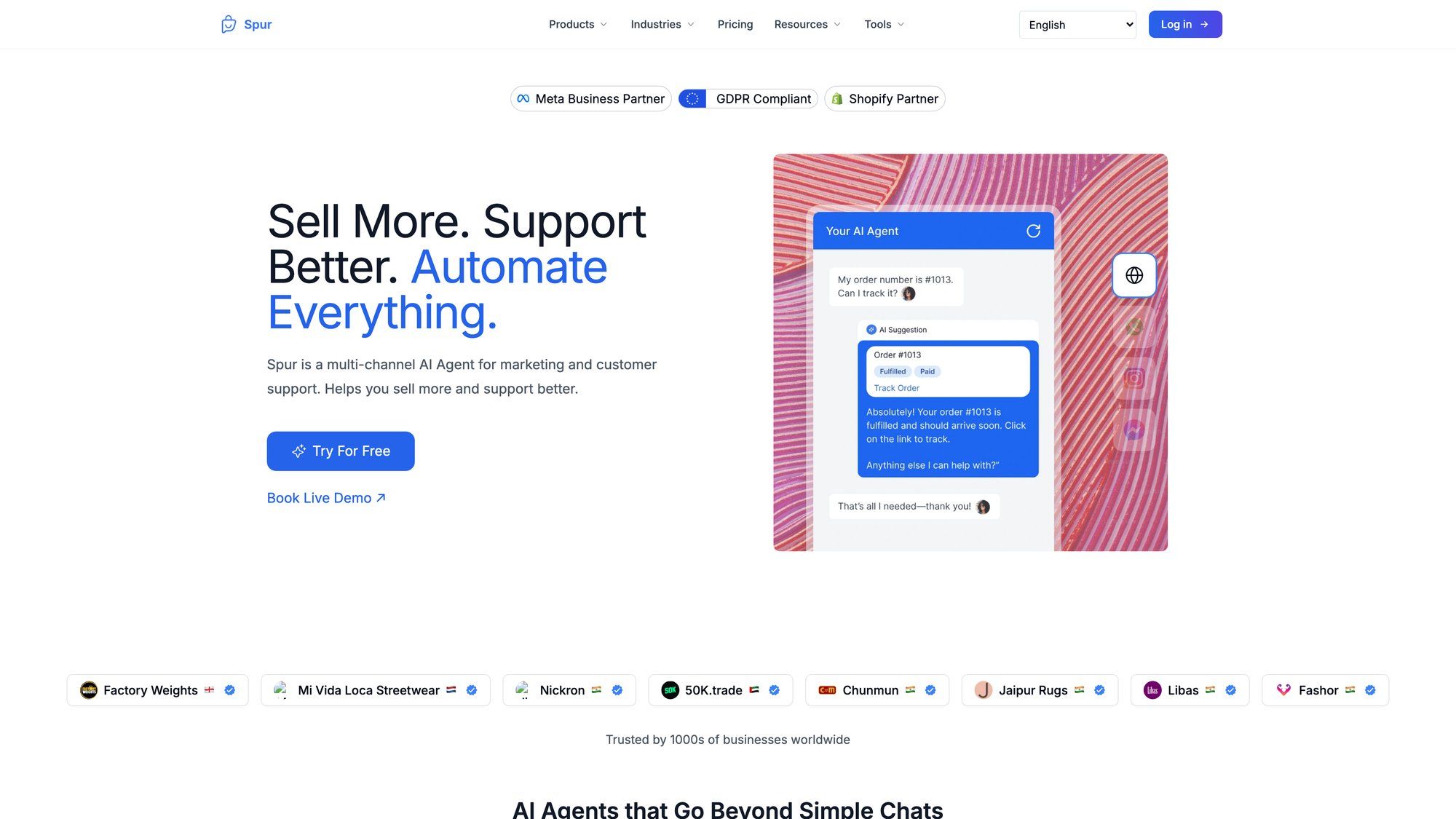
The difference is action. When a customer asks "Where's my order?" Spur's AI doesn't just explain how to check it. It actually retrieves the tracking info from your e-commerce platform and responds with the details.
When someone DMs you on Instagram asking to book an appointment, the AI checks your calendar and confirms the booking automatically.
Plus, you get marketing automation: abandoned cart recovery, broadcast campaigns, comment-to-DM flows on Instagram, and more. All managed from one unified inbox where your team can jump in when needed.
If you're curious about turning AI conversations into real business results, start a free trial with Spur. You'll see the difference between Q&A chatbots and actionable AI in minutes. Explore our use cases for chatbots to see what's possible.
Q: What's the difference between chatbots and actionable AI?
Most chatbots (including general AI assistants) are great at providing information. They can answer "What are your hours?" or "How do I reset my password?" based on their training data. But they stop there.
Actionable AI goes further. It can:
• Query your database to check order status or inventory
• Update records in your CRM or booking system
• Send personalized offers based on customer behavior
• Route complex issues to specific team members with full context
• Trigger follow-up messages or campaigns automatically
The line between "telling you" and "doing it for you" is huge for business efficiency. That's what we mean when we talk about actionable AI at Spur.
If your AI can only answer questions, your team still does all the work. If your AI can complete tasks, your team focuses on high-value interactions and strategic decisions while AI handles the repetitive, time-consuming stuff. Learn more about the difference between human agents vs AI chatbots and when each excels.
Google Gemini is one of the most advanced AI assistants available as we head into 2026. It merges conversational intelligence with practical utility across Google's ecosystem. Whether you're using it to draft emails, research topics, generate creative content, or automate tasks, mastering Gemini will give you a serious productivity boost.
And it's only getting smarter with each update. The shift from simple Q&A to autonomous agents that can handle multi-step tasks is already underway.
But remember: AI tools are most powerful when they're integrated into your actual workflows. Gemini is excellent for information and content creation. When you need AI that takes action, especially for customer-facing interactions across messaging channels, that's where platforms like Spur come in.
The future isn't just about talking to AI. It's about AI that helps you get real work done (from automating customer support to generating leads to improving customer experience).
Ready to explore both worlds? Start experimenting with Gemini for your research and content needs. And if you want to turn customer conversations into conversions, start a free trial with Spur and see actionable AI in action.
Welcome to the future of AI-powered productivity.