
Key takeaways
Gemini has no delete button — it's baked into Google. These 3 steps erase all conversations, kill tracking, and wipe your AI data in under 2 minutes.
Ask an AI about this article
Google's Gemini AI assistant has become deeply woven into Android phones and Google services. But many users are discovering something unsettling: there's no straightforward way to delete your Gemini account. That's because Gemini isn't actually a separate account at all. It's integrated directly into your Google Account, saving every conversation and interaction by default.
If you're looking to protect your privacy, stop Gemini from tracking your conversations, or completely remove your data from Google's AI systems, you're in the right place. This guide shows you exactly how to delete your Gemini chat history, disable activity tracking, and effectively "delete" your presence on Gemini without destroying your entire Google account.
You can't delete a standalone "Gemini account," but you can completely wipe your Gemini data and prevent future tracking in three steps: delete all chat history via Gemini Apps Activity, turn off "Keep Activity" to stop data collection, and optionally disable the Gemini app on your device. This effectively removes your Gemini footprint while keeping your Google account intact.
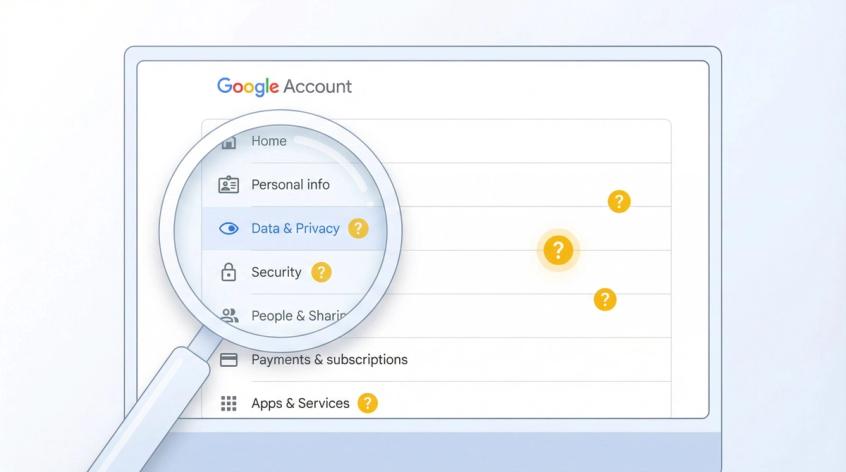
Can You Actually Delete a Gemini Account?
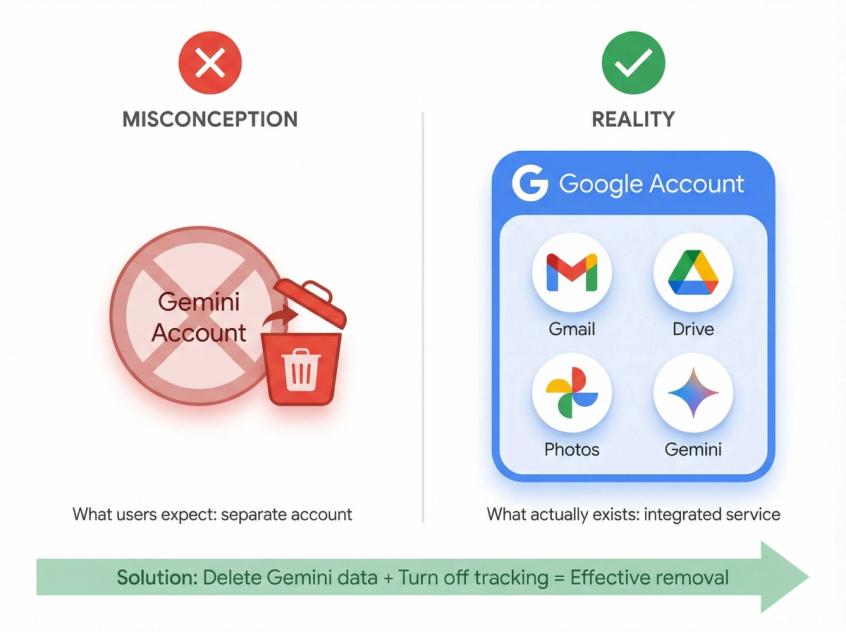
Let's clear up the confusion right away. Google Gemini (formerly called Bard) doesn't exist as a separate service you can sign up for independently. Instead, it's a feature tied directly to your Google Account, similar to how Gmail or Google Photos work.
When you use Gemini through the mobile app or at gemini.google.com, every conversation gets saved to something called Gemini Apps Activity in your Google Account. Research shows there's currently no one-click option to delete Gemini as a standalone account. The service is fundamentally connected to your Google profile.
So what does this mean for you? Deleting your entire Google account just to stop using Gemini would be extreme (you'd lose Gmail, Drive, Photos, everything). The better approach is to delete your Gemini data and turn off the tracking so it can't collect anything new. You effectively make Gemini disappear from your digital life without the nuclear option of account deletion.
Think of it this way: you're not deleting a Gemini account (because one doesn't technically exist), but you're removing all traces of your Gemini usage and preventing future data collection. The outcome is the same. If you're concerned about how AI platforms like ChatGPT save and use your data, you're not alone. Many users are questioning what happens to their conversations with consumer AI assistants.
How to Delete All Gemini Chat History
Every prompt you've sent to Gemini and every AI response you've received is stored in your account. If you value your privacy, this is the first thing to eliminate. Google gives you control here with options to delete individual conversations or wipe everything at once.
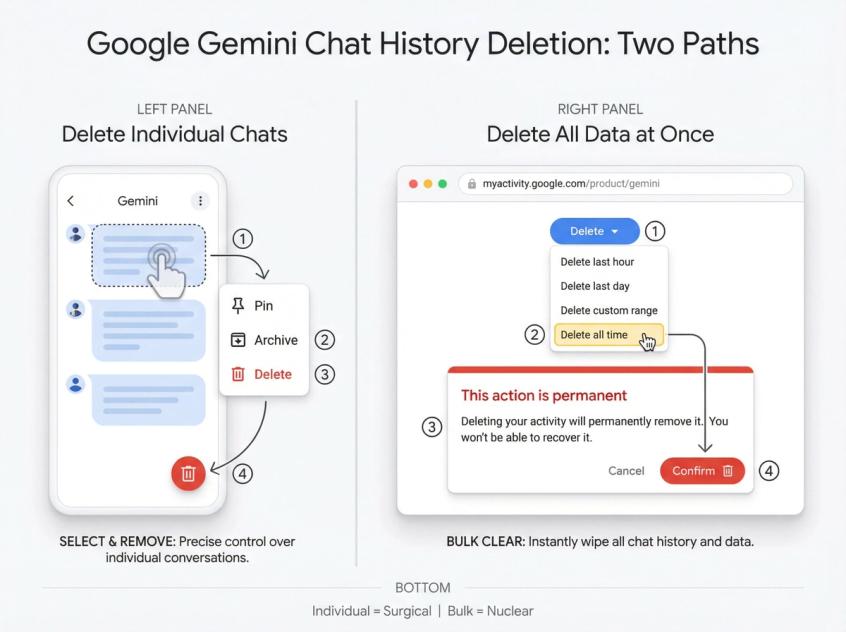
Delete Individual Gemini Conversations
Sometimes you just want to remove specific chats without clearing everything:
① Open Gemini on your device.
On Android, launch the Gemini app. On desktop or iPhone, visit the Gemini web app and sign in.
② Access your chat list.
Tap the Menu icon or swipe up to see "Recent" conversations.
③ Select the conversation to remove.
On mobile, touch and hold the chat. On web, click the three dots next to it.
④ Choose "Delete" and confirm when prompted.
When you delete a chat from your Recent list, Google also removes it from your Gemini Activity log. The data is genuinely gone from Google's systems, not just hidden from view.
How to Delete All Gemini Data at Once
If you have dozens or hundreds of conversations, deleting them one by one would take forever. Instead, use the Gemini Apps Activity controls to erase everything in seconds:
① Access your Gemini Activity settings using either method:
• Visit the Gemini Apps Activity page directly (part of Google's My Activity center)
• Or open the Gemini app, tap your profile icon (top right), and select "Gemini Apps Activity"
② Look for the Delete option at the top of the activity page.
Click or tap it to see deletion time ranges.
③ Select "All time" to delete your complete Gemini history.
Google's official documentation confirms this option removes all your Gemini Apps activity from their servers. You can also choose smaller ranges like "Last hour," "Last day," or a custom period if needed.
④ Confirm the deletion.
Google will warn you this action is permanent. Confirm to proceed.
After deletion completes, refresh your Gemini app or web page. Your conversation history should be completely empty. If you visit Google My Activity for Gemini, you'll see no items listed (or only brand new ones if you've used Gemini again).
Tech privacy guides explain that deleting all chats removes your Gemini activity connected to your Google profile. You've effectively erased your personal data from Gemini's storage.
How to Stop Gemini from Tracking Your Conversations
Deleting past conversations is great, but what about future interactions? By default, Google continuously logs every new Gemini conversation to your account. This is where the "Keep Activity" setting comes in.
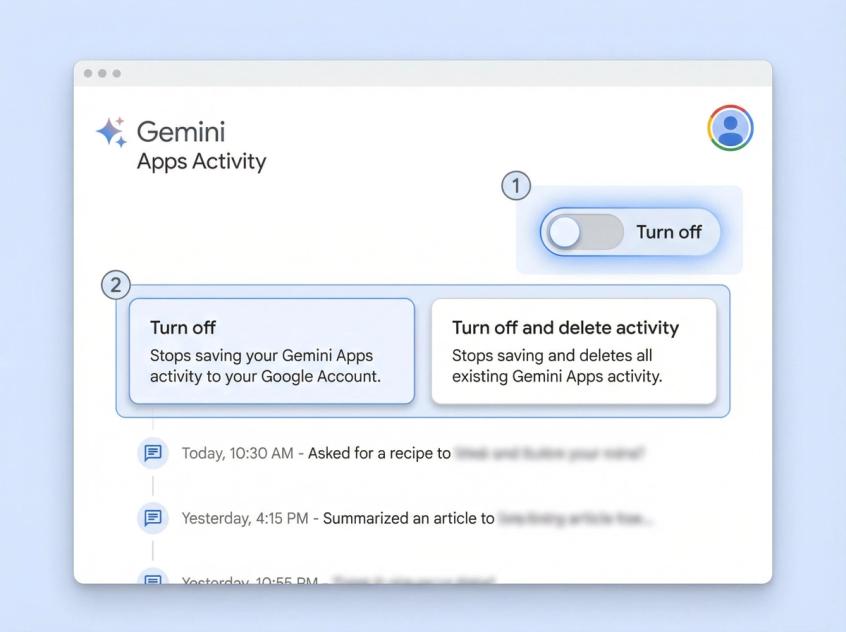
When Keep Activity is turned on (the default for users over 18), Gemini saves your prompts and responses permanently. When you turn it off, Gemini switches to something like incognito mode. Your chats won't be saved in your account history, giving you genuine privacy.
How to Turn Off Gemini Activity Tracking
| Option | What It Does | Best For |
|---|---|---|
| "Turn off" | Stops future tracking only | If you already deleted history in Step 1 |
| "Turn off and delete activity" | Stops tracking AND immediately deletes existing logged activity | Handling both tasks at once |
Here's how to do it:
① Open Gemini Activity settings again.
Same as Step 1: either visit the Gemini Apps Activity page or access it through the Gemini app.
② Find the "Turn off" toggle at the top of the Activity page.
You'll see two options listed in the table above.
③ Choose your option.
If you already deleted your history in Step 1, select "Turn off." If you skipped deletion earlier, choose "Turn off and delete activity" to handle both at once.
④ Confirm and save.
Google will explain what turning off means (some features won't work). Confirm to finalize.
With activity tracking disabled, your Gemini conversations become temporary. You can still use the assistant, but each session won't leave a lasting data trail attached to your Google profile. This approach aligns with chatbot best practices that prioritize user privacy and data control.
What Happens After You Turn Off Tracking
Even with activity "off," Google retains recent conversations for up to 72 hours internally to maintain the service and process feedback. But crucially, these temporary chats won't appear in your account history and won't be used to train Google's AI models. After 72 hours, they're purged.
What Features Stop Working Without Activity Tracking
Turning off Gemini's activity does limit some functionality:
| What You Keep | What You Lose |
|---|---|
| Core Gemini AI responses | Gmail, Drive, Workspace integrations |
| Basic phone tasks | Conversation history across devices |
| Messaging (WhatsApp, etc.) | Personalized improvements over time |
| Utilities and basic functions | Extension features and connected apps |
Many of Gemini's integrations with other apps won't work when activity is disabled. For example, Gmail, Drive, and other Workspace integrations become unavailable via Gemini. That makes sense from a privacy perspective: if you're not allowing data collection, the AI also can't pull in personal data from those services.
With tracking off, only core functions remain available, like using Gemini for basic phone tasks, messaging, WhatsApp, and utilities. For most people seeking privacy, this trade-off is absolutely worth it.
You can always re-enable activity tracking later if you change your mind (though your deleted history stays permanently deleted).
How to Disable or Uninstall the Gemini App
After clearing your data and stopping future tracking, you might want to completely remove Gemini from your device. The process varies depending on your phone:
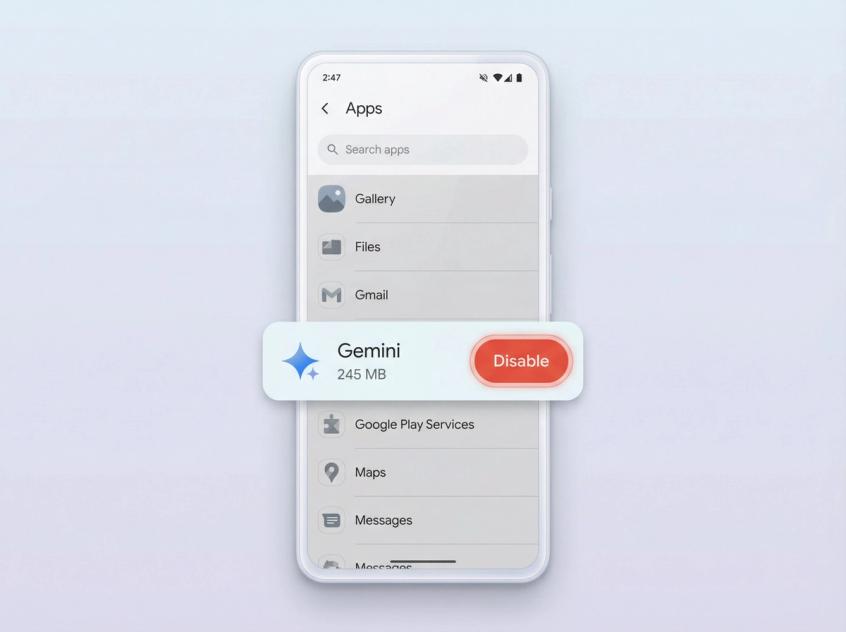
→ For Pixel and newer Android devices:
Modern Pixel phones (Pixel 9/Pixel 10 and beyond) ship with Gemini as the default assistant, which means it's a built-in system app you typically can't fully uninstall. But you can disable it.
Go to Settings > Apps, find Gemini, and choose "Disable" or "Turn off." This will revert your assistant to the standard Google Assistant and prevent Gemini from launching.
On some phones, simply reactivating Google Assistant (say "Hey Google" and follow the prompts to switch back) will effectively turn off Gemini's presence.
→ For other Android devices:
If you manually installed the Gemini app via the Play Store, you can uninstall it like any other app. Touch and hold the app icon, select Uninstall, or go to Play Store > Gemini > Uninstall.
→ For iPhone or other devices:
There's currently no dedicated Gemini app for iOS. If you were accessing it via the web at gemini.google.com, simply log out and clear your browser data if desired.
After disabling or removing the app, Gemini won't appear in your daily device usage at all.
How to Cancel Gemini Paid Subscriptions
Google offers paid plans for advanced AI features through Google One subscriptions (sometimes branded as Google AI Pro or Ultra). For example, Pixel users might have received a free trial of Gemini 2.5 Pro as part of a promotion.
If you signed up for a paid plan and you're now done with Gemini, cancel those subscriptions so you won't be billed:
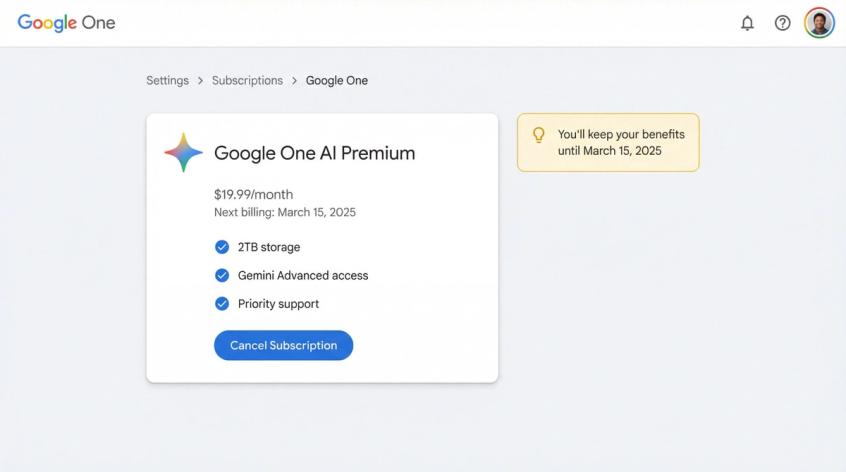
• Go to Google One (one.google.com) or the Play Store subscriptions section, wherever you purchased the plan.
• Look for the Google AI subscription (might be labeled as "Google One with AI features" or "Google AI Pro").
• Select "Cancel Subscription" and confirm. You'll retain benefits until the end of your billing period, but it won't renew.
If you only ever used free Gemini access, you can skip this step since there's no subscription to cancel.
How Spur Helps You Take Control of AI Conversations (Without the Privacy Concerns)
If you're stepping away from Gemini because of privacy concerns or because you need more control over AI-powered conversations, you're not alone. Many businesses are discovering they need AI that actually respects their data and gives them full ownership of customer interactions.
This is exactly where Spur makes a difference. Unlike consumer AI assistants that store your conversations on their servers and use them for model training, Spur puts you in complete control. When you deploy Spur's actionable AI agents for customer support, the AI is trained on your knowledge base (your website data, FAQs, product information). Your customer conversations stay in your unified inbox, not scattered across Google's systems.

Here's what makes Spur different:
→ Full data ownership.
With Spur's WhatsApp Business API, Instagram automation, and live chat platform, your customer messaging data stays in your account. The platform doesn't harvest your conversations for AI training the way consumer tools do.
If you're privacy-conscious (clearly you are, if you're reading this guide), that matters. Spur even offers GDPR compliance and a comprehensive data processing agreement for businesses that need strict data protection.
→ Actionable AI, not just Q&A.
Spur's AI agents don't just answer questions. They can track orders, book appointments, update records, and handle real business tasks. That's fundamentally different from consumer chatbots that regurgitate information. Learn more about what makes virtual agents different from simple FAQ bots.
→ Multi-channel unified inbox.
Instead of juggling WhatsApp Business API, Instagram DMs, Facebook messages, and live chat across different platforms (all potentially feeding data to various AI systems), Spur brings everything into one inbox with consistent AI support across channels. This unified approach represents true customer service automation without sacrificing data control.
→ Your knowledge base, your rules.
Unlike many platforms with limited AI training on custom data, Spur lets you train the AI agent on your specific business knowledge. You control what it knows and what it doesn't. Plus, when complex issues arise, Spur's chatbot-to-human handoff ensures seamless transitions to your support team.
If you're managing customer conversations across messaging apps and you want the benefits of AI without the privacy trade-offs of consumer assistants, try Spur free for 7 days. You'll get actionable AI that works for your business, not a tech giant's training data.
What Data Does Google Keep After You Delete Gemini?
Even after you delete your Gemini history and turn off tracking, you might wonder: does Google still keep anything?
According to Google's privacy documentation, when Keep Activity is off, your Gemini chats are not stored in your account or used to train AI. Google states it retains recent conversations for up to 72 hours behind the scenes to ensure the service functions properly and to process immediate feedback.
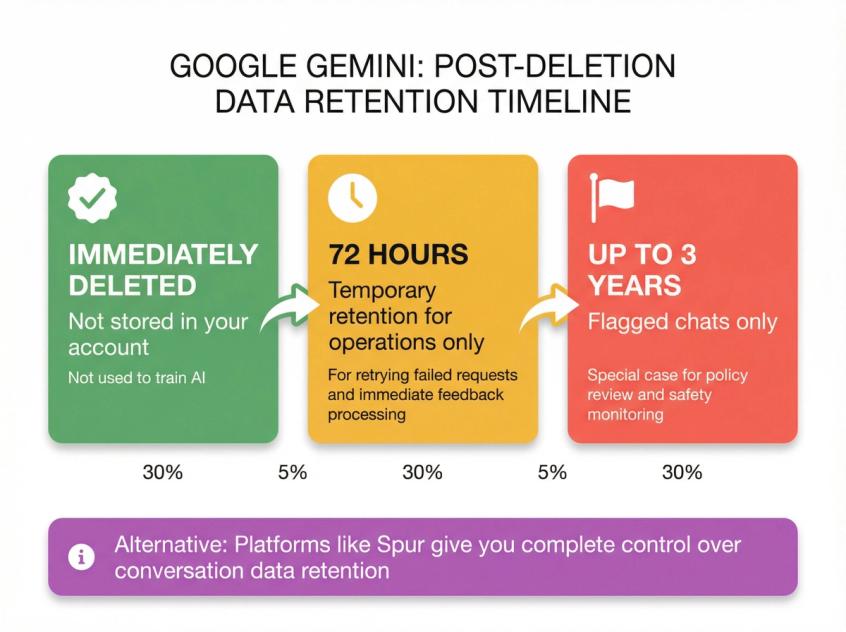
Privacy analysis explains this temporary retention is for operational purposes (like retrying failed requests). Those chats won't show up in your history and aren't used for human review or long-term AI improvement when activity is disabled.
One exception: If any of your past chats were flagged for policy review before deletion, privacy notices state reviewed chats might be stored for up to 3 years in a separate system. This is a special case for quality and safety monitoring, not routine data collection.
Generally, once you delete your activity, it's gone from your profile and regular storage. This contrasts with the approach many chatbot platforms take, where you maintain complete control over conversation data retention policies.
How to Remove Gemini from Gmail, Photos, and Other Apps
Google has woven Gemini AI suggestions into apps like Gmail (for smart compose and summaries), Photos, Chrome, and other services. If you want to disable AI features in these apps as well, you'll need to adjust settings in each one.
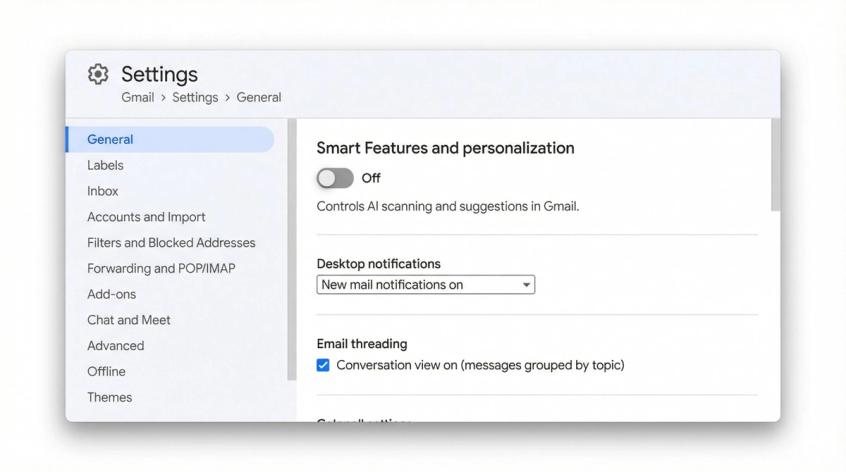
For Gmail, go to Settings > General and disable Smart Features and personalization. This prevents AI from scanning your content. Since September 2025, Gmail, Chat, and Meet's generative features can be turned off by disabling smart features in Workspace settings.
Privacy guides provide detailed walkthroughs for turning off Gemini access in Gmail, Photos, Chrome, and other Google apps. The basic principle is the same: dive into each app's settings and switch off AI features.
Our guide focused on deleting your Gemini data and account-level settings. For individual apps, disabling smart features ensures Gemini isn't operating in the background across your Google ecosystem.
Conclusion: You're Now Free from Gemini (Without Losing Your Google Account)

While you can't "delete a Gemini AI account" as a standalone entity, you now know how to completely scrub your Google Gemini data and disengage from the service:
• You've deleted all your Gemini chats and prompts from Google's storage, removing any personal information or history.
• You've turned off Gemini activity tracking, so no new data will be saved going forward.
• You've optionally disabled or removed the Gemini app, ensuring it doesn't appear on your devices.
• You've checked subscription and integration settings to make sure nothing is left hanging.
Your involvement with Google's Gemini AI is effectively gone, and you didn't have to destroy your Google account to achieve it.
Google may evolve Gemini in the future (it's a rapidly changing product), so check the official Google Account Help pages periodically for any changes in deletion or privacy options. As of late 2025, the steps in this guide reflect the current way to regain your privacy and peace of mind with Gemini.
To see how Gemini compares with other AI assistants in terms of privacy and functionality, explore our guides on Claude vs ChatGPT, Copilot vs ChatGPT, and DeepSeek vs ChatGPT.
Remember: taking control of your data matters, especially with AI services. Whether you're switching to a different AI platform, moving to business tools like Spur where you own your data, or just pulling back for privacy reasons, always review what data an AI has and use the available tools to manage or delete it.
Understanding the difference between human agents and AI chatbots can also help you make informed decisions about which tools to trust with your conversations.
We hope this guide helped you take back control. Share it with others wondering about the same issue. Stay safe and in control of your data.
Frequently Asked Questions
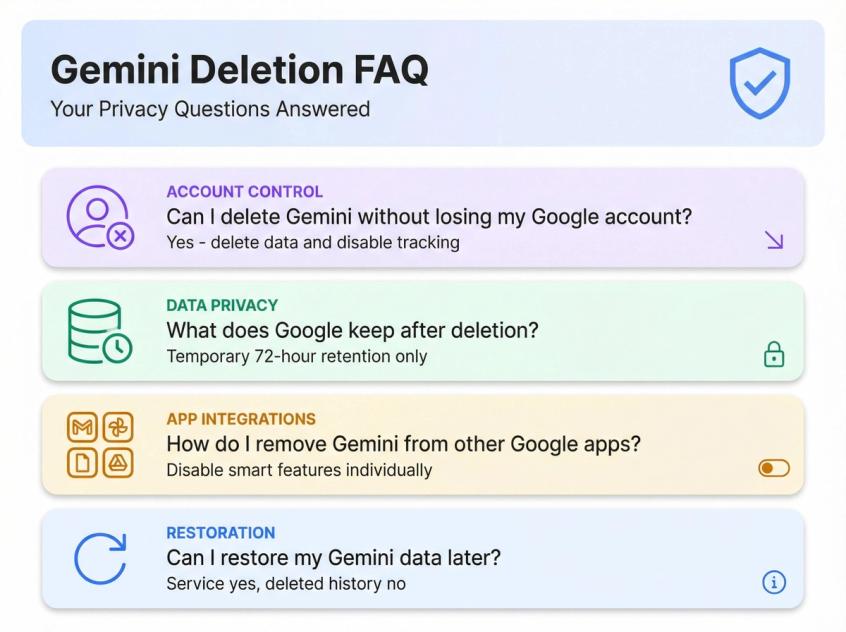
There's no separate account deletion button for Gemini. The closest you can get is deleting all your Gemini data and turning the service off, which we've covered in this guide. You've effectively accomplished the goal: none of your data remains in Gemini, and it won't collect more.
The only way to "fully" remove the account would be deleting your entire Google account, which is unnecessary and extreme. The steps in this guide let you disengage from Gemini completely while keeping your Google account for other services.
With Keep Activity off, your chats are not stored in your account or used to train AI. Google retains recent conversations for up to 72 hours internally for service operations and immediate feedback processing. This is temporary and won't show up in your history. Once you delete your activity, it's gone from your profile and regular storage.
When you turn Gemini's activity off, those integrations are automatically disabled. Gemini can't read your emails or access other data because it's not allowed without activity tracking enabled. You can verify this by checking the Gemini app settings under "Connected Apps" or "Extensions." With activity off, most should show as inactive.
Google has integrated Gemini AI suggestions into Gmail, Drive, and other apps. In Gmail, go to Settings > General and disable Smart Features and personalization to prevent AI from scanning your content. Privacy guides provide detailed steps for each Google app. You'll need to disable smart features in individual apps to fully remove AI from your Google experience.
You can always turn the service back on by toggling Keep Activity to "on" in the Gemini Activity settings and signing in to the Gemini app. This re-enables full functionality. However, any past history you deleted is gone for good. There's no way to restore old conversations once deleted. You'd be starting fresh, which is probably preferable for privacy anyway.
No. Google Assistant and Google Gemini are separate services. Google Assistant data is stored under "Google Assistant / Voice & Audio Activity" in your Google account, not under Gemini. Deleting Gemini activity won't touch your Assistant history.
If you want to delete Assistant voice query history too, you'll need to do that separately in myactivity.google.com under Web & App Activity or Assistant sections. Likewise, disabling Gemini doesn't disable Google Assistant. On Pixel phones, disabling Gemini simply reverts you to the classic Assistant for voice queries.
If you're frustrated by how scattered Google's privacy controls are (Gemini activity here, Gmail smart features there, Photos AI somewhere else), you're experiencing exactly why many businesses are moving to platforms where they control the entire stack.
Tools like Spur give you a single dashboard for all your customer AI interactions across WhatsApp, Instagram, Facebook, and live chat. One inbox, one privacy policy, complete control. No hunting through dozens of Google settings pages.
Yes, absolutely. With activity off, Gemini still functions as an AI assistant. It just won't remember your previous conversations or integrate with Gmail, Drive, and other Google services. You'll get useful responses to queries, but each session is independent.
Think of it like using an incognito browser: fully functional but not storing history. For a comparison of different AI assistant approaches, check out our Gemini vs ChatGPT analysis or explore how to use Google Gemini effectively.
Sources
The pages this article links out to, in the order they appear.
- Gemini web app gemini.google.com
- Google also removes it from your Gemini Activity log support.google.com
- Gemini Apps Activity page myactivity.google.com
- Google's official documentation confirms support.google.com
- Gemini 2.5 Pro assistant.google.com
Was this article useful?